I recently migrated to a new machine, and even though I have turned off every category in the Notifications section of settings for both sounds and pop ups, they keep showing up/making a sound for every email for all the accounts I have configured. The Notifications section looks the same as on my old machine, except for the fact that they correctly do not show there. Has anyone come across this? Is there another section under settings that influences this?
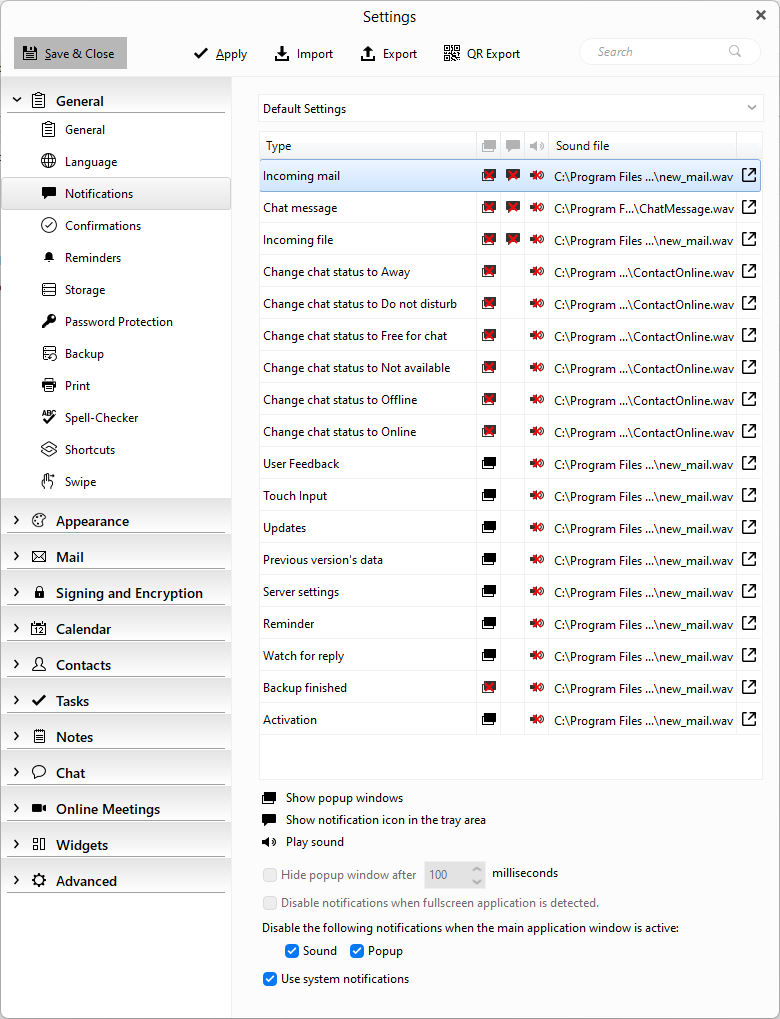
I recently migrated to a new machine, and even though I have turned off every category in the Notifications section of settings for both sounds and pop ups, they keep showing up/making a sound for every email for all the accounts I have configured.
If you have “disabled / unchecked” all the the notifications in eM Client “including Use system notifications” at the bottom, then could be the Windows System Notifications in the OS are still enabled causing it.
See the “Microsoft extract below” on how to disable System app Notifications for each app.
“Notifications and Do Not Disturb in Windows”
“In the Settings on your Windows device, open System > Notifications”.
Notifications
“Select the app under Notifications from apps and other senders. Adjust the notification preferences, here are the available options”
“Turn notifications on or off: disable notifications for specific apps if you no longer want to receive them”
“Show notification banners: enable or disable pop-up banners for notifications”
“Show notifications in notification center: choose whether notifications should appear in the notification center”
“Hide content when notifications are on lock screen: prevent sensitive notifications from showing on the lock screen”
“Play a sound: toggle the sound for incoming notifications”
“Priority of notifications: Set the priority to Top, High, or Normal. Only one app can be set as Top priority, and High priority notifications will appear above Normal ones in the notification center”
I turned Notifications off in Windows following these instructions and no change.
I unchecked ‘Use System Notifications’ as well, no change.
Note that I migrated from another Windows 11 machine which never had this problem (though this was a machine that was upgraded from Windows 10 to 11 and it worked on 10 correctly).
I turned Notifications off in Windows following these instructions and no change.
I unchecked ‘Use System Notifications’ as well, no change.
Then try using the builtin Backup and Restore to transfer your exact eM Client complete settings and data from your other Windows 11 pc to your upgraded Windows 11 pc.
See the following post from @Gary on how to transfer your exiting email with all the settings etc to your new computer using the backup and restore feature in eM Client.
[Transfer eM from one pc to another - Frequently Asked Questions - eM Client] https://forum.emclient.com/t/transfer-em-from-one-pc-to-another/58064/9
Or see the eM Client support blog page on how to transfer from one computer to another using either “the builtin backup and restore” or optionally “via the hidden database folder”.
Note:- Before doing any of the above options, make a manual backup via “Menu / Backup” on your upgraded Windows 11 pc incase you need to restore for any reason. You can see when the backup is complete in Show Operations via clicking the dropdown on the right of Refresh.
I don’t have the old machine set up anymore. But the way I transferred everything over, was actually by moving over the AppData/Roaming/emClient folder over from one machine to the other (I’ve done this before without issue). That brought in all my accounts all configured, all my Rules, settings and all my old emails that were local. The only problem has been that I cannot stop the notifications: neither the sounds nor the pop ups, no matter what I do.
If I shut off the Notifications feature entirely in Windows, the pop up notification finally stops (though now I can’t get notifications for any other apps that I do want to be notified about), but nothing it seems can get rid of the sound for incoming mail.
I don’t have the old machine set up anymore. But the way I transferred everything over, was actually by moving over the AppData/Roaming/emClient folder over from one machine to the other (I’ve done this before without issue)
If you then transferred the hidden database folder “complete contents to the exact same eM Client version of the app”, then has to be a Windows 11 issue setting somewhere.
eM Client official support may be able to assist you further. If you have a current active paid Pro, Personal or Business version go to the VIP Support page and login and lodge a support request.
I bought it years ago so I don’t get support anymore, I would have to buy a new license. It’s definitely the exact same version.
Thing is, Windows 11 or not, since the sounds and notifications are turned off in the emClient settings themselves, that right there should turn them all off regardless of what Windows is set to. So really, the Windows settings should be irrelevant, emClient should never attempt to play a sound.
This seems reminiscent of this thread: How do I turn off sound notifications - #6 by cyberzork
In fact, even if all the sound files are deleted from the sound, a (different) sound still plays just like this thread says.
I uninstalled and reinstalled (said no to deleting the database) and that didn’t help.
I uninstalled and reinstalled (said no to deleting the database) and that didn’t help.
As you have uninstalled and reinstalled eM Client and even tried a new database and also disabled the mail and sound notifications as per my previous V9.2 example post as you mentioned. then I would contact VIP support.
I bought it years ago so I don’t get support anymore, I would have to buy a new license
You can then get another year VIP extension at a reduced cost via the following link.
Not sure if tried but maybe the settings did not take with the transfer?
In em client, enable all the notifications in the options and then Save and close.
Then go back into options and disable them again, Save and close.
I’ve tried this as well. I’ve compared all the settings between the machines, and it’s all the same except the one that was upgraded from Windows 10 works as expected and the one that was a fresh install on 11 ignores all the notifications settings completely. When it’s playing the sound even with the sound file deleted - just as if the settings do not exist entirely.