Can i rebuild index, any chance to restore data from mail_data.dat?

Hi there i updated by a mistake to version 10 of emclient, but i only have license for 9.
I uninstalled emclient and copied data from Roaming folder.
It only contains that:


Is there any chance to recover data, rebuild index or something? As when i copied it back even when i installed free version of emclient 10, it doesnt work.

i updated by a mistake to version 10 of emclient, but i only have license for 9.
I uninstalled emclient and copied data from Roaming folder.
It only contains that.

Is there any chance to recover data, rebuild index or something? As when i copied it back even when i installed free version of emclient 10, it doesnt work.

The V10 database is not backward compatible for older versions, so once you upgrade your database you cannot just simply install an older version over it. See the below eM Client support link extract below by @Olivia_Rust how to downgrade back to V9.

Or alternatively you could purchase u/g to V10 at a reduced price via either of these links, for either “just V10” with all V10 updates https://www.emclient.com/upgrade or purchase “V10 with Lifetime upgrades including V11,12 etc https://www.emclient.com/lifetime-upgrades

Posted by Olivia Rust on 21 July 2020 16:43

Note: These same steps can be used to downgrade from a BETA version to the current eM Client official version - just uninstall the BETA and reinstall current version from the website

Our databases are not backward compatible for older versions and once you upgrade your database to accommodate the new version, you cannot just simply install an older version over it.

If you have a backup of your database from eM Client 9 or older you can skip any export. If not, you will need to export local data before the downgrade to keep them.

For accounts set up with IMAP or EWS protocol this is not an issue, as setting these accounts anew will synchronize messages and folders back from the server.

For POP accounts and any data in Local folders, export them first via Menu > File > Export and once you downgrade, you can import them back via Menu > File > Import.

The steps to downgrade on Windows are to:

  • Export any local data you need to keep (menu > File > Export)
  • Uninstall eM Client 10
  • Either delete the database or rename it
  • Install your preferred older version of eM Client (You can find older versions in our Release history)
  • Restore from the backup (Menu > File > Restore) or create your accounts anew and import your local data back in (Menu > Accounts, Menu > File > Import)

If you want to just rename your database, the default location is in C:\Users%username%\AppData\Roaming\eM Client

The steps to downgrade on macOS are to:

  • Export any local data you need to keep (File > Export)
  • Uninstall eM Client 10
  • Either delete the database or rename it
  • Install your preferred older version of eM Client (You can find older versions in our Release history)
  • Restore from the backup (File > Restore) or create your accounts anew and import your local data back in (eM Client > Add account, File > Import)

If you want to delete or rename your database, the default location is in /Users/User Name/Library/Application Support/eM Client

If you upgraded by accident and aren’t sure if you need to downgrade manually, please see the article on this topic - This version of eM Client is newer than what your current license permits.
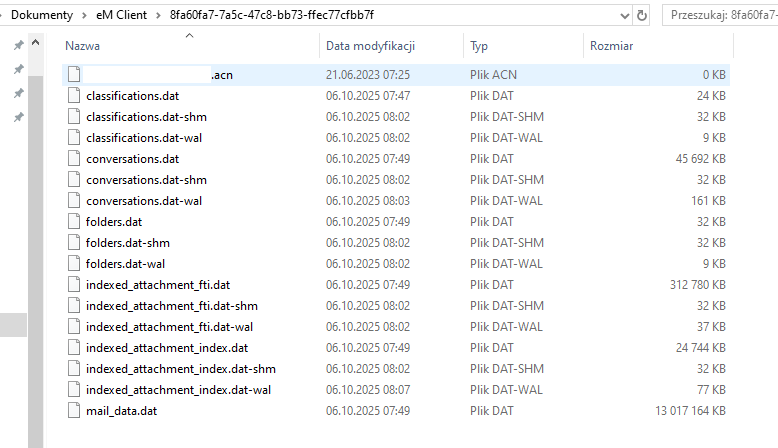
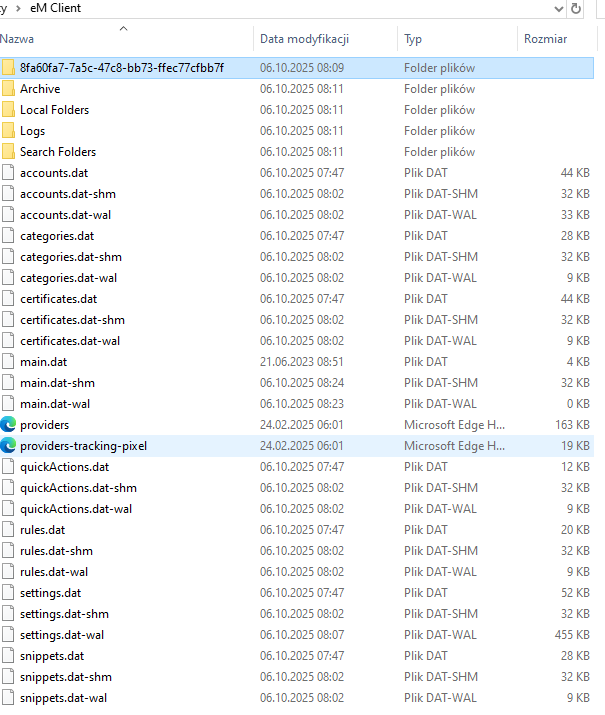
Hey, but even on version 10 this database is not readable , are there not enough files or what, why it cant read this database in version 10?

Hey, but even on version 10 this database is not readable , are there not enough files or what, why it cant read this database in version 10?

You carn’t manually open those hidden database files outside of the program if that’s what you have been trying to do.

If you install eM Client V10 and it won’t open and comes up with a database error, then you can try closing eM Client and manually repairing the database for Windows as per @Gary link.

Or if you have a Mac, close eM Client and then “open the Terminal app via either Launchpad or Utilities” on the Mac. Then Paste and run the following command.

/Applications/eM\ Client.app/Contents/MacOS/eM\ Client /dbrepair

If that still won’t open and you have a current active paid Pro or Personal or Business version, suggest to go to the VIP support page and login and lodge a support ticket.

it just doesnt load the database and i dont receive any errors., so it works like it totally ignores files i placed in userdata Roaming folder.

it just doesnt load the database and i dont receive any errors., so it works like it totally ignores files i placed in userdata Roaming folder

If the database doesn’t try to open / load, “check in eM Client that you have the correct hidden database storage location folder” in case you are pointing to the wrong path / location on startup.

"Menu / Settings (Preferences) / General / Storage).

https://www.emclient.com/webdocumentation/en/10.0/emclient/default.htm#Settings/Storage.htm

Also make sure you are using the same eM Client V9 or V10 “that matches your database” via the release history page or it won’t normally open either.

If your storage path location folder is correct, and you are using the same eM Client version, and manually repairing the database makes no difference as per my post further up, then sounds like you may have either database files missing or possibly corrupted in some way and might need to either "restore an eM Client backup (if you have a recent one) via “Menu / File / Restore” as per the eM Client documentation.

Or if no backup, close eM Client and then “rename your current hidden database folder” to eg: eM Client-Old and then reopen eM Client which will then create a new database from scratch and then see if eM Client will open.

If creating a new database then allows you to get back into eM Client, then “you can try restoring your mail from your old database” via either the hidden database folder or from a backup as per my post in the following thread link below.

https://forum.emclient.com/t/emails-missing-from-backup-when-restored/101556/2

Or see eM Client support page blog on Partial Restore “part way down the following page”.

https://www.emclient.com/blog/how-to-restore-backup-in-em-client-614

hello, emclient is loading fine, but the problem is it looks like it doesnt see this folder 8fa60fa7-7a5c-47c8-bb73-ffec77cfbb7f and this database file in this folder. So it doesnt show up anything in em client. Repairing database didnt help it looked like it didnt have anything to repair

mclient is loading fine, but the problem is it looks like it doesnt see this folder 8fa60fa7-7a5c-47c8-bb73-ffec77cfbb7f and this database file in this folder. So it doesnt show up anything in em client. Repairing database didnt help it looked like it didnt have anything to repair

If eM Client is loading fine “and you have the same eM Client version”, but you have missing hidden database folder, your only option would be to either “restore and older backup.zip” if you have been regularly making eM Client backups, or “restore and older hidden database folder” when you know the missing folder was there, as your current hidden database must be corrupted in some way.

If you don’t have any older eM Client backup.zip or older backed up hidden database folder to restore then there is nothing you can normally do.

You can certainly though as mentioned previously contact official VIP support and lodge a support ticket for further assistance who may be able to help you with other options if you have a current active paid Pro or Personal or Business version.

Lastly if you have a IMAP, Exchange, Office 365 or iCloud and “had no messages stored in Local Folders”, then just go to “Menu / Accounts” and remove and readd your account and all your mail and mail folders will come back from the server.