GMX Server says "Unauthorized" - possible fix but can't find the setting

This occurs with a gmx.com account. It happens with other clients too, so it isn’t an issue unique to eM Client.

Apparently gmx’s servers have an outdated architecture, which has something like DDoS protection for IMAP requests.

In Mailbird I was able to fix this issue by capping the Maximum Cached Connections to 1. However, I can’t find a similar option in eMClient’s settings. Is it not possible to change this?

Regards

Apparently gmx’s servers have an outdated architecture, which has something like DDoS protection for IMAP requests

GMX servers work fine with eM Client

Unauthorised for GMX accounts with IMAP is usually to do with the Two Factor authentication that either “needs to be disabled” in your GMX account or “a new 2FA app password generated” in your GMX account for eM Client as per this thread.

If disabling 2FA in your GMX account doesn’t work or generating a new app password in your GMX account also doesn’t work, then update what IMAP account server settings you have in eM Client so we can check if there is any obvious errors.

Also update what version of eM Client you have and if you have Windows or Mac & OS version.

1 Like

Edit: See next post.

Adding an application specific password fixed this issue.

Thanks.

Seems like I spoke too soon. The “Server says Unauthorized” dialog is still showing even with the custom password.

Seems like I spoke too soon. The “Server says Unauthorized” dialog is still showing even with the custom password.

Try then going into your GMX account then and “disable your 2FA authentication” and then go back into accounts in eM Client and “put in your normal email password” and save accounts and see if it works, as could be a GMX server issue with app passwords.

2FA is already turned off. This error happens with either type of email.

Following step 2 here Google Search solved the issue for other clients.

As you still have the same GMX unauthorised error with 2FA turned off using your normal email account password and “only worked for a short time with a new GMX generated app password”, then you would need your IMAP logs checked by official support to see why this is still happening.

So if you have a current active paid license, go to the VIP support page and login and lodge a support ticket and link this thread.

If you have run out of your 12 months support you can get another year support extension via the following page VIP Support Extension | eM Client

I’m not a paid user because I’m still evaluating the software.

The issue is similar to the one identified in this old thread, with a solution by developer Gary:

Unfortunately this didn’t work either.

I then removed and added the account a few times. Always there are CalDAV or CardDav logs associated with the unauthorized error dialog.

Eventually I removed and added the account and I entered the imap and smtp servers manually. This has solved the issue, but the account is mail only with no contacts or calendar.

Regards

Eventually I removed and added the account and I entered the imap and smtp servers manually. This has solved the issue, but the account is mail only with no contacts or calendar.

If you had to manually add the IMAP account then you will need to first “go into your GMX account online” and get the CalDAV URL and CardDAV URL and also add then manually into eM Client. If you carnt find the URLs then contact GMX technical support via ph or email.

Then once you have the URLs, go back to “Menu / Accounts” and click “Add Account / Calendar” and select CalDAV” and also click “Add Account / Contacts” and select CardDAV and follow the prompts on the manual wizard for both as per the follow documentation & example screenshots.

“Creating a New Account documentation”

https://www.emclient.com/webdocumentation/en/10.3/eMClient/Default.htm#Accounts/Create%20New%20Account.htm%3FTocPath%3DAccounts|_____2

You can try manually adding these GMX CalDAV and CardDAV urls with your GMX login details and see if they work as per @Gary posted in the following thread.

https://forum.emclient.com/t/gmx-web-de-caldav-probleme/49604/2

When setting up an account with GMX.com or web.de using the Automatic Setup, both the CalDAV and CardDAV will be added automatically.

If you want to add it manually, the urls are:

GMX.com
CalDAV: https://calendar.gmx.com/begenda/dav/users/
CardDAV: https://carddav.gmx.com/.well-known/carddav/

web.de
CalDAV: https://kalender.web.de/begenda/dav/users/
CardDAV: https://carddav.web.de/.well-known/carddav/

I’m not a paid user because I’m still evaluating the software.

You can email [email protected] for initial assistance inside your 30 day trial.

Hallo acrylix,

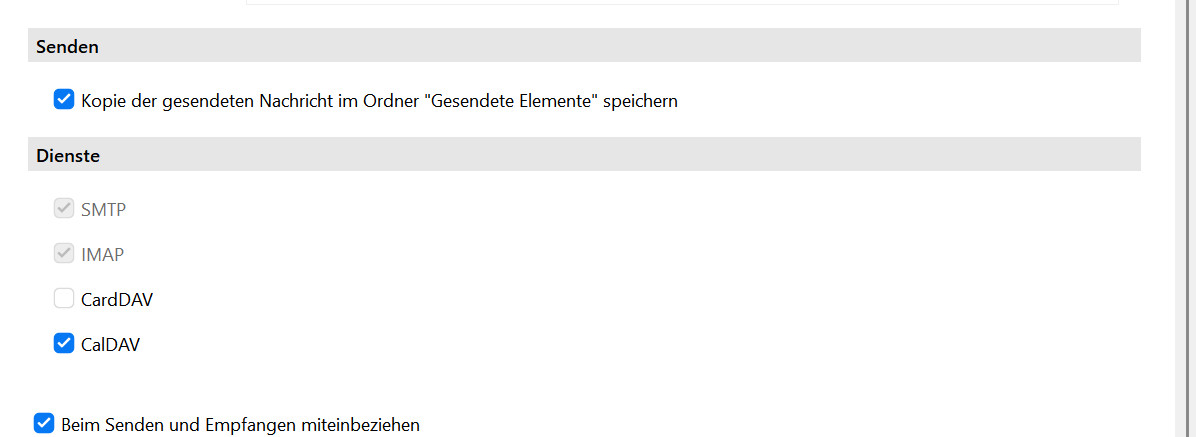
In the account settings, simply turn off CardDAV.

This will allow GMX to work immediately using the default settings and your password. (DeepL)

Thanks both. I tried re-adding via automatic setup with only CardDav selected. The CardDav log shows:

15:48:53.758|067|   eM Client 10.4.5326+97a2e75a43 (Windows)
15:48:53.758|067|   Account's UID is [ account uid ]
15:48:53.758|067|   AccountBase.ChangeOnlineState : State changed to ONLINE due User
15:48:53.758|047|   BOOTSTRAP Updating account properties https://carddav.gmx.com/.well-known/carddav
15:48:53.758|047|   Request:
15:48:53.759|047|   Method: OPTIONS, RequestUri: 'https://carddav.gmx.com/.well-known/carddav', Version: 1.1, Content: <null>, Headers:
15:48:53.759|047|   {
15:48:53.759|047|     User-Agent: eMClient/10.4.5326.0
15:48:53.759|047|   }
15:48:53.759|047|   
15:48:53.759|047|   Response:
15:48:54.011|016|   StatusCode: 401, ReasonPhrase: 'Unauthorized', Version: 1.1, Content: System.Net.Http.HttpConnectionResponseContent, Headers:
15:48:54.011|016|   {
15:48:54.011|016|     Cache-Control: no-cache, no-store, max-age=0, must-revalidate
15:48:54.011|016|     Date: Fri, 19 Jun 2026 14:48:55 GMT
15:48:54.011|016|     Pragma: no-cache
15:48:54.011|016|     Server: nginx
15:48:54.011|016|     Strict-Transport-Security: max-age=31536000 ; includeSubDomains
15:48:54.011|016|     WWW-Authenticate: Basic realm="CardDav Server"
15:48:54.011|016|     X-Content-Type-Options: nosniff
15:48:54.012|016|     X-Frame-Options: DENY
15:48:54.012|016|     X-Request-ID: 65c3dbbb-9577-4000-a2b9-9293663fa43f
15:48:54.012|016|     X-XSS-Protection: 0
15:48:54.012|016|     Content-Language: en
15:48:54.012|016|     Content-Length: 437
15:48:54.012|016|     Content-Type: text/html;charset=utf-8
15:48:54.012|016|     Expires: 0
15:48:54.012|016|   }
15:48:54.012|016|   <!doctype html><html lang="en"><head><title>HTTP Status 401 – Unauthorized</title><style type="text/css">body {font-family:Tahoma,Arial,sans-serif;} h1, h2, h3, b {color:white;background-color:#525D76;} h1 {font-size:22px;} h2 {font-size:16px;} h3 {font-size:14px;} p {font-size:12px;} a {color:black;} .line {height:1px;background-color:#525D76;border:none;}</style></head><body><h1>HTTP Status 401 – Unauthorized</h1></body></html>
15:48:54.012|016|   
15:48:54.012|016|   

Turning off CardDav prevents the dialog from showing, but then my contacts aren’t downloaded.

I’ve sent an email to support pointing them to this thread.

Regards

@acrylix

As your email was working ok after you manually adding that in, i would leave that and then just try manually adding your CalDAV and CardDAV URLs as per the screenshots above in my previous post. Have you tried manually adding them in with the GMX.com URL’s above ?
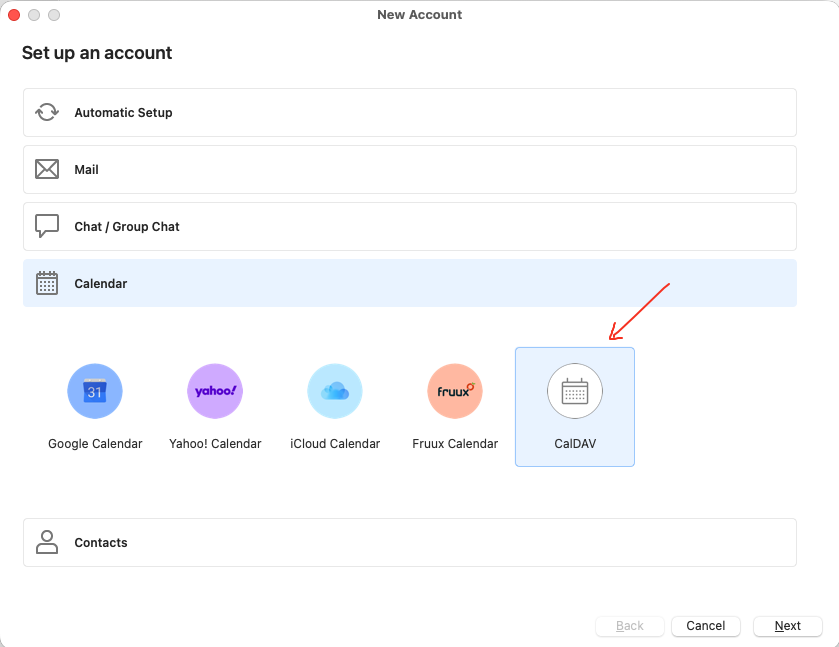
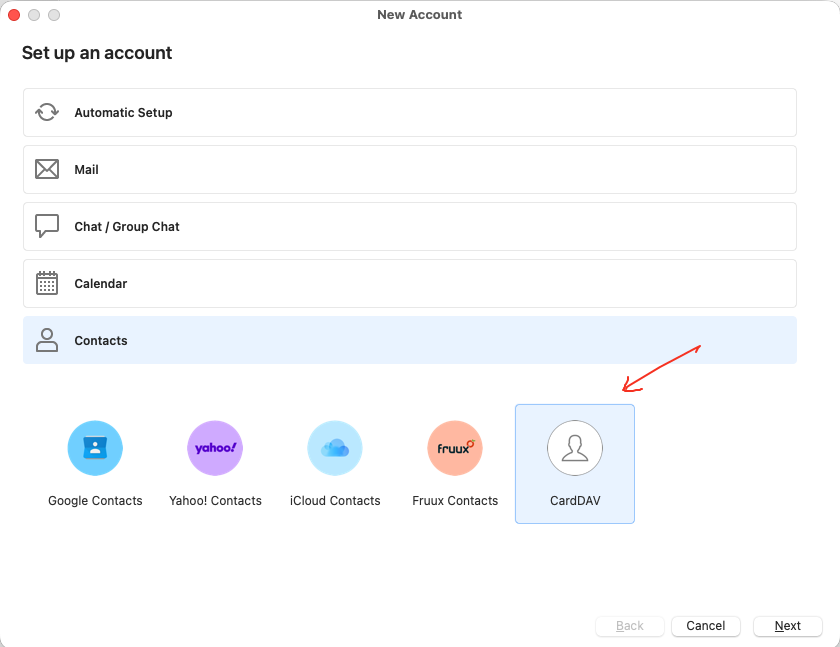
Yes, I followed your advice previously and added them manually. The unauthorized dialog still appeared.

I managed to solve this issue by adding a second application specific password in gmx.

For some reason GMX servers will remember the application specific password used for the email retrieval and then block it for the CardDAV retrieval.

Regards