The latest eM Client V10.5.246 now has cloud drive mobile support. If you haven’t used it on the desktop then this is how it works on the mobile.
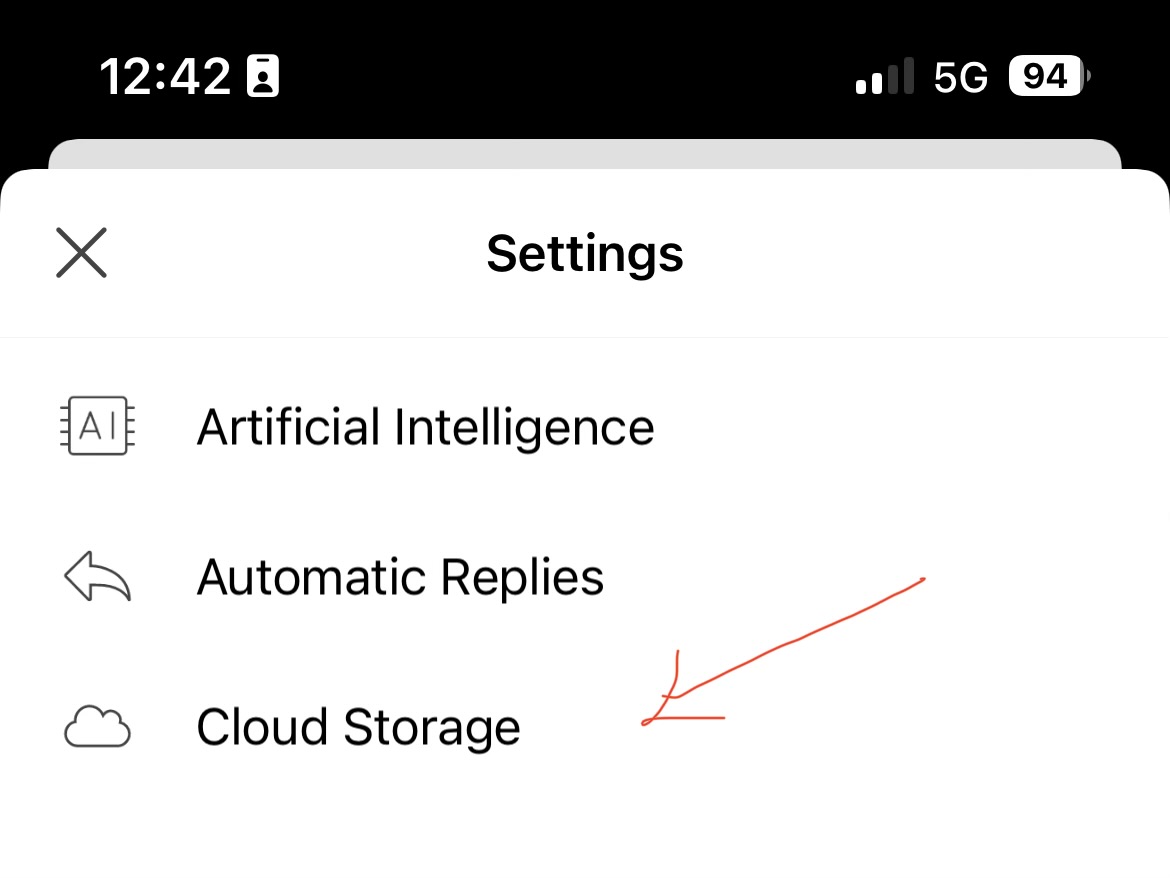
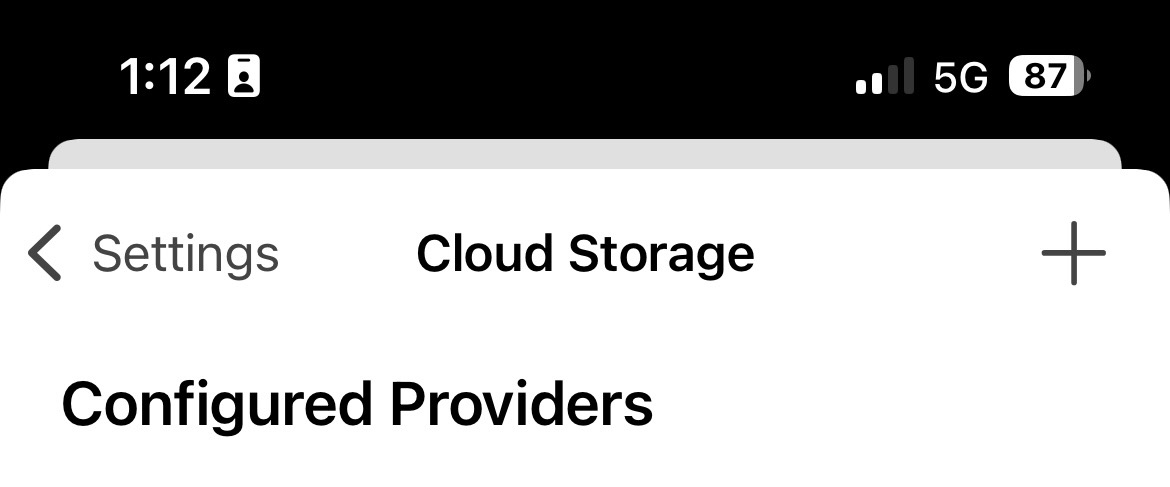
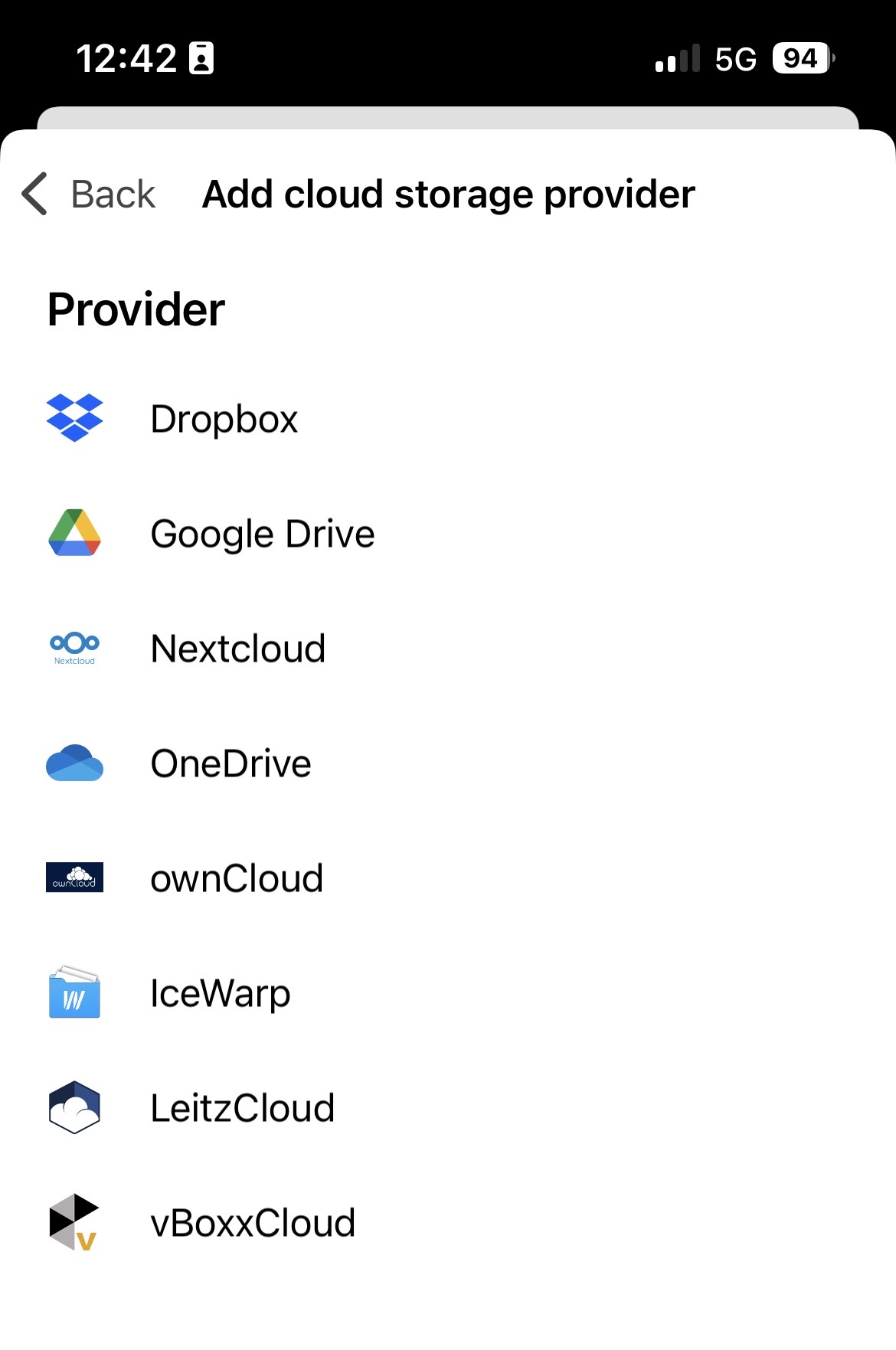
Go to “Menu / Settings” and click “Cloud Storage” under Mail. Then press the “+” icon at the top right and add in your Cloud drives.
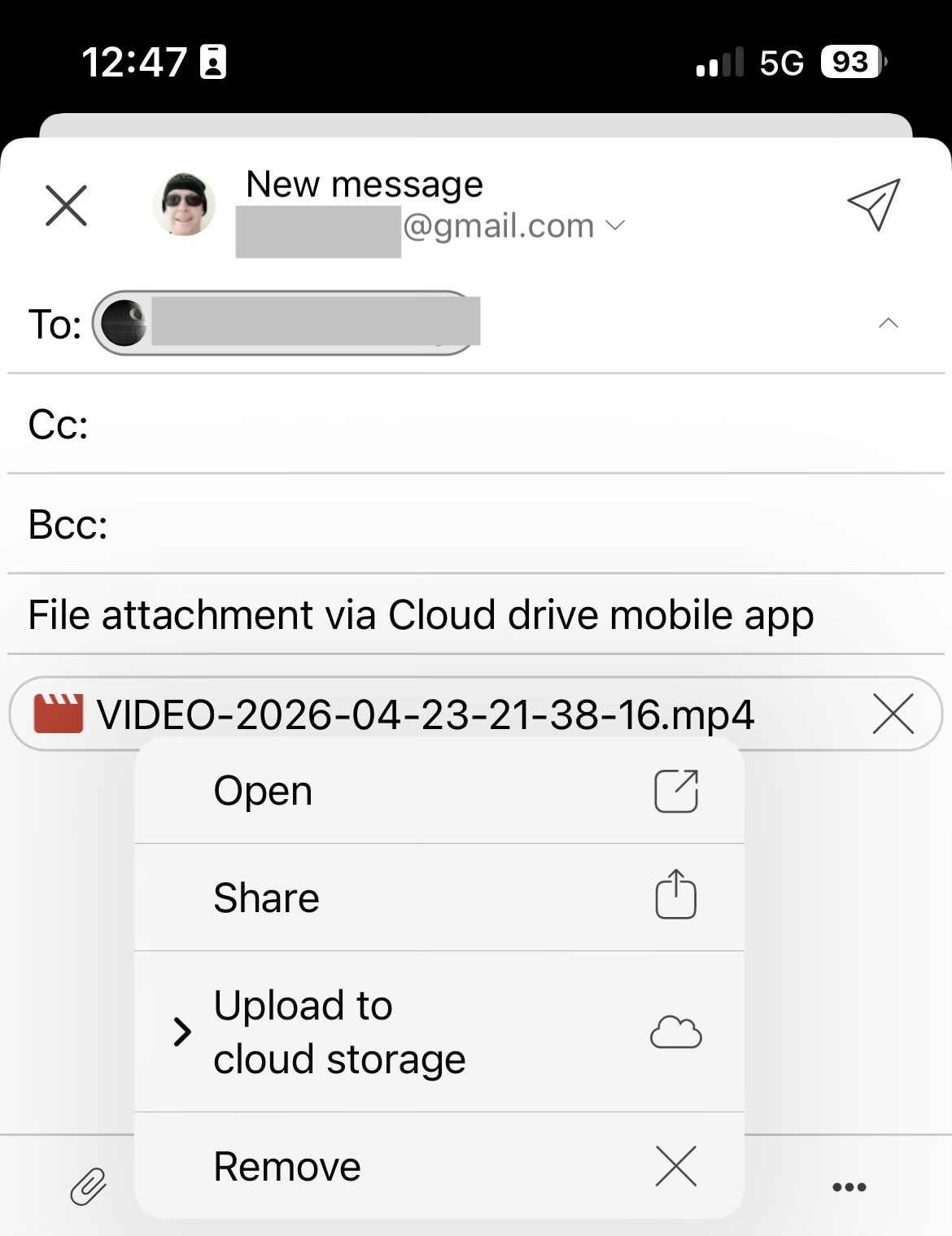
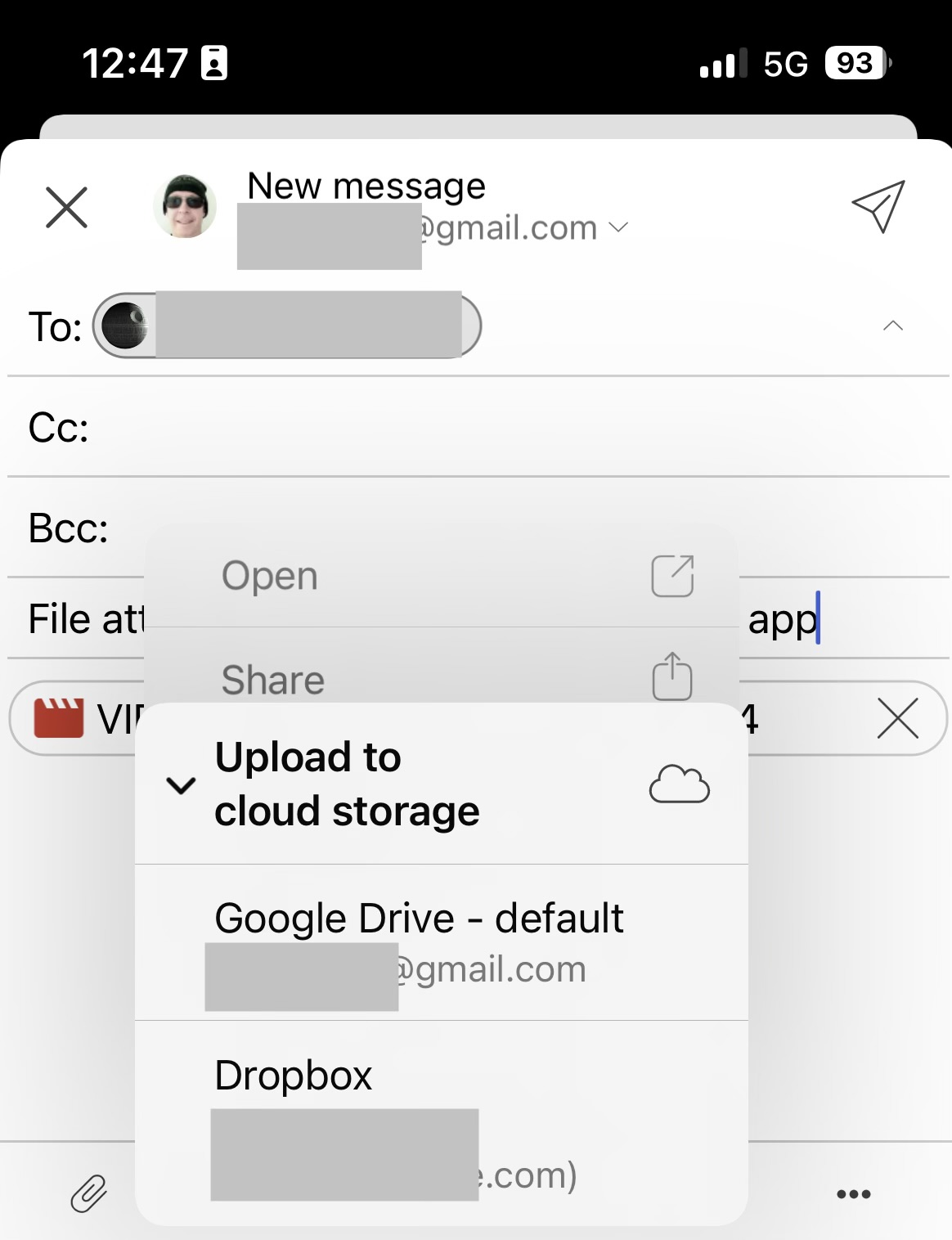
Then when you go to compose an email after adding the attachment/s, “if the attachment is under your sending server attachment size limit” and you want to still send is as a cloud drive link then “press and hold your finger on the attachment/s” and you will then get prompted if you want to upload to your cloud storage.
Press on “Upload to cloud storage” and then “choose your cloud drive storage provider” to upload. Then after selecting, you will then see a background colour move across the attachment.
The attachments upload into an “eM Client Attachments” folder in your cloud drive so you can manually delete them later if you want to.
If the attachment is larger than what your sending server allows, then “you will automatically get prompted to send via cloud drive storage” link.
Example below sending mail via cloud drive storage link using eg: Google Drive or Dropbox.