New to eM client for Android. I can send and receive emails. I can not find my folders (sent, drafts, etc) I’m sure it is obvious but not to me.
Thanks
Bob
New to eM client for Android. I can send and receive emails. I can not find my folders (sent, drafts, etc) I’m sure it is obvious but not to me.
Thanks
Bob
I can not find my folders (sent, drafts, etc) I’m sure it is obvious but not to me
Press the Menu (Top left).
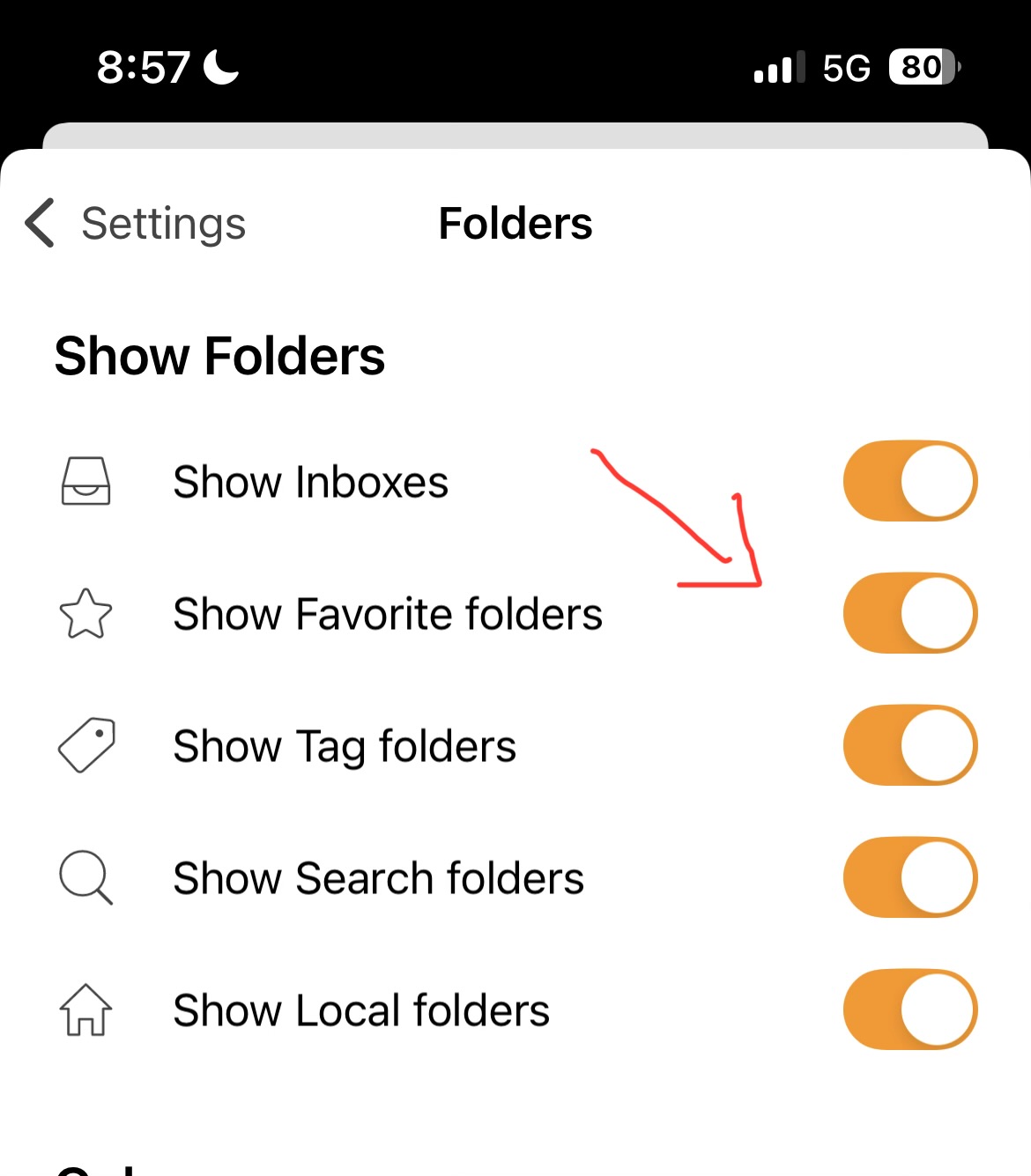
Then Press “Folders” under Preferences and enable Show Favourites folders.
Next Press “X” to close Settings.
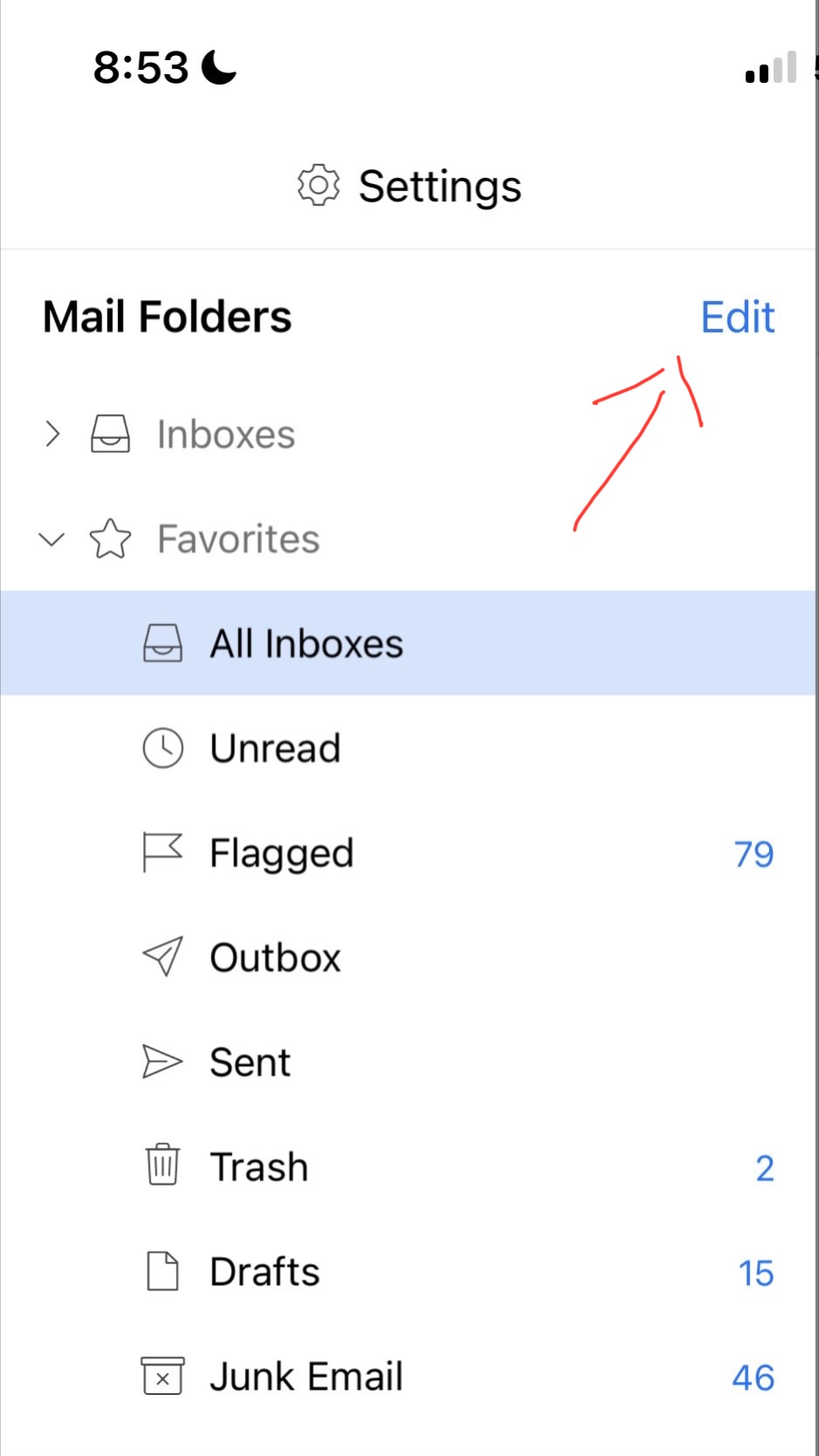
Now “Click Edit” at the top right and enable Sent and Draft folders to show under Favourites.
Then Press “Save” which should appear on left as per example Android screenshots below.
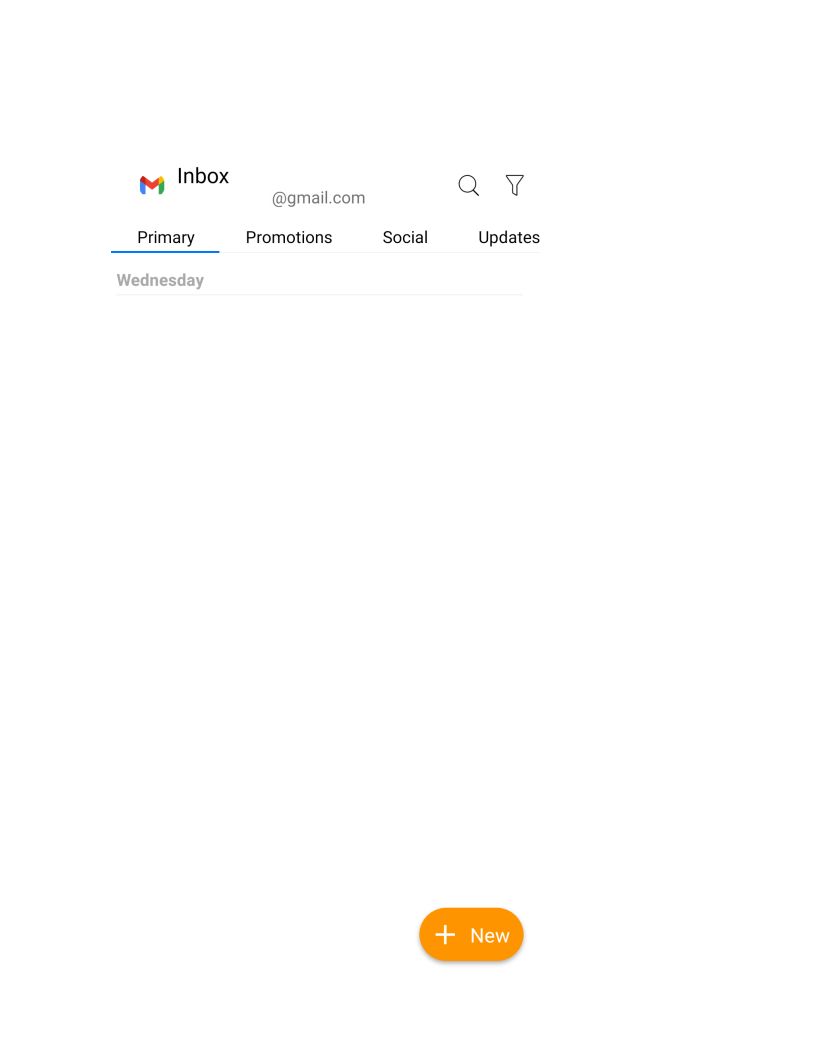
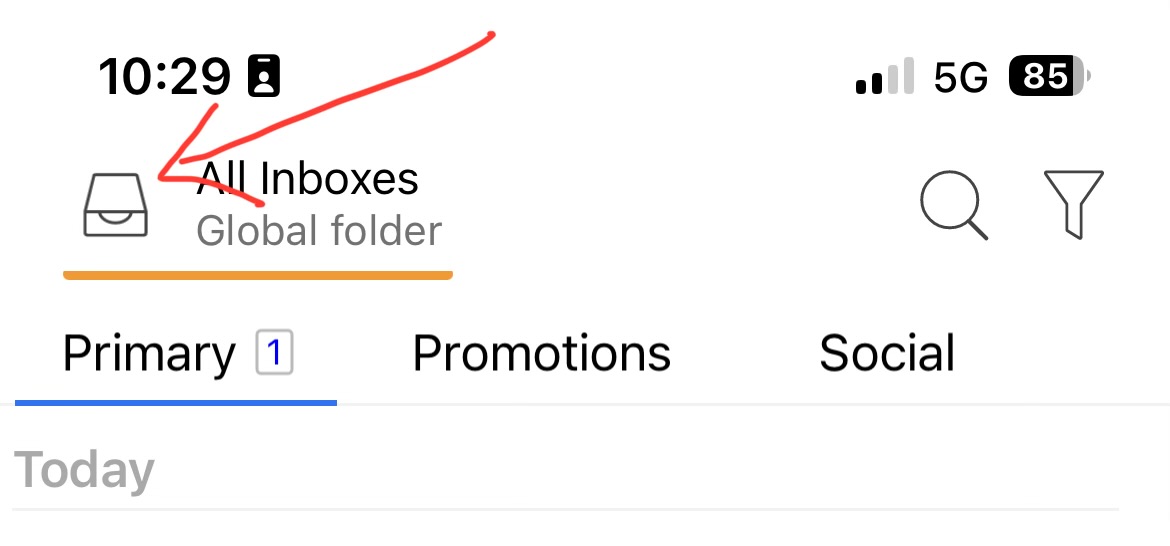
Problem is I have no Menu on top left or anywhere else. I’m have a motorola from tracfone (maybe tracfone issue?) Screen shot of when I open eM Client
The Menu icon is just above the Primary Inbox or “at the very top left” of the mobile app main gui page.
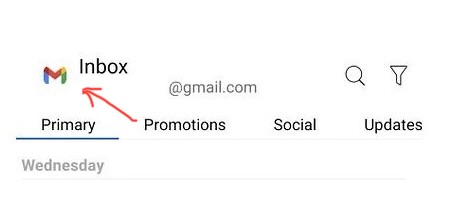
Press “on your Profile picture top left” or whatever icon you see top left on Droid app to get access to the eM Client menu.
In your screenshot try pressing the “Gmail icon”
Example iOS mobile app menu icon
I’m have a motorola from tracfone
If you don’t see a Menu icon or Profile icon top left, could be your Droid OS or UI or app version.
What version Droid OS do you have ? and what version of eM Client app do you have ?
I now have folders. I was going to tap the screen with a small hammer but decided that might not be the best plan. So I uninstalled eM client, restarted the phone and reinstalled eM Client (I had previously tried this). I can now tap and get to the folders. Thanks for the assistance.