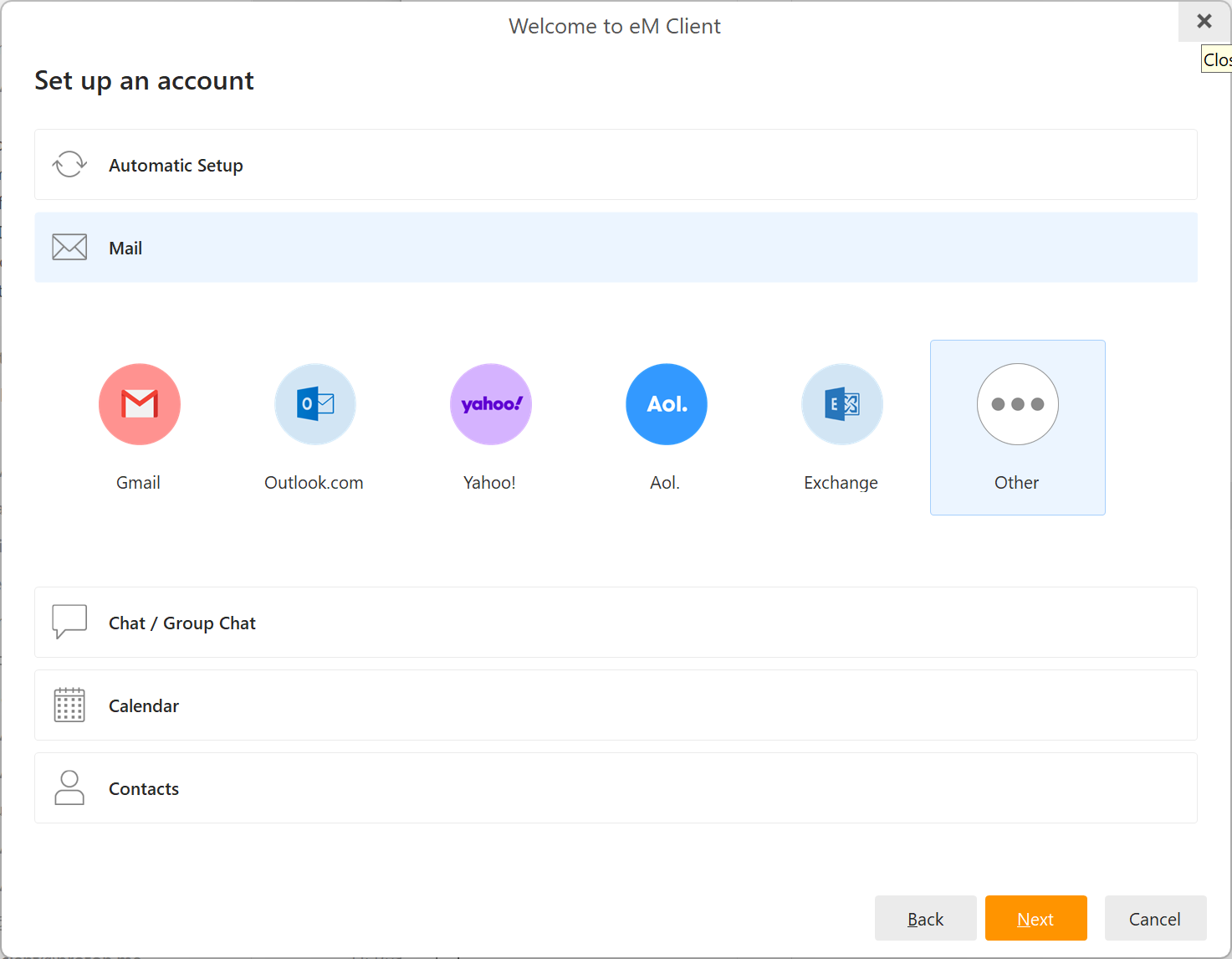
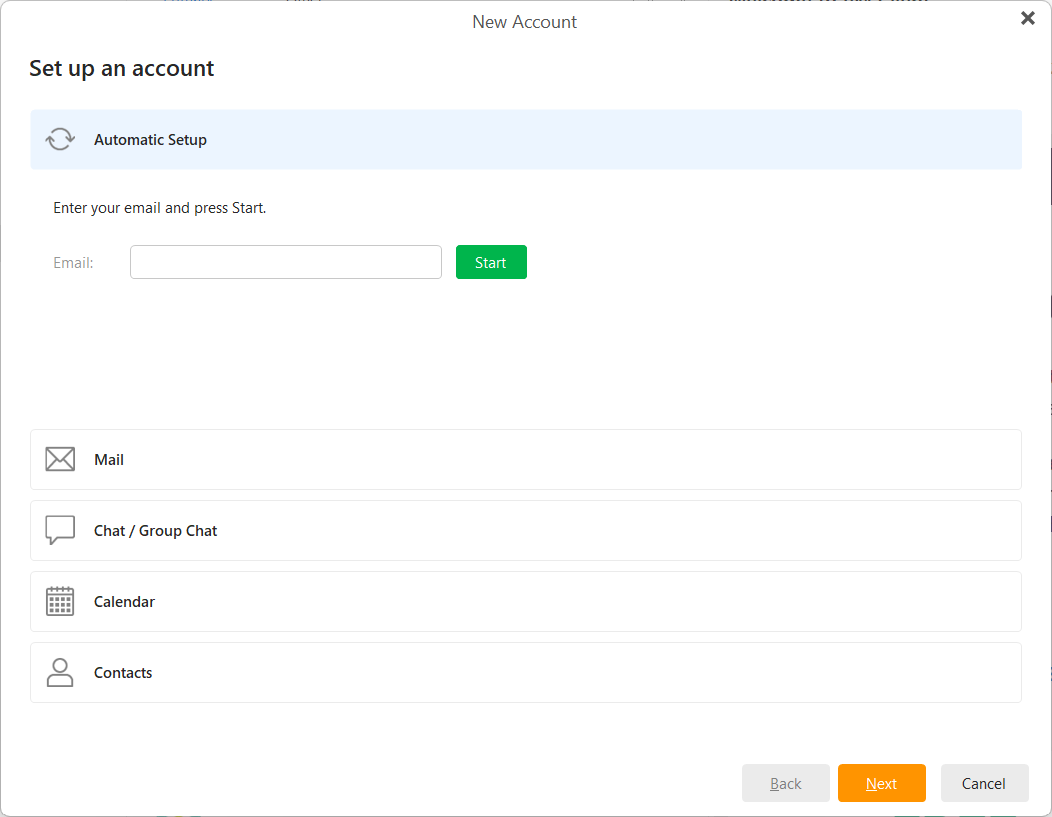
I’m experiencing a UI issue in eM Client that prevents me from adding my email account. When I open eM Client, it immediately launches the Automatic Setup wizard, but the left‑side navigation panel (Mail / Calendar / Contacts / etc.) is missing or collapsed. Because of this, I cannot switch to the “Mail” section to manually add a POP account.
Here are the details:
I have no accounts currently configured in eM Client — only Local Folders appear.
The Automatic Setup window opens automatically and traps me there.
The left navigation panel that normally appears in the Accounts window is not visible.
I cannot reach the manual setup options for POP/IMAP because the UI does not show the Mail section.
I am using a Spectrum/TWC legacy email address that requires manual POP configuration, so I cannot use the automatic setup.
I would appreciate guidance on how to bypass the Automatic Setup screen or restore the full Accounts window so I can manually enter my server settings.
It should both be possible to either SKIP the first account setup or use the MANUAL setup instead of the Automatic.. can you please send a screenshot of the account setup window you see?
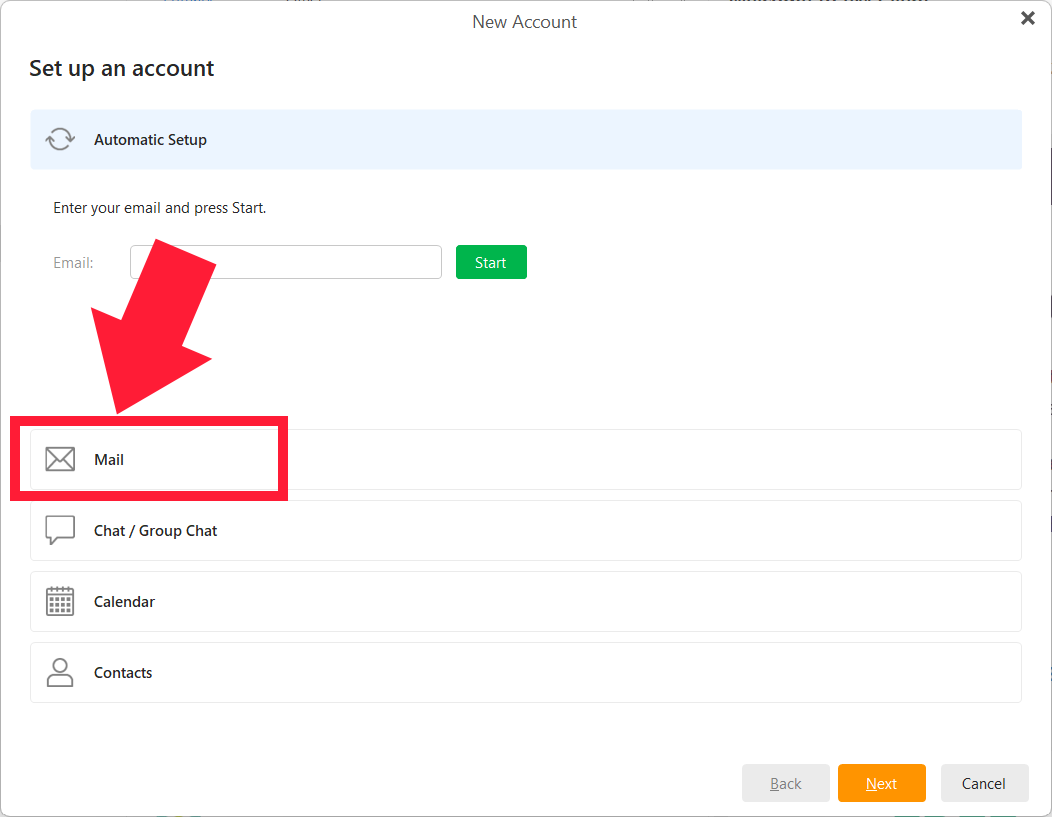
The Mail section should be right under the Automatic setup and there is a “cancel” X button in the top right, as in the current screenshot below:
Below is the screenshot of my eM Client setup window.
For context, I’ve already tried the following steps:
• Used the F12 key to trigger the Windows 11 Snipping Tool
• Repaired the Snipping Tool in Windows Settings
• Attempted rectangular snips and window snips
• Confirmed the overlay launches but does not capture the full setup window
• Used the Snipping Tool app directly to capture the window
I’m attaching the screenshot as requested.
Earlier the screenshot of the eM Client setup window.
The issue I’m reporting is with the eM Client UI not the Snipping tool.
Before posting, I tried the following to work around the UI problem:
• Reopened the account setup window multiple times
• Attempted to resize or expand the UI elements
• Checked for hidden fields or scrollable areas
• Tried switching between different setup paths (automatic vs. manual)
• Verified that no additional options appeared when clicking the UI elements
None of these steps changed the behavior, so I’m attaching the screenshot to show exactly what I’m seeing.Earlier
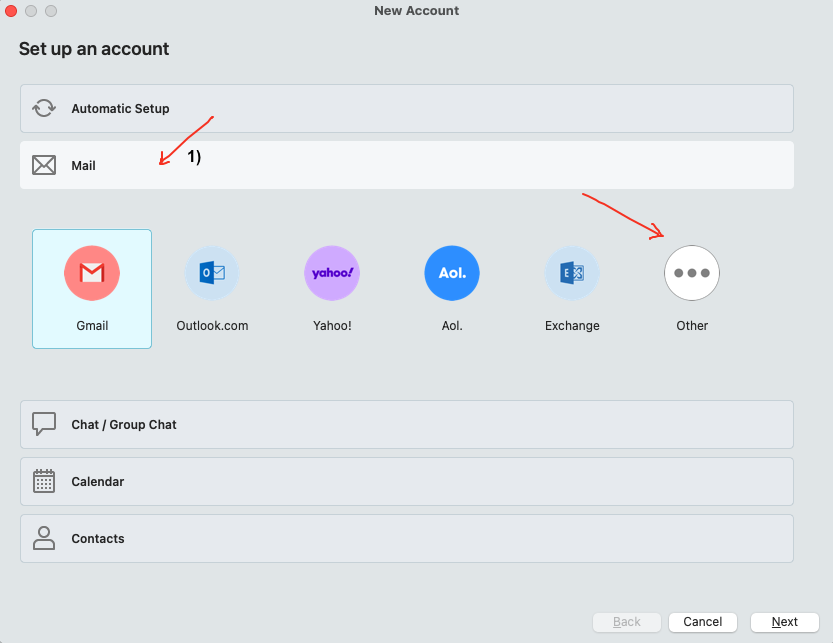
As @Olivia_Rust advised when the Wizard appears, first click the “Mail” tab (below automatic setup), and then click “Other” on the far right to setup the POP account.