No emails are coming in, and all the sections are empty (Inbox, Sent, Trash, Drafts).
mail @inbox.ru
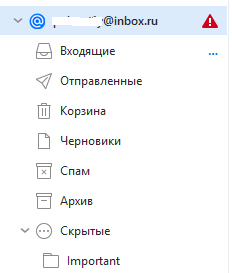
Go to “Menu / Accounts” and update what your Incoming mail “server addresss, Server port and Security policy” ? We can then see if there is any obvious errors.
Also has your mail been receiving previously and just stopped? Or has it never received mail ?
Also what version of eM Client are you using ? and do you have Windows or Mac & what OS ver ?
Updated the addresses of incoming mail servers and the port
How do I update my security policy?
The mail always arrived
eM Client version 10.4.4209 (d96494b)
Windows 11 Pro 25H2
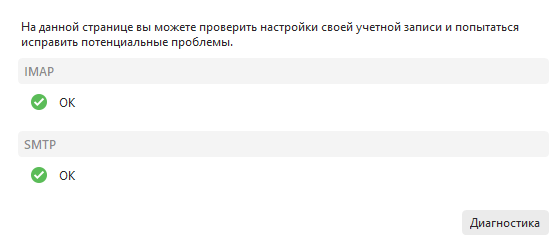
How do I update my security policy?
The Security Policy fields are displayed and can be updated “under your IMAP and SMTP tabs” in your account setup via “Menu / Accounts”.
The mail always arrived
If your email allways arrived “and just suddenly stopped” and you have green check boxes in you account diagnostics as per your screenshot, then that can sometimes be caused by eg: optionally installed firewall security programs or optionally installed antivirus programs or vpns.
So if you have anything like that installed other than what comes default with your OS, then “try completely disabling those to test” incase of interference.
If you have no optionally installed programs like the above or you do but disabling made no difference, then could be you might have a eg: inbox.ru mail server problem currently. So check you can login to your mailbox via your the web.
On other email clients (mailbird, Thunderbird), and through the browser, the mail works fine, mail comes.
On other email clients (mailbird, Thunderbird), and through the browser, the mail works fine, mail comes.
Then you will need to get the actual error.
Click the Refresh button. Then click the dropdown arrow on the right of Refresh and click “Show Operations”. Then click the “Log tab” and look for any obvious error messages and paste them in this thread. We might then be able to see whats wrong. Blank out anything personal in the errors
Also update what your IMAP Server Address, Server Port and Security Policy is “so we can double check your Settings”.
Googling Inbox.ru mail setup in third party mail apps, it appears most users have to setup an “App Password” instead of your normal email login password for each application. So make sure you generate one in “your Inbox.ru online account for eM Client” or it will more than likely fail.
IMAP server, server port updated
The password for third-party email clients was created, and I’ve been using your clients and email for several years.
In what format should I send you the error log?
Just “paste the actual errors from the Log” in this thread. Don’t need the full Log.
Is that enough?
15:06:22 [email protected] IMAP Синхронизация папки ‘/Входящие’
15:06:24 [email protected] [IMAP] MailClient.Accounts.ConnectionException: Не удалось синхронизировать папку ‘…@inbox.ru/Входящие’ из-за ошибки: No LF found in first 16384 bytes
That usually means a specific email in the server mailbox is eg: corrupt or malformed or improperly formatted (missing a line feed \n or LF character) preventing IMAP syncing.
What should I do?
Suggest (if you haven’t already) to “try removing and re-adding the account” and see if that makes any difference just incase its a corrupted local account.
Or you could try eg: going to your Inbox.ru webmail and “export any new Inbox emails since the date eM Client stopped receiving” to your eg: desktop in .eml message files.
Then delete those Inbox messages from the Inbox.ru online and clear them from your online mailbox trash folder. Then close and reopen eM Client and see if it then syncs and receives mail.
If that then works, drag back the .eml Inbox message files into eM Client Inbox one at a time till you find the message that is causing the synching receiving problem.
Failing that if still the same problem, then suggest to contact Offical VIP support and login and lodge a support ticket if you have a current active paid Pro, Personal or Business version.
I have deleted all incoming messages for this year. but it still shows the same error
16:36:56 [email protected] [IMAP] MailClient.Accounts.ConnectionException: Не удалось синхронизировать папку ‘…@inbox.ru/Входящие’ из-за ошибки: No LF found in first 16384 bytes
—> MailClient.Imap.Base.ByeException: No LF found in first 16384 bytes
at MailClient.Imap.Base.Connection.TryParseUntaggedStart(LineSequence& line)
at MailClient.Imap.Base.Connection.ReceiveAsync()
at MailClient.Imap.Base.Connection.RunCommandAsync(Command command, Func3 notificationCallback) at MailClient.Imap.Base.ConnectionExtensions.RunSearchCommandAsync(Connection connection, Command command) at MailClient.Imap.Base.ConnectionExtensions.RunUidSearchUidsUndeletedLargerSmallerCommandAsync(Connection connection, SequenceSet uidSet, Int64 larger, Int64 smaller, Boolean extended) at MailClient.Protocols.Imap.SyncOperations.BaseSyncOperation.HybridModeSearchForMessagesToDownloadRaw(SequenceSet uids, CancellationToken cancellationToken, Boolean allowSince) at MailClient.Protocols.Imap.SyncOperations.BaseSyncOperation.FetchNewMessagesAsync(SequenceSet uidSet, UInt32 messageCountEstimate, Boolean narrowed, Boolean chunk, Boolean allowLegacyHybridMode, Boolean allowHybridRawSearch, CancellationToken cancellationToken) at MailClient.Protocols.Imap.SyncOperations.BaseSyncOperation.FetchNewMessagesAsync(SequenceSet uidSet, UInt32 messageCountEstimate, Boolean narrowed, Boolean chunk, Boolean allowLegacyHybridMode, Boolean allowHybridRawSearch, CancellationToken cancellationToken) at MailClient.Protocols.Imap.SyncOperations.NormalSyncOperation.SynchronizeEmptyLocalFolder(UInt32 serverMessageCount, UInt32 uidNext, CancellationToken cancellationToken) at MailClient.Protocols.Imap.SyncOperations.NormalSyncOperation.ExecuteInternalAsync(CancellationToken cancellationToken) at MailClient.Protocols.Imap.SyncOperations.BaseSyncOperation.ExecuteAsync(CancellationToken cancellationToken) at MailClient.Protocols.Imap.ImapMailSynchronizer.SynchronizeMessagesAsync(IItemSynchronizeContext1 synchronizeContext, Folder folder, Boolean fast, CancellationToken cancellationToken)
at MailClient.Protocols.Imap.ImapMailSynchronizer.SynchronizeMessagesAsync(IItemSynchronizeContext1 synchronizeContext, Folder folder, Boolean fast, CancellationToken cancellationToken) at MailClient.Protocols.Imap.ImapMailSynchronizer.Synchronize(IItemSynchronizeContext1 synchronizeContext, Folder folder, CancellationToken cancellationToken)
at MailClient.Protocols.Common.ItemSynchronizer`2.<>c__DisplayClass37_2.b__6(WorkerStatus status, CancellationToken ct)
at MailClient.Protocols.Imap.ImapActionCommand.ExecuteInternalSync(WorkerStatus status)
— End of inner exception stack trace —
at MailClient.Protocols.Imap.ImapActionCommand.ExecuteInternalSync(WorkerStatus status)
at MailClient.Protocols.Imap.ImapActionCommand.Execute(WorkerStatus status)
at MailClient.Commands.Command.Process(WorkerStatus status)
— End of stack trace from previous location —
at MailClient.Protocols.Imap.ImapAccount.SynchronizeIntAsync(Boolean forced)
at MailClient.Protocols.Common.SynchronizableMailAccount.<>c__DisplayClass22_0.<b__0>d.MoveNext()
AccountId = 9f10a882-0c64-4841-a848-f5bd9a047c14
AccountName = [email protected]
IMAP_SERVER_TYPE = MailRu
RunInPlace = False
GUIStatus_Exception_Reported = True
ByeException
RECEIVED_LINE = BYE No LF found in first 16384 bytes
9:54:32 @inbox.ru [IMAP] MailClient.Accounts.ConnectionException: Failed to synchronize the ‘[email protected]/Inbox’ folder due to the error: No LF found in first 16384 bytes
—> MailClient.Imap.Base.ByeException: No LF found in first 16384 bytes
I have deleted all incoming messages for this year. but it still shows the same error
Then as deleting emails since the problem happened made no difference, and removing and readding your account also made no difference, then “apart from contacting official support”, you could try creating a new database and resetting up as new to see if that helps at all.
To create a new database, “first close eM Client” and then go to the following hidden database folder and rename eM Client to eg: eM Client-Current. Then reopen eM Client and setup as new.
(Windows hidden eM Client database folder)
“Users\yourusername\AppData\Roaming\eM Client”
(Mac Hidden hidden eM Client database folder)
“Users\yourusername\Library\Application Support\eM Client”
I tried renaming the folder, but it didn’t work ((
Then you will need to contact official support.
Please help me to collect the message!
Stop, you don’t need to do anything.
I downloaded the old version to test 9.2.2157 (5b49542), and my @inbox.ru account worked
since version 10, many people have problems with gmail not reading their inbox.
As Inbox.ru authenticates ok with V9 but not V10, that can sometimes be related to the mail server itself that eg: “may not be using the latest authentication methods” and may not have been updated for years so fails with the latest V10.
So you then sometimes need an eg: IMAP and/or SMTP string added in your account setup to force it to use older basic authentication, but you would have to contact Official eM Client support to check your IMAP logs to advise if that’s needed.
Or could be that when you upgraded from V9 to V10 something didn’t all install correctly. So now that V9 is working, suggest to make a manual backup via “Menu / Backup” and when that completed, close eM Client and try updating again to the latest V10 via the release history page.
Also the below are the mail server settings you can use with eM Client if you manually set it up.
Also Inbox.ru needs a “generated app password” instead of your normal email login password for third party mail clients when setting up the account according to their website since 2024.
eM Client V10.3 or higher
(IMAP)
Port 993 "Use TLS on Special Port”
Or
Port 143 "Use STARTTLS if available”
(SMTP)
Port 465 "Use TLS on Special Port”
Or
Port 587 "Use STARTTLS (Always)”
eM Client V6 to V10.2
(IMAP)
Port 993 Use SSL/TLS on special port (legacy)
Or
Port 143 Use SSL/TLS if available
(SMTP)
Port 465 = Use SSL/TLS on special port (legacy)
Or
Port 587 Force usage of SSL/TLS
3 Likes