Using cM Client 10.4.5674 on an Exchange account, machine runnig Windows 10.
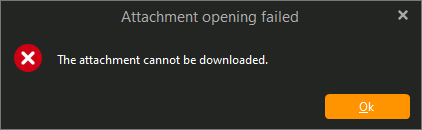
Regularly fails to download attachments. When I try to open the attachment either in the reading pane or when I open the message in a window.
If you can access those same messages with attachments online ok via webmail then could be either “your local Exchange account cache might possibly be corrupted”, or “could be your actual Exchange account in eM Client is corrupted” or “could be some Third party program installed running resident possibly interferring” or “could be a Physical connection speed issue downloading the attachments from your server end”, or “could be an eM Client database issue or installation problem” and might need to have a clean database or complete reinstall.
So i would first try repairing your Exchange account Inbox and see if that fixes. To repair your account Inbox, “right click on your account Inbox” and click “Properties” at the bottom. Then click the “Repair” tab at the top and click repair. That clears the local account cache. Once the local cache is cleared your messages might take a little time to re-appear, and will be slower to re-read till fully cached again. So be patient once the cache is cleared.
If repairing your account Inbox makes no differance, then suggest next to go to “Menu / Accounts” and “remove and readd your Exchange account” using the “Add account” automatic account wizard along the top, or via the manual setup depending on your Exchange providor.
If removing and readding your Exchange account makes no differance, then if you have any eg: optionally installed Firewall / Security programs, or optionally installed Antivirus programs, or Vpn’s “other than what comes default with your OS” then try completely disabling those to test incase of any interferance.
If you have no optionally installed programs like that installed or you do but disabling make no differance, then id personally next “try a new clean database” incase your current database is the issue. So to create a new database “first close eM Client” and then go to the following hidden database folder and rename it to eg: eM Client-Old. Then reopen eM Client and setup new and see if that fixes it.
(Hidden database folder Windows)
C:\Users%username%\AppData\Roaming\eM Client
If a new database also doesn’t fix it, then could be some sort of physical connection from your Exchange Server thats not affecting webmail. So next if you have’t already tried, shutdown your computer and modem / router for eg: 2 mins and power back on and see if it makes any differance. As could be some sort of physical IP / DNS / Gateway problem.
If powering off your computer and modem makes no differance, then if you originally installed eM Client directly from the website, then i would next “uninstall eM Client” and “delete the new database” when asked on the uninstall wizard. Then re-download V10.4.5674 again from the release history page and reinstall and setup as new incase you had an installation problem when upgrading from the prev version and see if that fixes it.
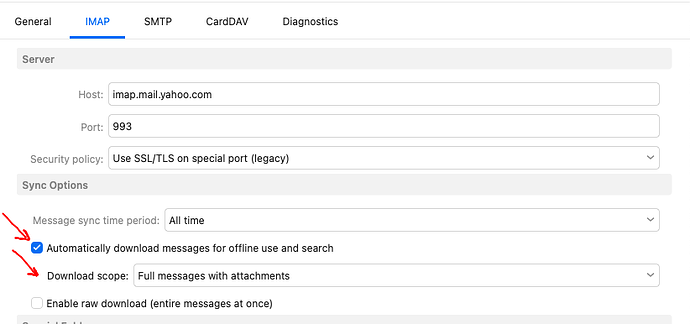
Lastly you can also speed up message & attachment downloading by enabling to “automatically download messages for offline use” as in the below V10 IMAP acct example.