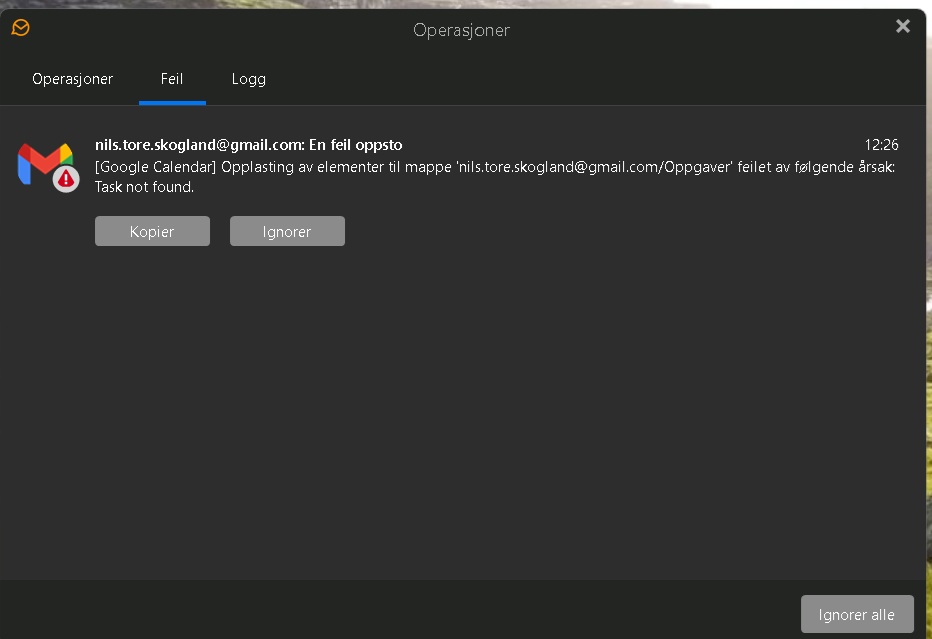
Suddenly, the EM client is no longer updating tasks and appointments in Google Calendar. This issue may have arisen after the recent strengthening of Google’s security protocols.
Could someone kindly ask the technical team to investigate this matter and, if needed, arrange for an EM client update at the earliest convenience?
Google Mail / Calendar & Tasks won’t normally work in eM Client if you have enabled “Advanced Protection Program” in Your Google account (unless that’s changed recently) but will work ok with (2FA) Two Factor Authentication or Passkey enabled in your Google account as long as you are using one of the latest eg: V9 or V10 builds.
So “if you don’t have Advanced Protection enabled” in your Google account but have (2FA) or Passkey enabled or both as I do, then as your Calendar and Tasks are no longer synching in eM Client, then suggest to first “try the repair option”.
To repair the Gmail Calendar right click on the word “Calendar” directly under your Google account and click “Properties” at the bottom. Then click the “Repair” tab at the top and click “Repair”. That clears the local calendar cache and then resync your online calendar events.
Also to repair your Google tasks. When in Tasks right click on the “Tasks folder” directly under your Google account and click “Properties” at the bottom. Then click the “Repair” tab at the top and click “Repair”
If repairing your Google Calendar and Tasks still doesn’t sync your online events or tasks, then suggest to go to “Menu / Accounts” and remove and readd your Gmail account via the automatic account wizard for Google Workspace accounts which should fix it.
Note: If you have a Gmail POP account setup then “before removing and reading your acct”, go to “Menu / File / Export” and choose “Save as (.eml) and save your POP acct messages in a folder on your eg: Desktop or Downloads location.
Then once you have reset up your POP account, go back to “Menu / File / Import” and choose Email (.eml) and select your saved exported folder.
Lastly if removing and re-adding your account still doesn’t fix it, then try “closing eM Client” and then go into your “Google Account Third party apps” section and “revoke / remove” the eM Client OAuth token and then reopen eM Client and you will get a popup box to reauthorise eM Client.
In addition to what cyberzork already suggested, we recommend double-checking that your Google account has given permissions to eM Client to sync and use Tasks. Google uses granular OAuth permissions, meaning access to Mail, Calendar, Tasks, etc. is granted separately. So in case that you remove and add the account again, ensure that you check all requested permission boxes during the setup process.