Hello email, after the latest app update, I see a calendar in the app. I would like to transfer my appointments from my computer to my Samsung smartphone.
I don’t know if I’m doing it correctly, but in the calendar settings on my smartphone, I get a message that my email account has been switched to offline. Would I be able to transfer my appointments if I switched to online?
And how do I switch to online?
I hope I’ve explained my problem clearly.
And that I, as a free user, will receive an answer.
Just “add in the same cloud calendar account on your Samsung Phone” which will then sync the same calendar events.
So if you are using eM Client for Desktop and have your calendar account already setup in there, then follow the below instructions.
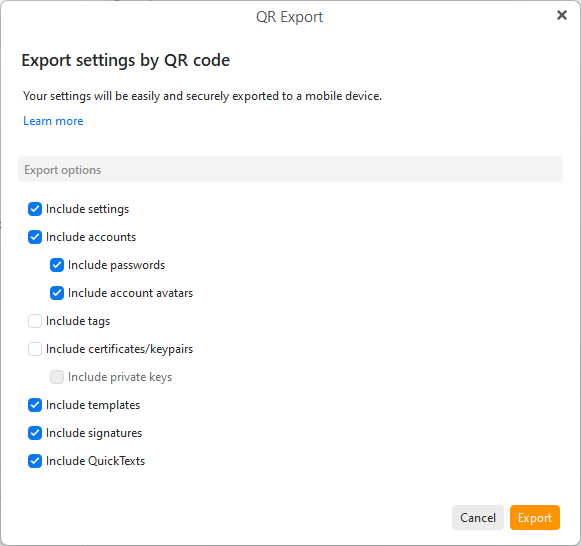
To export on the Desktop via QR Code, go to “Menu / Tools / QR Export” & follow the prompts.
Or on the Desktop, go to “Menu / Settings (Preferences)” and “click the QR Export button in the toolbar” of the Settings window will give you the options to export.
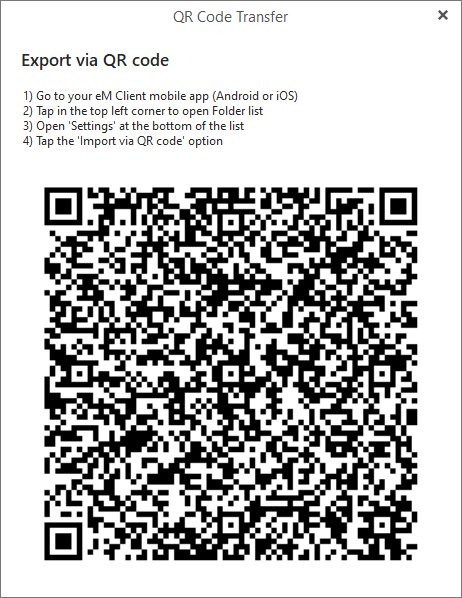
Select all the Settings, Accounts & any other options you want on the QR Export screen. Then click “Export”, and when the QR Code appears “open the eM Client mobile app” and choose the option to scan the QR Code as per the QR Code instructions
I don’t know if I’m doing it correctly, but in the calendar settings on my smartphone, I get a message that my email account has been switched to offline. Would I be able to transfer my appointments if I switched to online?
You have to have your mobile phone “connected online” to sync calendar cloud contacts. Check that your Wifi or Cell data connection is turned on,
In the settings in my smartphone is WLAN on. WIFI means WLAN or not ?
til now i have not i really solution for this problem.
I wait for a next release with a better explanation about the connection between computer and smartphone