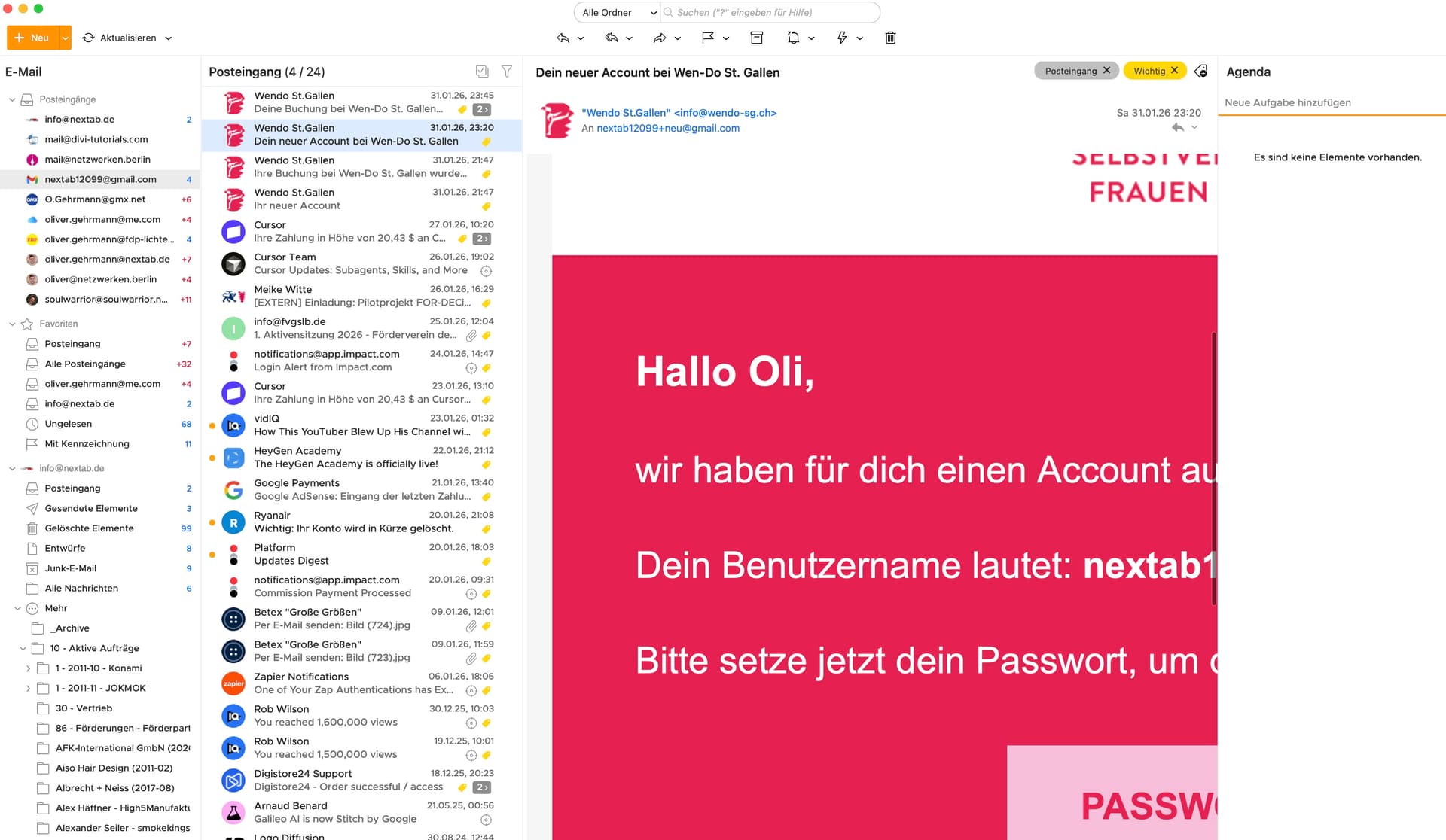
For some reason, the font size in the 3 window pane for the message itself is gigantic. I can also change the settings in whatever way I want, but the font size will always stay the same.
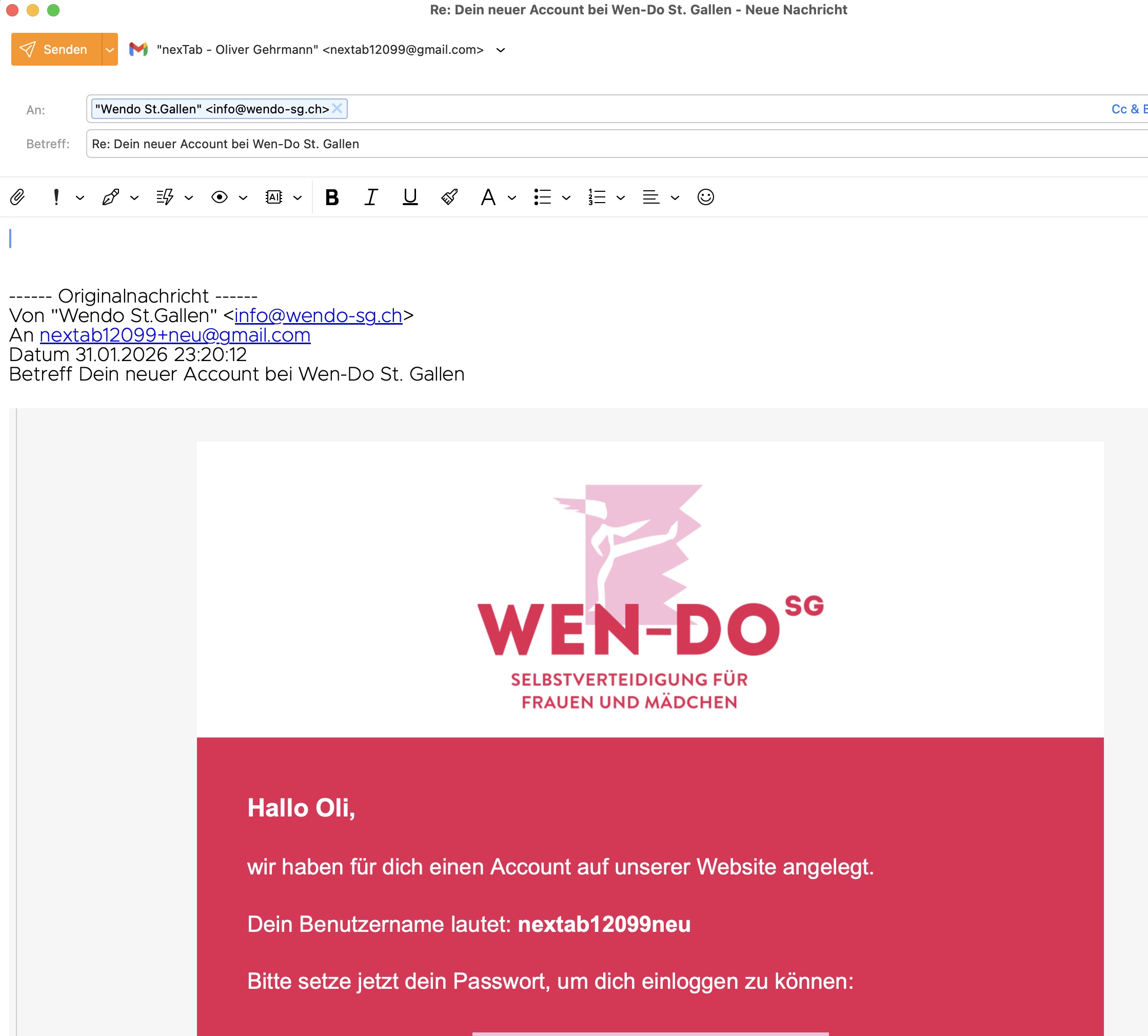
If I start replying to the message, it’s acceptable and I can actually read it. It’s just not much of a workaround always having to start replying to an e-mail to be able to read it…
You cab adjust the Font size by either:
1./ Right click in message window and select Zoom in poppup
2./ Ctrl++ to increase
3./ Ctrl-- to decrease
4./ Ctrl 0 to default
skybat
¡Buena suerte!
¡Saludos desde Sevilla la soleada en España!
¡Mis mejores deseos y mantente a salvo!
Thank you, much appreciated! I did try CMD + - but that didn’t work (I know the shortcut from webdesign work). However, with the right click and then going to the zoom options, it did work. Now the app is usable again, you made my day!
P.S.: The CMD + Alt + 0 shortcut does work. However, if I then use the same shortcut again, it will toggle the sidebar and it will show up / hide. This feels a little buggy to be honest.
I did try CMD + - but that didn’t work (I know the shortcut from webdesign work)
Make sure you “first click on the body of the email” or the default shortcuts may not work.
You can check the default keyboard shortcut settings for eM Client via “Menu / Settings (Preferences) / General / Shortcuts” and change if needed.
If they still don’t work, then “you might possibly have a different keyboard setup / layout in your OS settings”.
Also can depend on if you have Windows or Mac.
As @skybat advised pressing “Ctrl + or - keys” to zoom an email in or out on eM Client for PC, or press the “Command + or - keys” to zoom an email in or out on eM Client Mac.
You can also “click in the body of the email” and press the “Ctrl key & use the Scroll wheel” up and down to zoom an email in or out on PC, or press the “Option key & use the Scroll wheel” up and down to zoom an email in or out on Mac.
Lastly If you have a eg: PC or Mac Bluetooth external 101 keyboard, some of those keyboard mapping are different than Wifi 101 keyboard setups and “may not work with the default shortcuts” and might have to be customised shortcuts to work. Also Bluetooth keyboard shortcuts dont work yet on eg: iPads. That’s being added later if you are using an iPad or Droid tablet.
Thank you for chiming in. I cannot confirm that CMD and + / CMD and - work, I tried all sorts of combinations holding down CMD, Option, Ctrl and Shift (or several of them together) with the + or - keys and none of the combinations worked. My focus was on the e-mail body.
I did not change keyboard shortcuts for zoom (and if I would, I would have very likely switched them to CMD + - / + as that’s what I know from webdesign) and I can also not find any custom command in the keyboard shortcut settings, so I don’t know how they could have gotten lost. To me it seems like they have never been defined.
What works is holding down the Option key and then scrolling on the mouse to change the zoom. That’s most likely how I ended up in this situation in the first place (by accident), so thanks for pointing that out. That might prove helpful in the future.