I apply two tags to some incoming mail before I archive them. The first tag is “Active” and the second is something like “Project A”.
In the mobile apps (both iPadOS and Android) I can
- create a Search Folder that searches for “Active”
- sort by Tag and then by Received, and
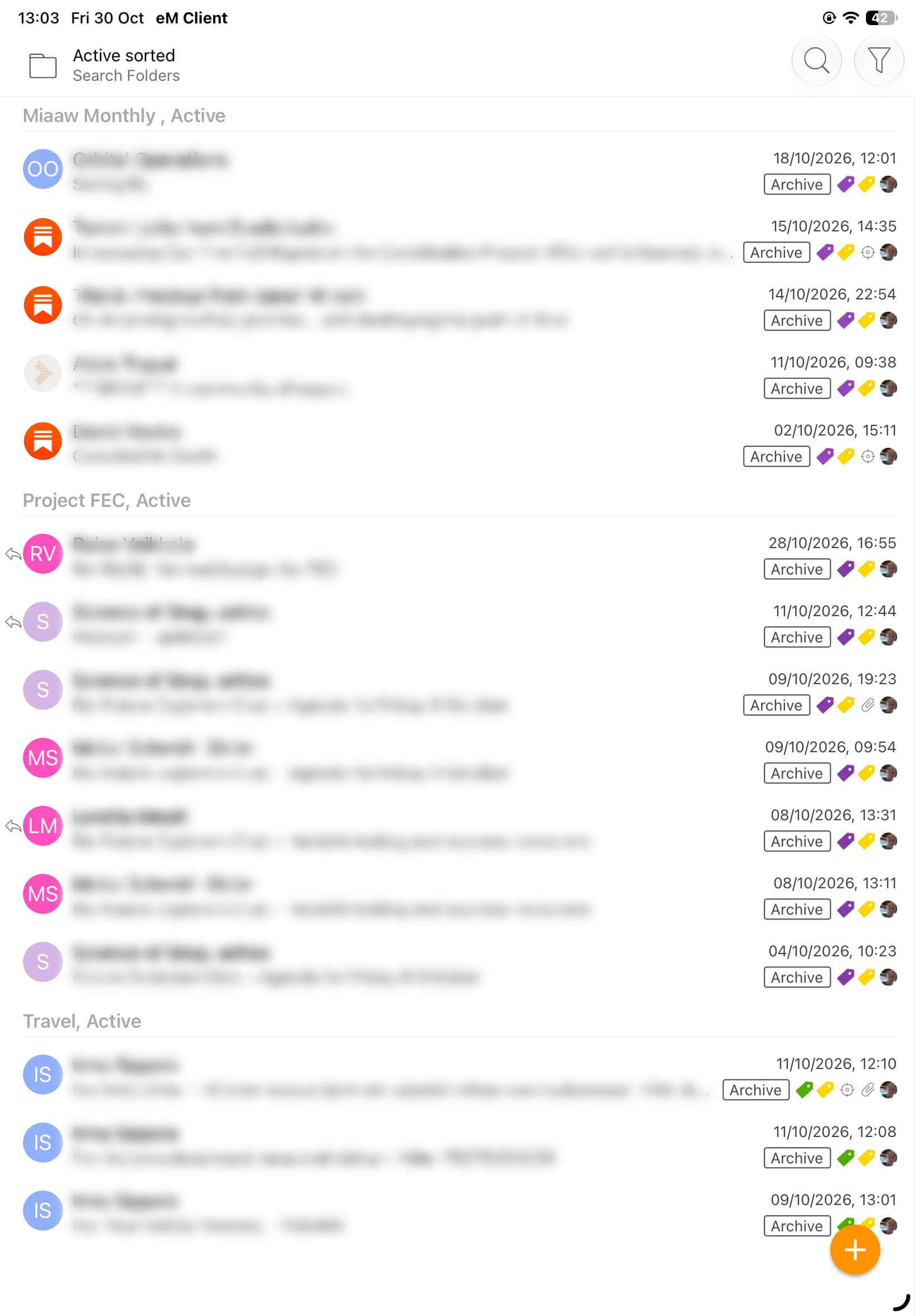
- get a list of the relevant emails listed in groups under “project A”, “Project B”, etc
The result looks like this:
I find this extremely useful and use this view a lot. I presume I am not the only person who does this.
I cannot see a way to achieve this in the Windows desktop application because there appears to be no option to sort by tag. Is there another way of achieving this?
I do not believe that this capacity is entirely missing in the desktop app, so I presume I have not yet found the method of doing it 
Can someone please explain how to do this.
If for some reason this option is not available in the desktop version is there a logical reason why it is missing? If it is not currently available could “Sort by Tag” be added to the Sort menu someday soon please.
Many thanks
Hello @OwenKelly,
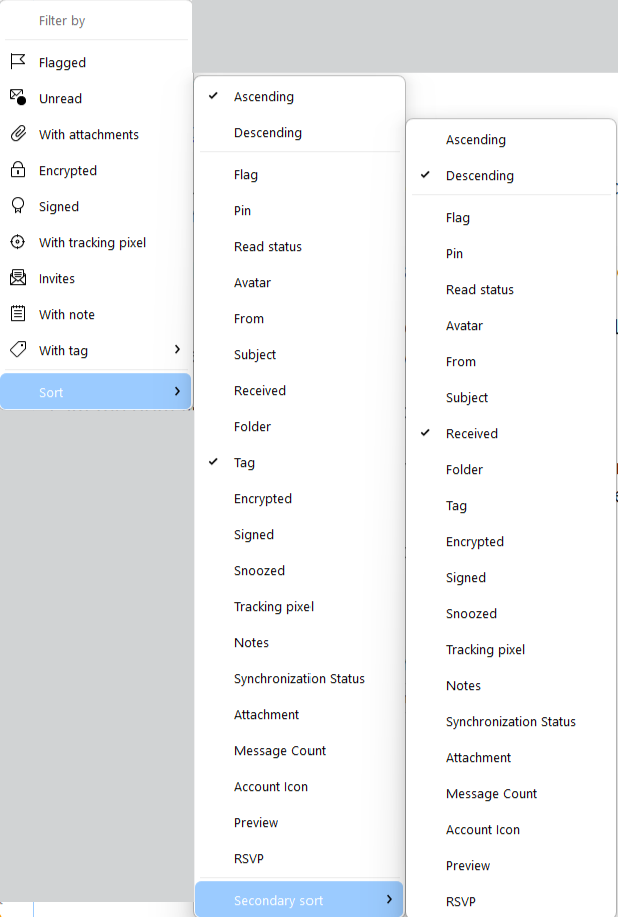
If I understood you correctly, you can do this in the Windows app as well. Here are the steps and a screenshot of the Sort menu:
- Create the Search folder
- Sort it by tag, then by date
a) Open the search folder.
b) Click the filter icon above the message list and go to Sort.
c) Select Tag.
d) Go to Sort > Secondary sort and select Received. Choose Descending if you want the newest messages on top.
That should give you the same view you have in the mobile app.
Thank you @JulieWren,
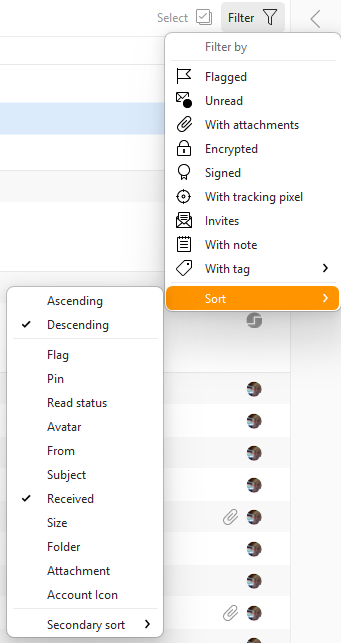
Yes, that is exactly what I want on the desktop but using version 11.0.1389 (8b6849e) under Windows 11 this is what I see when I go to Filter > Sort
As you can see my menu looks very different to yours. On mine there is no option to sort by Tag, as in your picture.
What am I doing wrong?
You’re not doing anything wrong. The Sort menu only offers the columns that are shown in your message list, and the Tag column isn’t shown by default. Here’s how to add it:
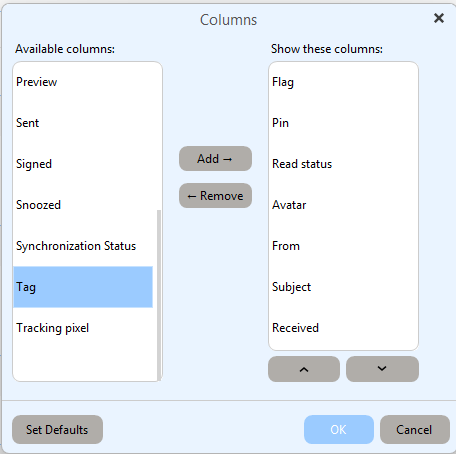
- Right-click any column header in the message list, for example From or Subject, and choose Columns Configuration.
- Add Tag to the shown columns and click OK.
After that, Tag appears under Filter > Sort, and you can set Received as the secondary sort, just like in my previous screenshot.
Thank you. That worked perfectly!