I have only just rectified a situation which I should have addressed some time ago. I initially set up my storage in a cloud (dropbox) synced storage folder. I now releasing I had been losing stuff incrementally over the last few months; but it’s only just been evident how bad the problem was.
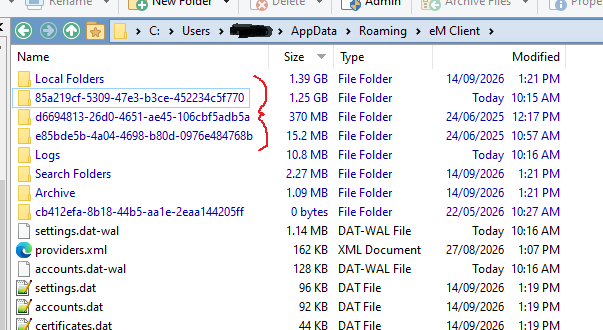
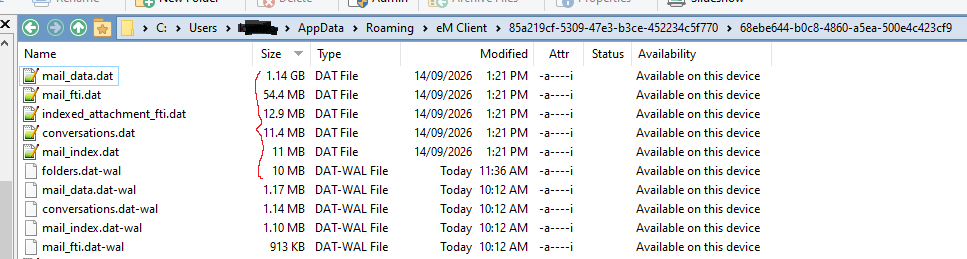
In shifting my 3Gb folder back to the local drive folder (the best practice I should’ve originally followed!) for Win10 C:\Users\HHumber\AppData\Roaming\eM Client I notice there are various sub-folders created with smaller (but not insignificantly sized) filenames and folder structures within;
In short: Am I able to copy or duplicate out the conflicted small database, browse and merge them back into my new working storage database - perhaps via different profile?
To merge the data from your original eM Client database located in your Dropbox folder to your new current database on your C: Drive, is to “first close eM Client” and then “rename your new database” in C:\Users\HHumber\AppData\Roaming\eM Client to eg; eM Client-Current .
Then copy your original database “eM Client folder” in Dropbox to your new hidden database roaming location C:\Users\HHumber\AppData\Roaming\
You will then end up with two folders in Roaming eM Client & eM Client-Current
Then open eM Client which will then have your old Dropbox data, and go to “Menu / File / Export” and export any messages, contacts, tasks etc you need to a folder in your desktop.
Then once you have exported all the data you need from your old Dropbox database, “close eM Client” and then “rename your original Dropbox database” now in Roaming to eg: eM Client-Old .
Next rename your new eM Client-Current database back to eM Client.
Lastly reopen eM Client and import your exported mail, contacts, tasks etc via “Menu / File / Import”