I can’t seem to get pop3 to work. I can send emails, but I can’t receive them. I have a prodigy.net email account on Windows 7. I’m not sure how I’m supposed to tweak the pop3 settings. I can find some of the settings in the account menu, but no place to put the password. Is there a problem in general with Prodigy no longer providing pop3 inbound? Thanks
I can’t seem to get pop3 to work. I can send emails, but I can’t receive them.
I’m not sure how I’m supposed to tweak the pop3 settings. I can find some of the settings in the account menu, but no place to put the password.
These are the below POP and SMTP settings you can use with eM Client.
POP3
Port 995 = Use SSL/TLS on special port (legacy)
Port 110 = Use SSL/TLS if available
SMTP
Port 587 = Force usage of SSL/TLS
Port 465 = Use SSL/TLS on special port (legacy)
Port 25 = Use SSL/TLS if available
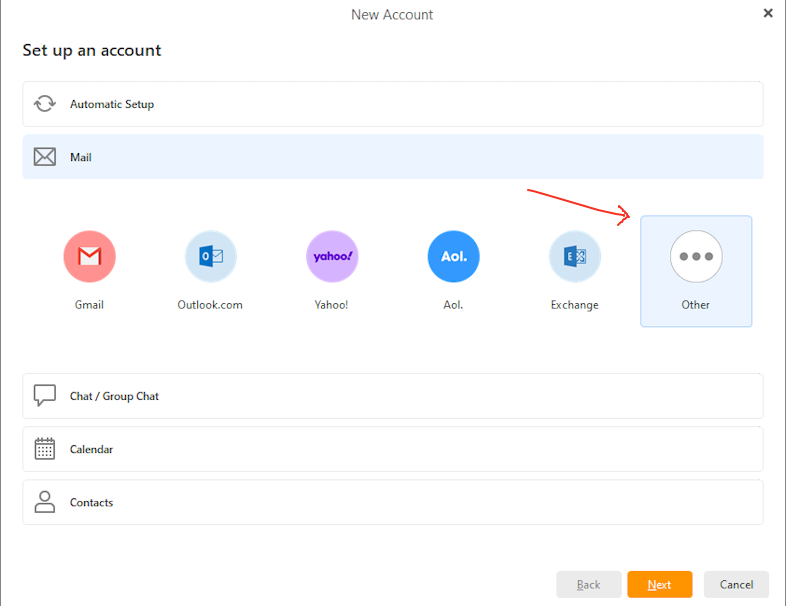
If your server still supports POP with a legacy username and password “to add your account” you you go to “Menu / Accounts” and click “Add Account” and click “Mail” and select “Other” to manually add in all your POP and SMTP Server settings as per the screenshot example below.
Note:- At the end of the POP manual setup wizard, you need to choose “if you want to store your messages in a Separate folder tree or in Local folders”. So make sure you choose before you complete the setup as you cannot change it later unless you remove and re-add the acct again.
Lastly once you have the POP account setup, to edit / tweak the settings, go back to “Menu / Accounts” and click on your account on the left and you will see a POP & SMTP Tab along the top to manually adjust any settings including your username and password etc as per the following eM Client Edit existing accounts online documentation.
Setup new account online documentation
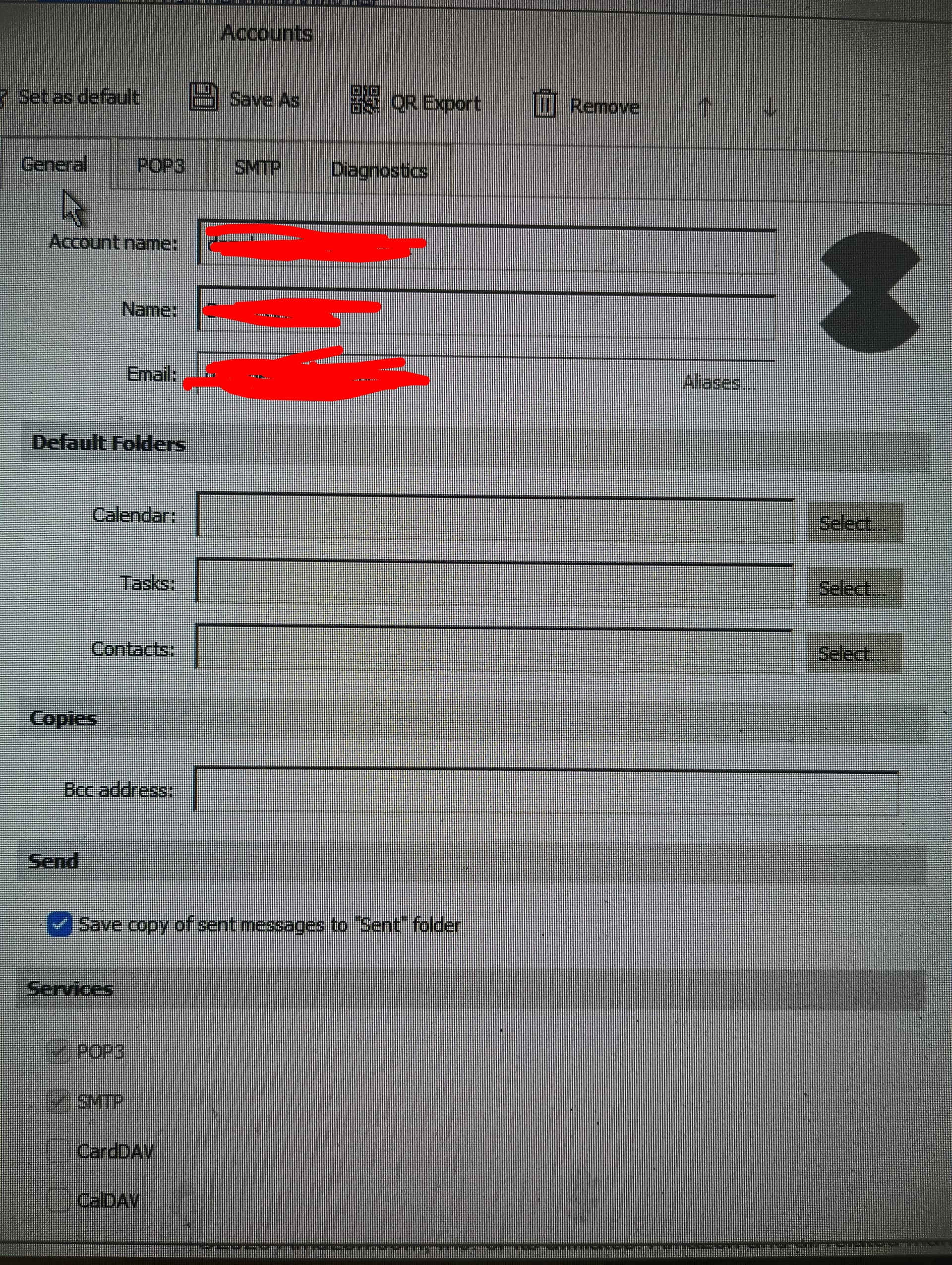
When I went to the online documentation webpage that shows a screen shot of the Accounts menu, it looks different than the one I’m attaching to this post. On my version, there is no place to put in a password, unlike the one represented on the documentation webpage.Thanks.
On my version, there is no place to put in a password, unlike the one represented on the documentation webpage.
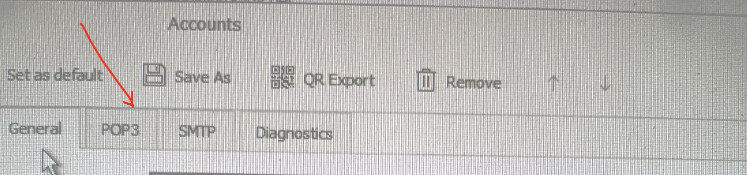
Click on the “POP3” tab as in your screenshot below.
eM Client POP3 tab example screenshot from the online edit existing accounts documentation.
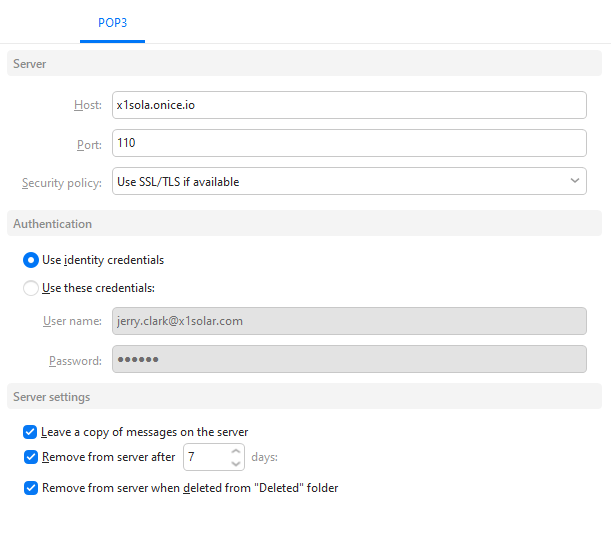
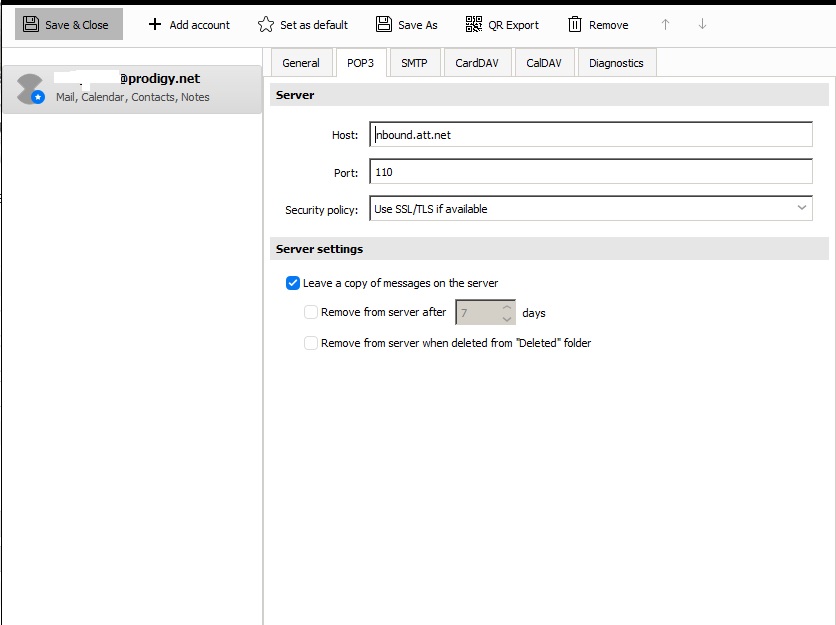
Thanks for your response. Unfortunately, this is what I see, still no password option. Could it be a limitation of Windows 7?
Unfortunately, this is what I see, still no password option.
When you added your account did you add it via the “Add account / Mail / Other” option as per the example screenshot further up this thread ?
Or did you use the automatic account wizard ?
As the manual setup option allows you to specify the POP and SMTP username and password if you want to adjust either later.
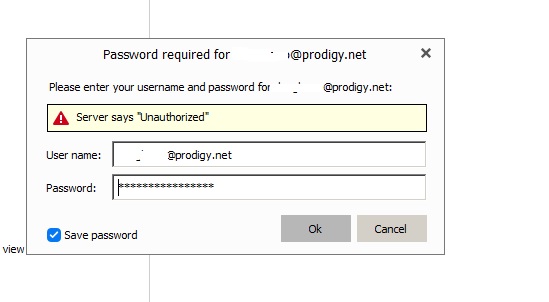
I went ahead and redid those steps you recommended and finally found the password dropdown menu. But it kept saying I was unauthorized. So then, I decided to uninstall and reinstall the program, but I got the same message again as seen in this screenshot in this post. I suspect the program no longer works with Windows 7, or perhaps the ATT/Yahoo sever doesn’t want to communicate via pop 3 with a Windows 7 computer, which is odd because I can send emails in this program as well as Windows Live Mail, but I can’t receive them. I’m only able to receive through Yahoo’s webmail page, a very slow frustrating process. Thank you for your previous help.
I went ahead and redid those steps you recommended and finally found the password dropdown menu. But it kept saying I was unauthorized.
Did you try with the below secure Port 995 ?
Port 995 = Use SSL/TLS on special port (legacy)
If you have already tried Port 995 settings, then also make sure as well you have TLS1.2 Protocol installed.
Windows 7 doesn’t normally have TLS 1.2 enabled by default, so it can’t be used with eM Client unless you manually install / enable it in the registry.
See @skybat post in the following thread on the TLS1.2 registry entry tool & registry setting etc.
See also Microsoft support page on enabling TLS1.1/1.2
If you already have TLS1.2 installed / enabled and that also doesn’t work with POP, then you will need to contact Prodigy technical support via phone or website and ask “if they still support POP” or is it only IMAP.
Also make sure you don’t have TLS1.3 installed / enabled in Windows 7 as that won’t work.
Also sometimes online mail boxes need eg: “to be enabled to allow third party mail clients” to access it remotely. So check with your mailbox technical support just incase they block access by default and it might need to be enabled
Note: Windows 7 is no longer officially supported by eM Client or Microsoft any longer, so if you still carn’t get POP to work, then you would need to update to Windows 10 or 11 or try an IMAP setup either via the automatic account wizard or same manual setup option.
If you do manually setup with an IMAP account using a legacy username and password, these are the Port and Security policys you can use.
IMAP
Port 993 = Use SSL/TLS on special port (legacy)
Port 143 = Use SSL/TLS if available