This tool bar within a table completely gets in the way of typing and therefore the table is no longer functional. Please locate it elsewhere or provide an option to hide permanently.
1 Like
It should not get in the way of typing. Can you make a video? No there is no way how to disable it. It was a very requested feature, users are used to that behavior from Outlook.
I completely agree. Tables are unusable, i cannot see what i am typing. Let me know where and I will upload the video. I am trying to write behind the pop up in cells.

send it please to [email protected]
We are working on some improvements of the feature. You problem is likely caused by zoom.
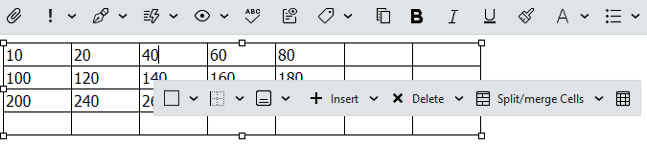
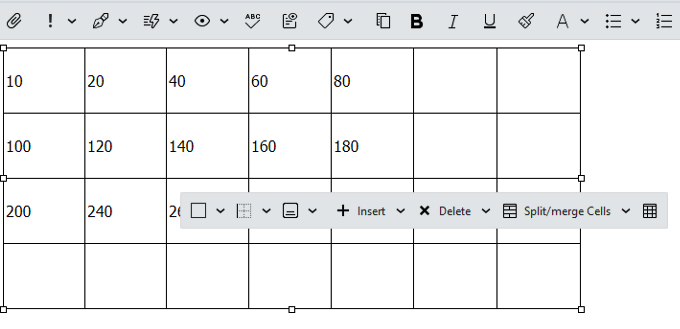
It’s only a problem where “depending on the table cell sizes and zoom level in the compose window”, you carn’t always click with your mouse in a cells even at 100% zoom lvl normal in the compose window" as the popup toolbar can sometimes cover some of the below cells" as in the example screenshots below..
However you can get around this issue though, by “clicking in a cell either above the toolbar or on the left of the toolbar” and then “using your arrow keys instead of your mouse” and tab keys as well if you want to move to the cell you want to adjust, “which then forces the popup toolbar to move below it”.
So @dinkoj click in the cell above or on the right of the floating toolbar as in your screenshot example above, and then move the arrow key left across & down, “which should then move the toolbar down so you can then edit in the cell you want”. If you still carn’t “right click in the compose window” and click “Zoom / Original” and try again
Ps I don’t think can be avoided when you have a floating popup toolbar “as there will allways be part of the table that is covered over” unless you eg: fix the floating toolbar somewhere along the top of the spreadsheet so it never hides cells.

This is going to be improved/fixed in the upcoming update.
1 Like
This “feature” has been a problem. Every email I send has a table and ideally I want to cut, paste, and edit it, and the table is ALWAYS in the way of typing. There is no way to move it. Em is the best email tool I use and I use several along with clients using several. In the IT space, Em is my top recommended email client. When this feature was added, it should have had an option to hide it if you don’t want it (which I don’t). And if you are forcing me to have it, then let me move it or better yet, position it several rows higher than the row I am working in. Long time user. First ever complaint.
This “feature” has been a problem. Every email I send has a table and ideally I want to cut, paste, and edit it, and the table is ALWAYS in the way of typing
D/L the latest V10.4.4756 from the release history page which now has compose table update improvements etc.
I just downloaded the patch - problem solved! Thank you! This is amazing as not every software company will be responsive and solve a problem like this. Kudos to this amazing company and amazing product!