Hi. I have an email account for a business I will be selling. The buyer will be taking over the domain and email accounts. There are many sub folders on this email account with many years of information that I would like to keep locally. I have 2 desktop computers with licenses for eM Client on both computers. Is there a way for me to get this email folder and all the many sub folders moved to a LOCAL folder - on either computer - makes no difference. Just wanted to mention that there were 2 computers in case exporting came in to play. Thank you so much for any replies.
There are many sub folders on this email account with many years of information that I would like to keep locally. I have 2 desktop computers with licenses for eM Client on both computers. Is there a way for me to get this email folder and all the many sub folders moved to a LOCAL folder - on either computer - makes no difference.
If you are want to keep any account email or local folder email in a eg: folder on your Desktop or Documents etc, or transfer messages to another eM Client installation, then either go to “Menu / File / Export” and select (.eml), and then on the next screen on the wizard “select your mail account or local folders” and export the messages to whatever folder you want on your hard-disk.
“Export messages to ,eml files”
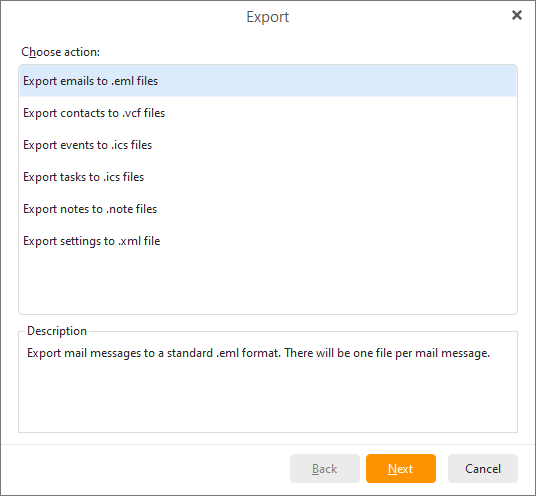
Or you could just “manually create a folder” in your eg: Desktop or Documents, and then just “drag any emails you want into that folder” as another way to extract your email.
Either way you do it the messages are then viewable “in any standard .eml message viewer” including eM Client, and can be later imported anytime back into eM Client if you want either via “Menu / File / Import”, or by just manually dragging the .eml message files back in.
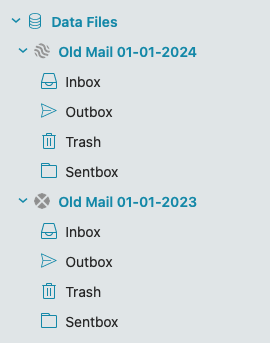
Or if you have V10, you can eg: create / mount a (.emdf) data file in your eg: Downloads or Documents folder, that is then accessible in any eM Client installation under your accounts “above local folders” ,which you then drag / move any messages you want to keep to it and then “Unmount it” and then open whatever other eM Client installations you have on any other computers and then “Mount it” and then drag the email into wherever you like in the client as in the below screenshot example. See the following eM Client documentation on Data Files.
“Data Files”
https://www.emclient.com/webdocumentation/en/10.0/eMClient/Default.htm#Data%20Files/Data%20Files.htm
Oh thank you SO much! Amazing information and instructions. VERY much appreciated!