OK doug. It’s been 3 days and I’m anxious to know what you’ve tried and what the results are.
Sure.
At this point I’ve simply been closing the program every evening and that seems to be enough. It does delete the temp files automatically then, so my C drive has maintained its extra space.
Easy fix; I’m not going to fudge with anything else unless I need too…
Thanks to everyone for the suggestions.
1 Like
Aaaaaand today eM Client filled up 23GB of free space on my C drive again in just a few hours. I did hibernate the computer at one point without turning off eM Cient, so maybe it had to do with that.
I did hibernate the computer at one point without turning off eM Cient, so maybe it had to do with that
Yes maybe hybernating the computer at some point had something to do with it for your specific eM Client setup which (doesn’t do that when i user power / sleep mode), but sounds like best for you to “allways close / exit” eM Client before shutton down Windows.
1 Like
Here’s a method for moving the EM Client temporary files folder that works in my case. It uses the MKLINK command to create a folder redirection. MKLINK must be run with admin privileges, on logon. I use System Scheduler to do it. Free version might be sufficient or use MS Task scheduler.
The batch file:
:: for test purposes
:: It might be necessary to delay the start-up of EMclient…
:: (at present time, it seems that EMclient doesn’t create a file in the “eM Client temporary files” folder right away)
set ProcessName=MailClient.exe
tasklist /fi “ImageName eq %ProcessName%” /fo csv 2> NUL | find /I “%ProcessName%” > NUL
if “%ERRORLEVEL%”==“0” (@echo . %ProcessName% IS running) else (@echo . %ProcessName% is NOT running)
@echo .
set tempEMclient=“%temp%\eM Client temporary files”
if exist %tempEMclient% ((@echo . Removing %tempEMclient% directory)&(rd /S /Q %tempEMclient%)) else (echo . no %tempEMclient% directory to remove)
@echo .
:: Creating “eM Client temporary files” folder redirection (junction link).
:: The MKLINK command has to be executed with the highest privileges (admin credentials)!
mklink /J %tempEMclient% “V:\Telechargements\EMclient-TEMP”
@echo .
Here’s an update to the procedure to launch and move the “eM Client temporary files” folder.
I’ve been using it for several months now.
@echo off
:: Start or bring emClient to front and move “eM Client temporary files” folder
:: using a junction link to a folder outside emClient’s control (for permanent access to temporary files
:: created by emClient, such as the one created when an attached file is opened).
:: The target folder for the temporary files is the “EMclient-TEMP” subfolder of the Downloads folder.
:: There’s nothing to stop you choosing a different path.
:: - The MKLINK command has to be executed with the highest privileges (admin credentials)
:: – To run this .BAT file avoiding any on-screen display use NIRCMD tool:
:: CMD execmd …\emClient-start.bat
TITLE emClient-start.bat
@echo .
set ProcessName=MailClient.exe
tasklist /fi “ImageName eq %ProcessName%” /fo csv 2> NUL | find /I “%ProcessName%” > NUL
if “%ERRORLEVEL%”==“0” ((@echo . %ProcessName% IS running) & GOTO :EMCLIENT) else (@echo . %ProcessName% is NOT running)
set tempEMclient=“%temp%\eM Client temporary files”
if exist %tempEMclient% ((@echo . Removing %tempEMclient% directory)&(rd /S /Q %tempEMclient%)) else (echo . no %tempEMclient% directory to remove)
FOR /F “USEBACKQ TOKENS=2,*” %%a IN (REG QUERY "HKEY_CURRENT_USER\Software\Microsoft\Windows\CurrentVersion\Explorer\Shell Folders" /V {374DE290-123F-4565-9164-39C4925E467B}) DO (SET DOWNLOADS=%%b)
@echo . Downloads directory: %DOWNLOADS%
set target=%DOWNLOADS%\EMclient-TEMP
if not exist %target% (md %target%)&(@echo . making %target% directory)
@echo .
mklink /J %tempEMclient% %target%
Start “” “C:\Program Files (x86)\eM Client\MailClient.exe”
GOTO :END
:EMCLIENT
“C:\Program Files (x86)\eM Client\MailClient.exe”
:END

In fact, I have two reasons for doing so:
-
I want to be able to access the attached files that I have opened in my emails and that are present on my hard disk where EMC puts them, even after I have left EMC.
-
I also need to put EMC’s temporary files folder somewhere other than in the %temp% folder (which I think is what some people have been asking for). Because to find my files, I use Everything (“Locate files and folders by name instantly”) and I’ve set Everything so that it doesn’t index the partition on which the %temp% folder is located. BTW, Everything is one of the best productivity tools I’ve ever used (and it’s free software).
Ideally, there should be an option in EMC to specify a folder in which to drop attachments opened in emails.
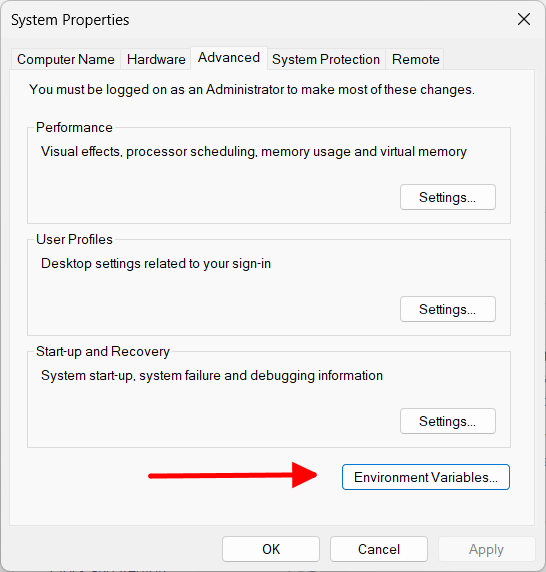
There isn’t anything in the %temp% folder you need to access, that you can’t access in eM Client itself. It is for temporary storage while the application is running, and is completely deleted when the application is closed. For those who have an issue with the space it takes in the default location, Windows of course offers an option as in my screenshot above to move the %temp% folder to another location.
Of course if you want to do it that way, that’s fine, but there is a very simple solution to the issue described in this topic, which is to change the location of %temp% in your OS settings.
I don’t think you understand.
In short, I WANT to access the attached files as opened by EMC in the %temp% folder, the way I just wrote it.
Well, it’s really off topic, because that is not the issue asked in this topic, but why not just access them in eM Client?
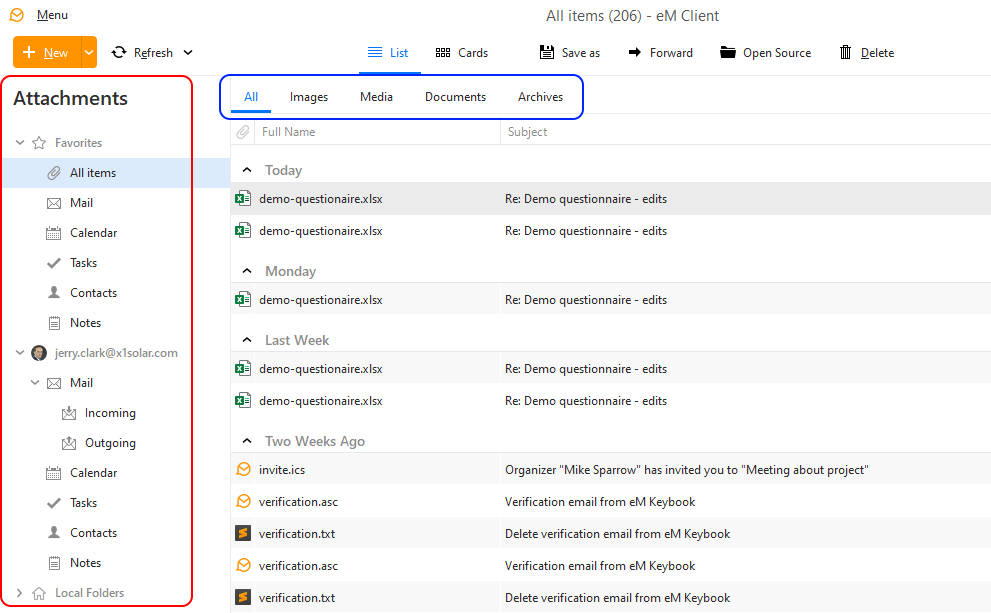
We do have an attachments section which will show all attachments, and you can see them there even if you haven’t opened them. However the %temp% folder will clear on every exit of eM Client, so will only show a few for a very limited time.
1 Like
It’s not really off topic. Why don’t you accept the idea that there are other ways of working than those “imposed” by EMC or your way of seeing things?
The location of the %temp% folder is not “imposed” by eM Client. It is a setting in your Windows OS.
Temporary folders are not meant to be accessed by the end user. But if it is taking too much space on the C: drive (subject of this topic) Microsoft already give an option to have it elsewhere.
Also the original issue discussed in this topic (very old topic) was resolved in later versions of eM Client. At the time this was originally posted, I do not believe that eM Client correctly deleted the %temp% folder on exit, but it does now.
2 Likes