@SilverM99 Fastmail is not the only alternative to Google/GMail. when it comes tags/labels. Tag sync can be done using different protocols (such as IMAP), JMAP is not required. Please see: Keep everything in sync with server-side tags, rules, and signatures | eM Client
As quoted from the webpage above “Currently, you can take advantage of tag sync with Gmail, IceWarp, Exchange, Dovecot, and Imageway accounts and the list is growing”.
When it comes to label support in Fastmail, you can vote for it here:
1 Like
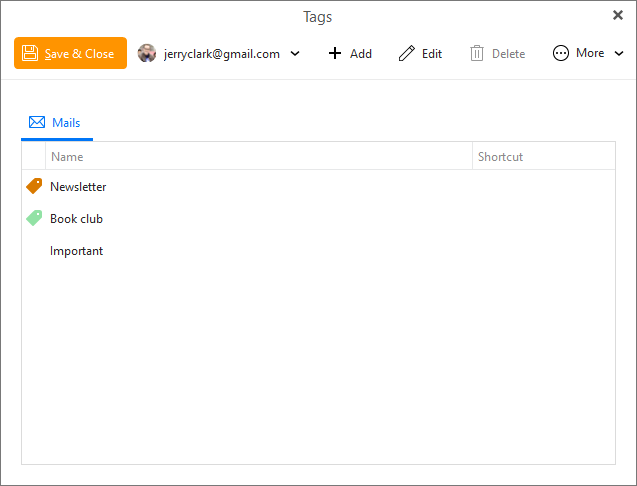
@lancealot Hmm…That’s interesting. I’m not seeing settings for Local Tags vs Synced Tags shown in the link you sent or in the documentation. The link you sent and the documentation show a Tags panel that looks like this:
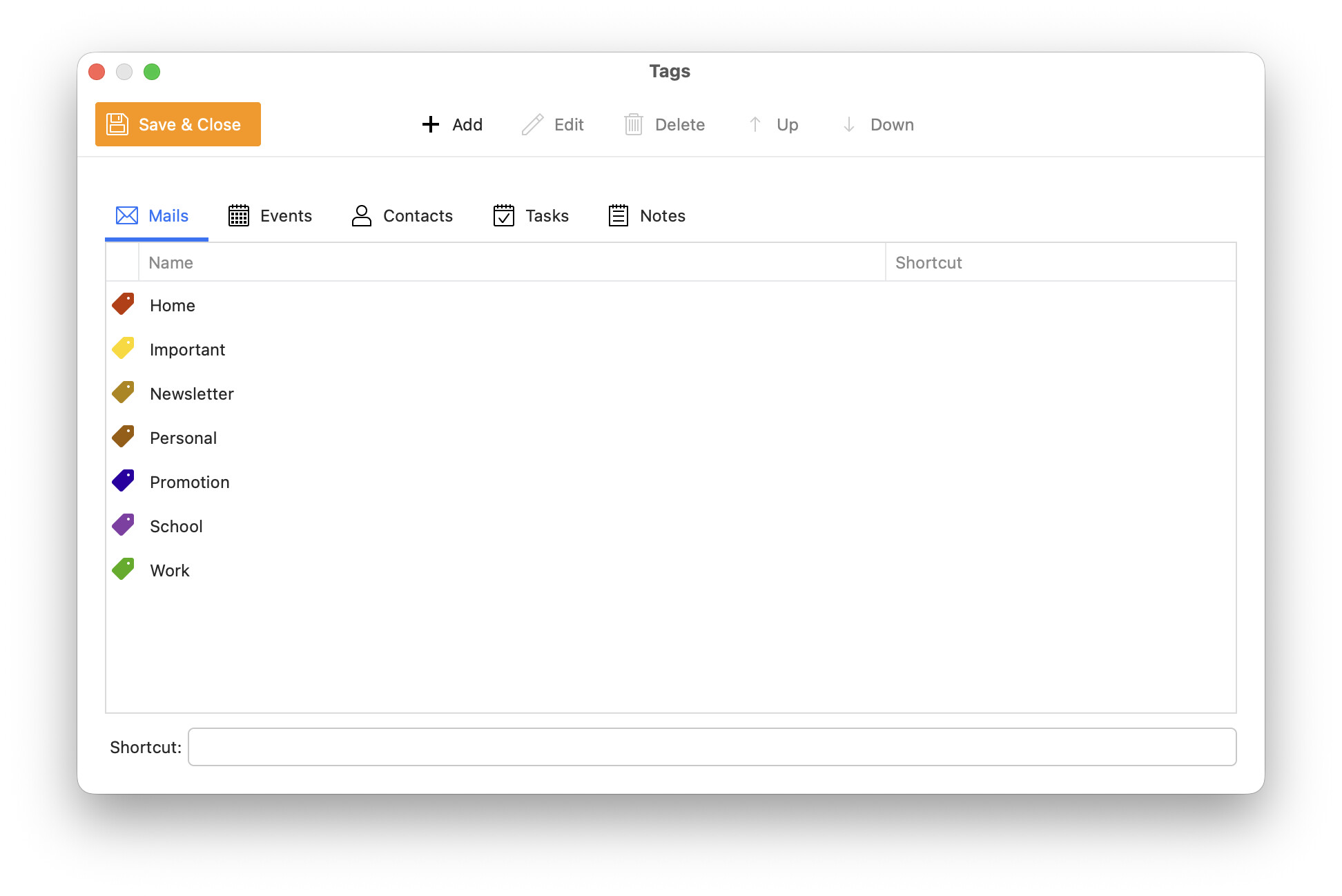
But I see the following (eM Client v10.4.5326 on Mac):
There’s nothing between the orange “Save & Close” button and the “+ Add” button.
How do I see/manage Local Tags vs Tags for specific accounts as shown in the documentation?
@SilverM99 On the webpage I provided the link for it says, “With Exchange and Gmail accounts you can use one more neat feature - management of the server-side tags directly from the eM Client interface”.
If the server in question is supported, the local tags are sync’ed to the server. When it comes to Exchange and Gmail, there is a separate account drop-down selection to manage them on a server side basis.
1 Like
If you have a Gmail account “and you configure it as a POP account” you won’t see the Gmail Server Tags. Only with an IMAP account setup will the Server Tags appear in the Tags section.
So if you do have a Gmail IMAP account or Exchange account as @lancealot advised above in his post and your only seeing Local Tags on Mac, then could be an installation problem.
So try going to “Finder / Applications” and “drag the eM Client app to the Trash”. Then re-download V10.4.5326 from the release history page and reinstall and see if the Server Tags appear.
If it still doesn’t then try create a new database to see if its something to do with your current database. To create a new database, first “close eM Client” and then go to the following hidden database folder below and “rename it” to eg: eM Client-Old . Then reopen eM Client and add your Gmail or Exchange account via the automatic account wizard and see if the Server Tags appear.
“Hidden mail database folder Mac”
“Users\yourusername\Library\Application Support\eM Client”
If a new database then does show the Server Tags, then if you need to retrieve any of your data from your original database, you can do a Partial Restore in Offline Mode via the following page.
Lastly if a new database still doesn’t show the Gmail IMAP or Exchange Server Tags, then might then be to do with your Mac OS. eM Client supports the last 3 OS versions.
That’s not entirely accurate. MailMate is at least one other email client that fully supports Fastmail tags/labels (Gmail labels are even specifically supported, with n labels mapping to n IMAP folders).
Tags/labels are typically represented using IMAP keywords. In Thunderbird, you can define your own mappings from tags to IMAP keywords in the user.js file:
user_pref(“mailnews.tags.$label1.tag”, “$Important”);
This allows you to use Fastmail tags in Thunderbird as well.
1 Like