Has anyone else had this issue ?
I have recently started using the em Client app on Chromebook, after years of using em Client on Windows.
I haven’t had a problem, until a Chrome OS update this morning, after which, my Inbox suddenly has two headings, for ‘Primary’ and ‘Other’, with newly recieved Mail randomly seeming to go to each
Additionally, the Notification ‘Dot’ has stopped working in the em Client Icon on the Shelf, for New Mail.
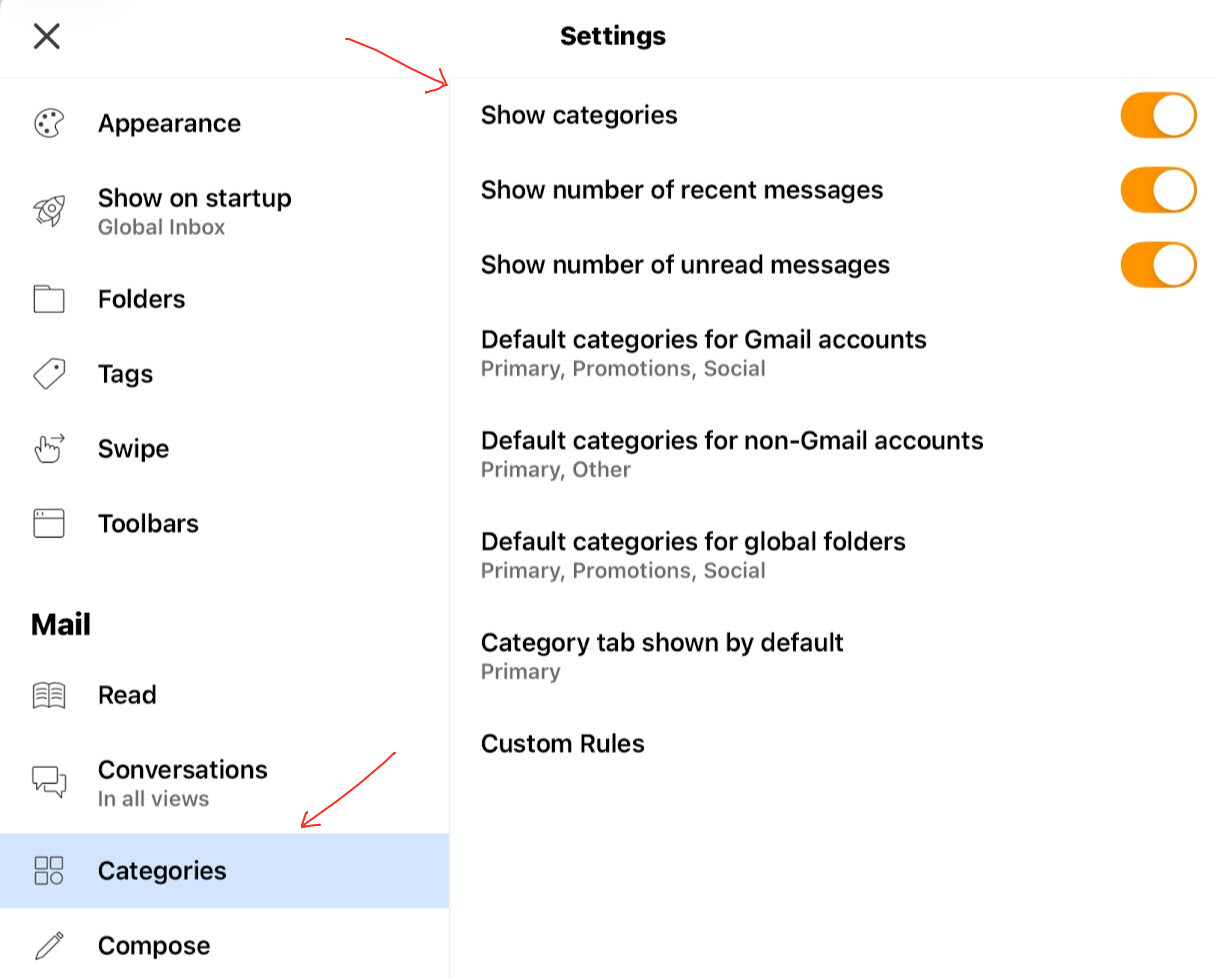
Sounds like you have Inbox Categories enabled. See the below link for information.
To change Categories on the mobile & tablet devices, via pressing “Menu / Settings / Mail / Categories” where you can change any of the Inbox Categories or disable Categories.
Additionally, the Notification ‘Dot’ has stopped working in the em Client Icon on the Shelf, for New Mail.
Can you screenshot where the Notification Dot on the Shelf normally is and what version of eM Client you are using on the Chromebook. Also what Chromebook model do you have.
Version 10.4.4489 (74ed093) of em Client
t was just a Green dot at the top centre of the App icon in the shelf at the bottom of the screen.
Ok according to the Playstore there is a later V10.4.4899 released 4th March. So try updating to that and see if that makes any difference.
Failing that suggest to email [email protected] as i don’t know if the Chromebook is 100% supported yet. Apart from that others who use Chromebooks on this forum might reply.
So, Just to update this, and add a further issue ?
Thanks to cyberzork, the Categories issue is sorted The Notification ‘Dot’ still doesn’t appear, but at least I get a Number of new emails on the Shelf as a notification
However…
I now have an issue with Junk Mails in the em Client App, where there is no ‘Right Click’ option to Blacklist Sender or Domain, and it appears that simply deleting the Junk emails does not Blacklist either Any suggestions anyone ?
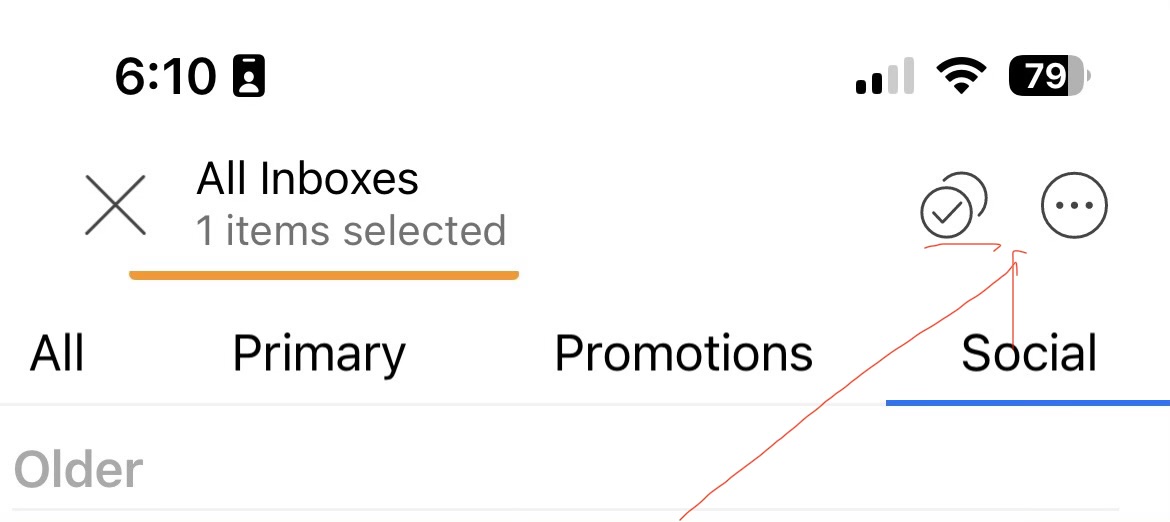
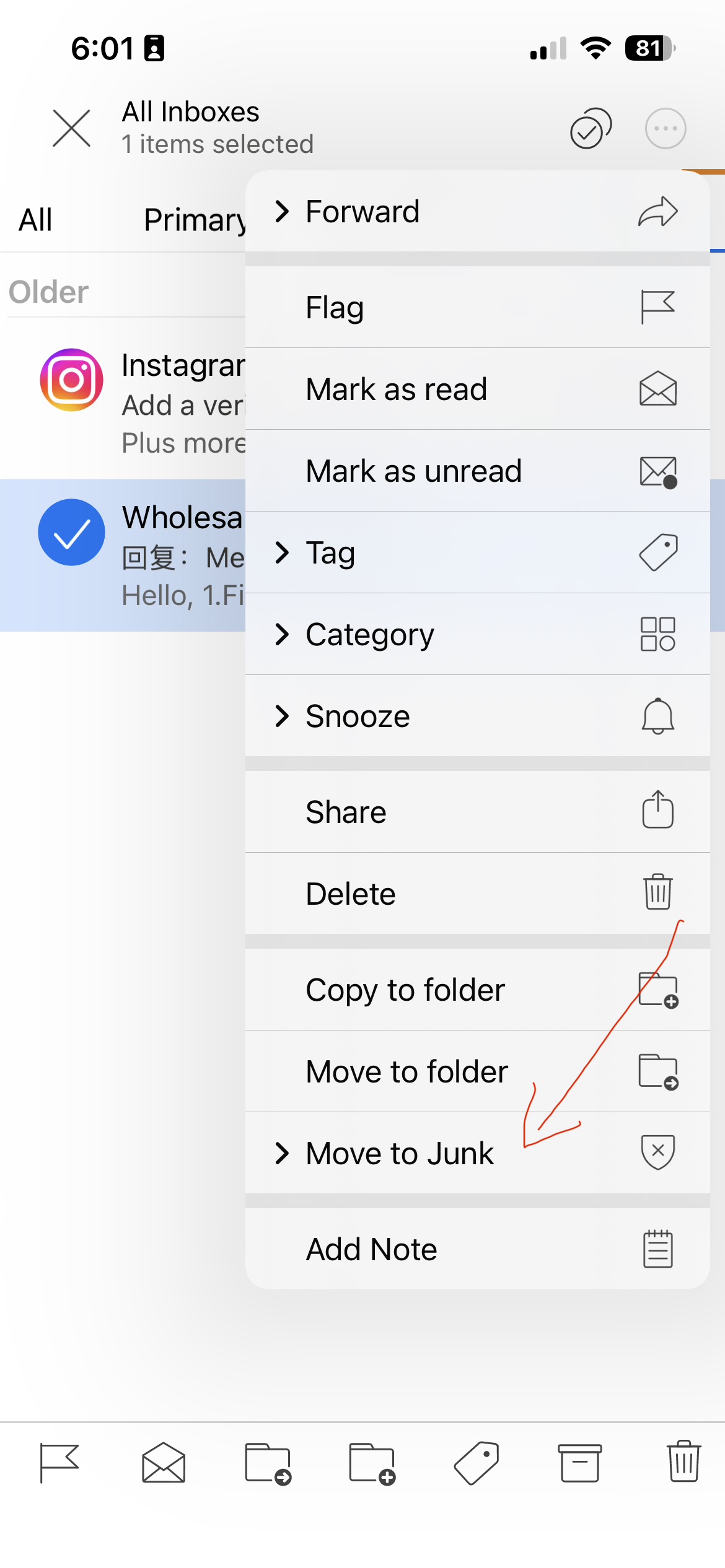
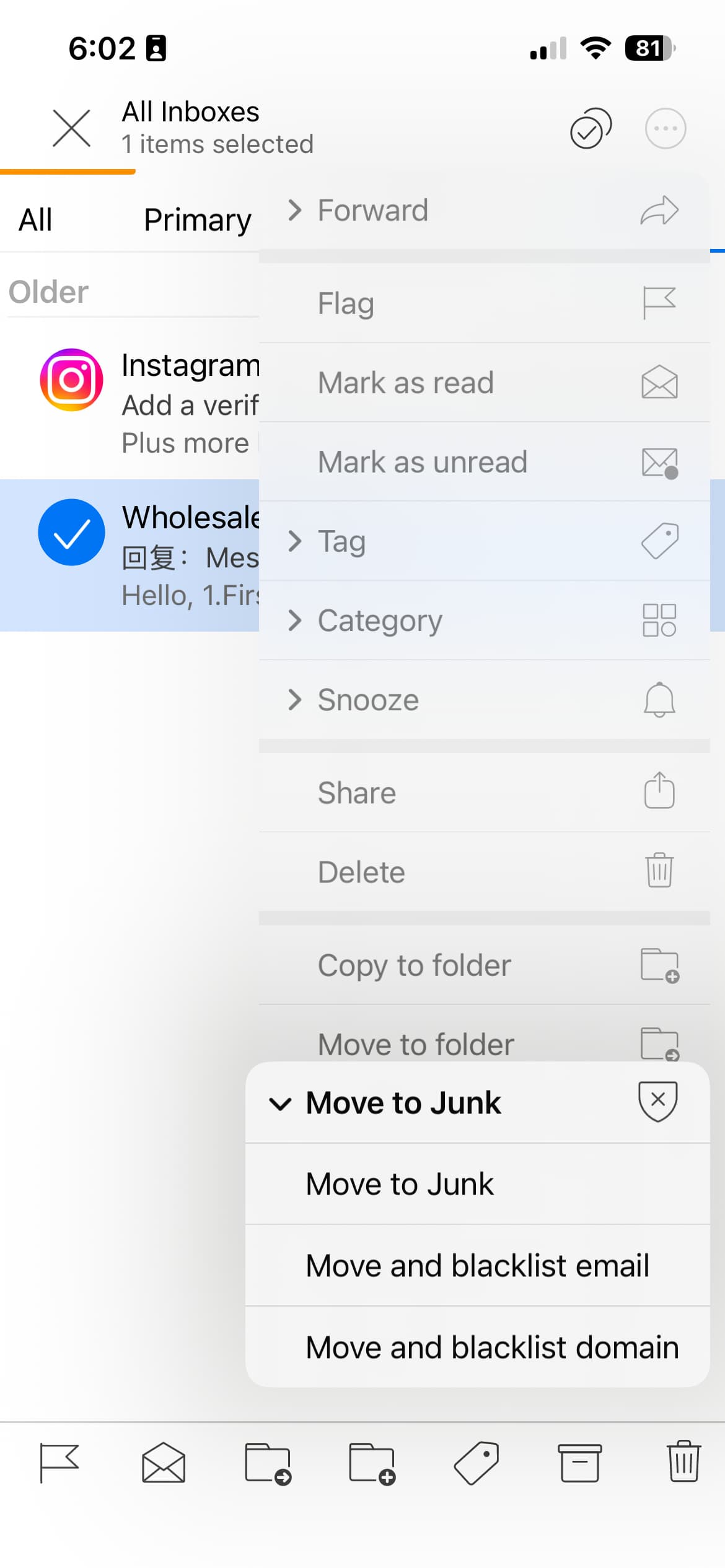
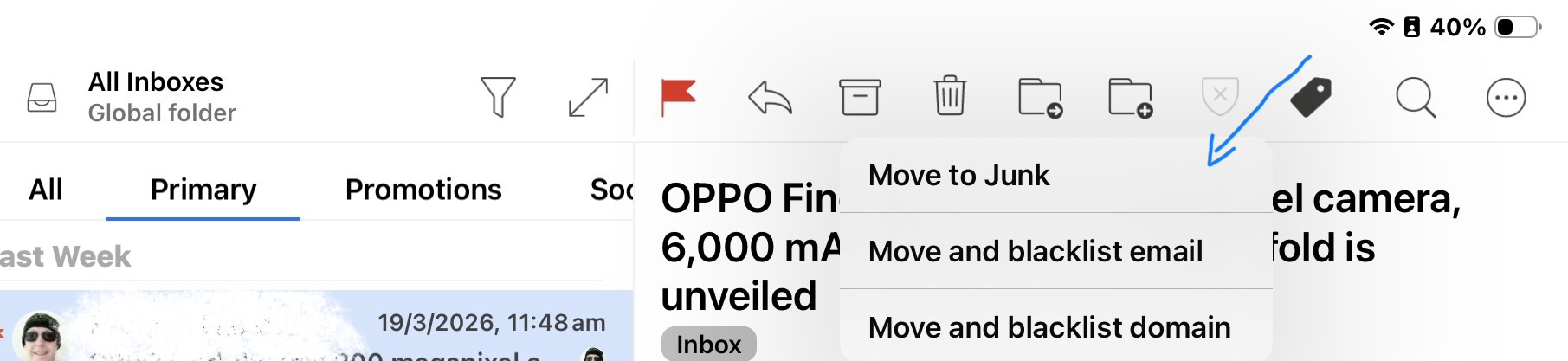
You either “Select the email”, or “Open the email” and then “press the three dots at the top right”, and then near the bottom of the dropdown menu that appears you will see a “move to junk” menu with 3 options to move to junk, move and blacklist email, and move and blacklist domain as in the below example iPhone mobile app screenshots.
You can also press “Menu / Settings” and under Preferences press on “Toolbars” and in Message Details and Multiselect Mode you can add the “Move to Junk” icon along the toolbar as per the below example.
The emails are going straight to the Junk Folder, where those options don’t appear in the list ?
So… Do I need to move the message back to my inbox, to get the ‘Move to Junk and Blacklist’ options ?
If the emails are going straight to the Junkmail folder then “either your mail server is already automatically moving them” as is being detected as possible junk or is a known junk mail, or “you have previously blacklisted the senders email address or senders domain” in the mobile app.
So if you don’t want the senders email in the Junkmail folder, first press “Menu / Settings / Mail” and press “Blacklist” part way down, and “see if the senders email address or senders domain is already in there”. If it is remove it.
If that email address or sender domain is not in the blacklist, then “go online to your webmail Junkmail folder”, and “mark that email as not junk” which will move it back to the online inbox and also train your online mailbox to keep that senders email or senders domain in the Inbox for future.