- Em Client: 10.4.5606
- OS: Windows 11 Pro for Workstations, Build 26200
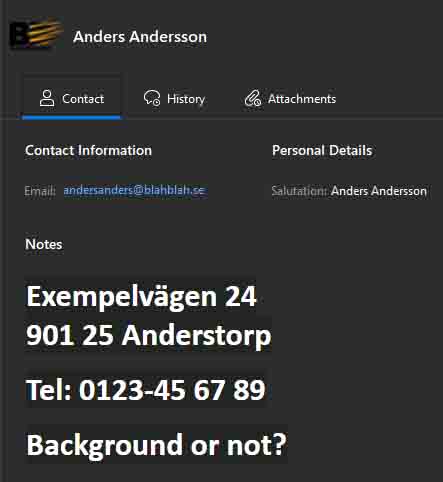
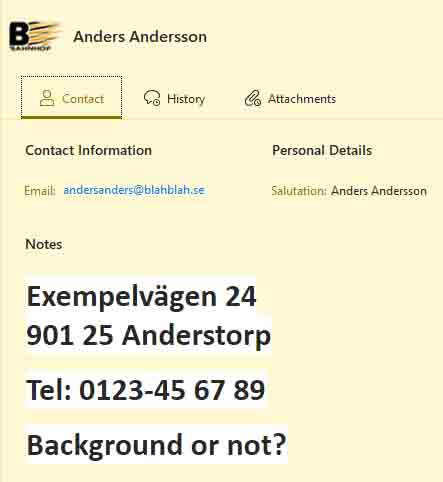
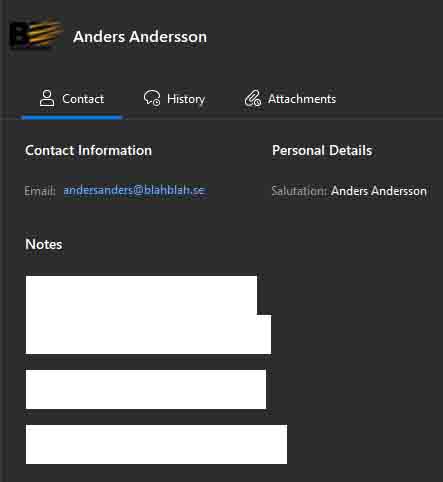
When i import using File > Import > pst file the each line of text in the Notes field has a background. In the first image it can be hard to see but it is easy to see in the second image. On the third image you can see how it looks when switch the Appearance Theme back to Dark, so it seems that EMC has some issues rendering text.
I saw similar thing when i used the same method to import my calendar and it could be solved by changing the text in Outlook Classic to unformatted but this nice trick does not work for Contacts.
I can export each Contact from Outlook as a .vcf-file but then the text comes in very small and since there is no way to change text in EMC´s Contacts its not a solution either. (and it takes time…)
Any clues? 
I found a solution:
Create a new Theme based on the Dark theme and edit the new one and use the Theme Editor and go to Special controls > Messages and change the color on MailBackground from 35,37,35 to 45,45,45.
But i have not yet found an easy was to fix the same issue in the Yellow Jacket them i used for an example abowe. It would be great in you could fix that in all themes so eM Client works “out of the box” without the need for customizations on different Themes.
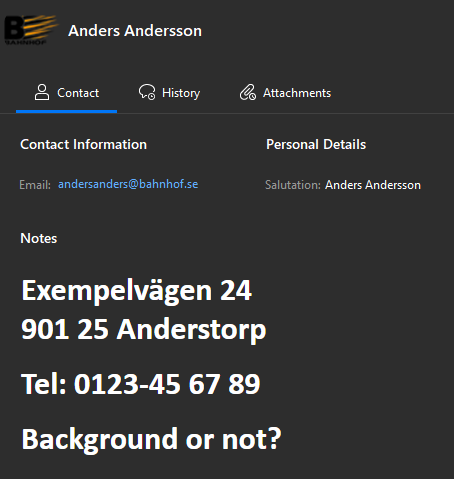
This is how it look now with the new customizated Theme i made:
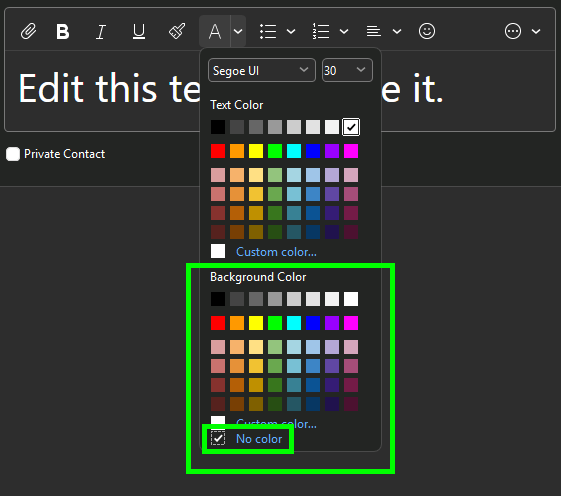
I found a solution that is even better and that works for all Themes. Instead of modifying the Theme, change the Backround Color of the Contact.
This works for all Themes but the downside is that one has to make this change for each Contact, so it can take time. So the solution depends on how many Contact you have in your list.
1 Like