I can’t believe this, but I can’t find any way to send an email to multiple recipients in the “To” field.
Help!
I can’t believe this, but I can’t find any way to send an email to multiple recipients in the “To” field.
Help!
I can’t find any way to send an email to multiple recipients in the “To” field.
If you contact email address’s “are in your eM Client Contacts”, then after to type a few letters of the recipient’s name, select the email address for that recipient “and then just start typing another recipient’s name” and select their email address “and it will appear on the right of the first one” etc. You will see a small vertical gap appears automatically between the email address’s.

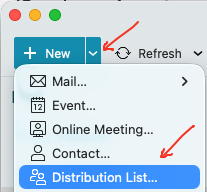
Or if there is alot of email address’s to type in the To: line, then you can alternatively create a eg: “Distribution List of recipient’s” where you initially “add them all from your contacts in a group name” which then can be edited anytime later, and then in the To: line just type the group name.
See the eM Client online help documentation URL on Distribution list and link below for how to do that.
Distribution List
“eM Client enables you to create so called distribution list, which is basically a list that can contain any number of contacts. Once you have created the distribution list, you can use it by filling in its name in to the recipient field, while you are writing a new message, and the message will then be simply sent to all contacts that are contained in the particular distribution list. To create a distribution list click on New > DistributionList and the following window will appear”.
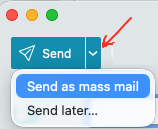
Also eM Client has a “Mass Mail” feature which allows you to send the emails “to all the recipients in the To: line”, without them knowing who else received them and with each copy of the emails being sent only to them. See the below eM Client online "Merge & Mass Mailing webpage extract.
https://www.emclient.com/merge-mail
eM Client has simplified the way to send bulk emails. All you have to do is follow these steps:
This allows you to send the emails to all the recipients, without them knowing who else received them and with each copy of the emails being sent only to them.
You can also use this feature with a distribution list. For instance, you have to send an email to a specific group of people. Instead of manually entering the emails, you can simply create a distribution list.