Hello,
I’m using eM Client 10.4.4867 on a Mac. However, I’ve had similar experiences with the problem described below on Windows.
For many previous versions, it’s been annoying me that the first letter of a word on a line is initially lowercase after typing, but after a space or a return key, the first letter of the word is always capitalized.
The only way to prevent this is to press ESC at the end of the word.
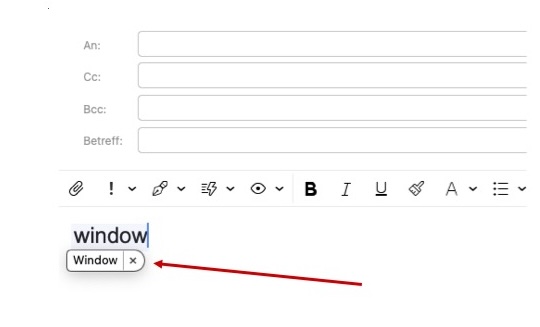
A small “speech bubble” appears, presumably to remind me, but I don’t always remember to press ESC.
Is there a setting somewhere to ensure that lowercase letters are ALWAYS written when typing?
Thanks for your help.
Regards, Hans
Hello,
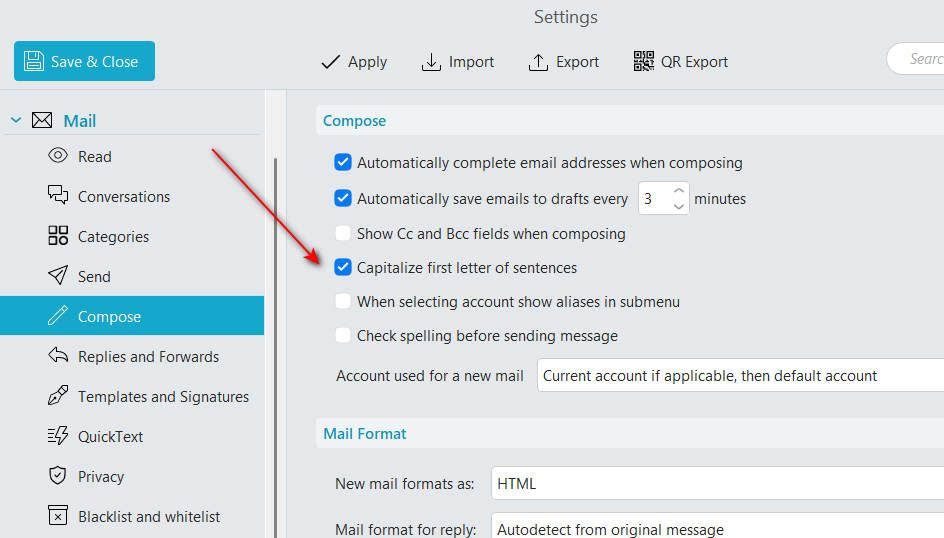
I’m unable to reproduce what you are referring to in a Windows 11 environment (eM Client v.10.4.4867) when the following box is unchecked.
Hello, thank you for your reply.
This works fine on Windows, but not on Macs.
If the checkbox is checked, the first word of every sentence is always capitalized immediately.
If the checkbox is unchecked, a small speech bubble or something similar appears while typing, as shown in the image. If I press the spacebar or Return, the word is typed as shown (first letter capitalized). If I press Esc, the word remains unchanged.
I’m looking for the setting to disable this on Macs.
I haven’t observed this behavior on Windows.
Regards, Hans
Hello again. I’m not a Mac user, I hope another forum member could help you on the matter.
I took the liberty to reply to your post because you said you had similar experiences with the problem on Windows.
Interestingly on my Mac, the checking of the option in settings seems to have no impact at all. It behaves as OP described above regardless of setting
If the checkbox is unchecked, a small speech bubble or something similar appears while typing, as shown in the image.
The small speech bubble (or pop-up box) that appears while typing on a Mac to suggest corrections is a feature known as Auto-Correction or Inline Predictive Text. It is designed to correct misspellings or finish words automatically in apps like Mail, Notes, and Messages.
Open System Settings on your Mac (Apple logo > System Settings).
Click on Keyboard in the sidebar.
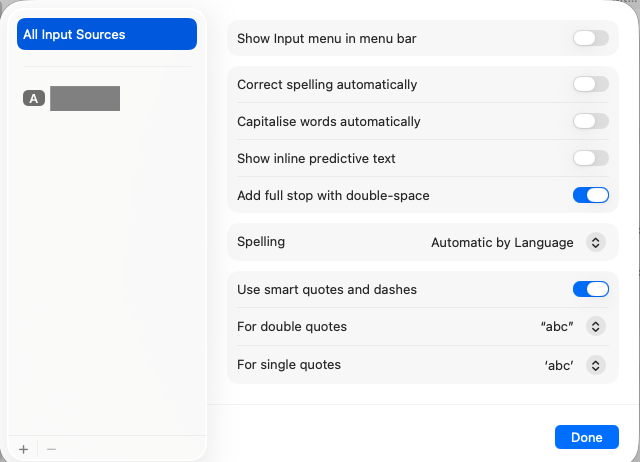
Under the “Text Input” section, click the Edit… button next to “Input Sources”.
Toggle off Correct spelling automatically.
(Optional) Toggle off Show inline predictive text to remove the light gray text suggestions that appear ahead of your cursor.
If you disable all that in the screenshot above, and then “enable the options you want” in eM Client, then it will work correctly. Otherwise the OS Keyboard input settings override eM Client.
You did it. That worked perfectly.
It works, thank you so much for your help!