I have two emails created under NameCheap’s Private email with a custom domain. CardDAV is supported and automatically enabled by NameCheap. I have initially installed one of the two emails on my 30 day free trial of emClient on my Windows desktop and on my Android phone. On my desktop auto recognition failed and I had to instal the IMAP email account manually. On my Android device I was able to QR code the installation. Syncing of emails is working fine but not of Contacts.
I have the details for NameCheap CardDAV settings and have entered these into the desktop emClient. I was requested to set up a new CardDAV account on the emClient Android App. Still no syncing of contacts. Anyone any ideas since my major reason for trying out emClient was the syncing of BOTH emails and Contacts.
I have the details for NameCheap CardDAV settings and have entered these into the desktop emClient. I was requested to set up a new CardDAV account on the emClient Android App.
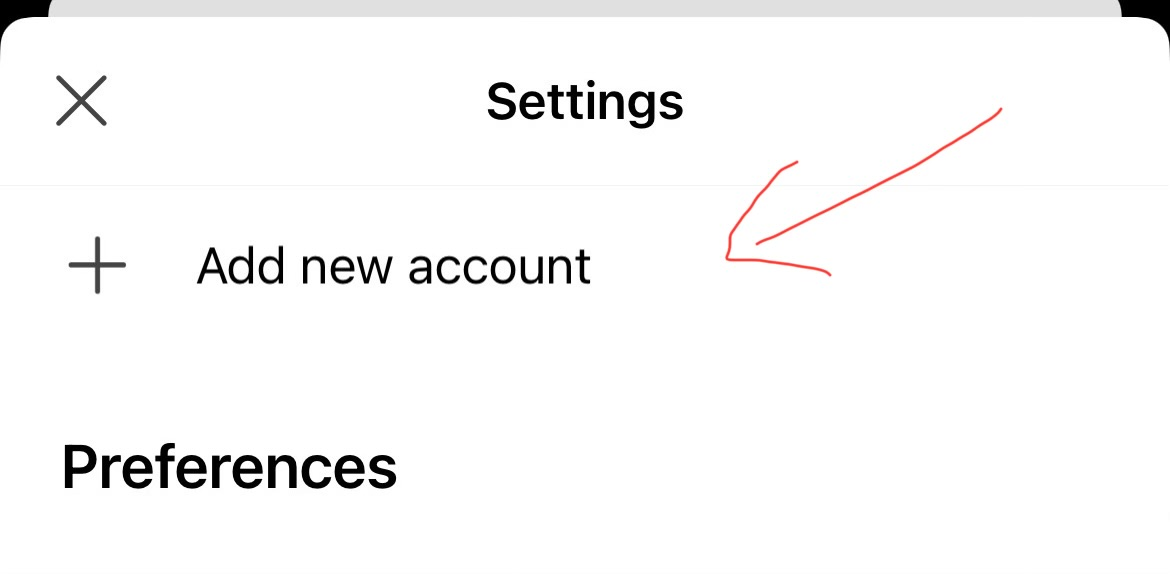
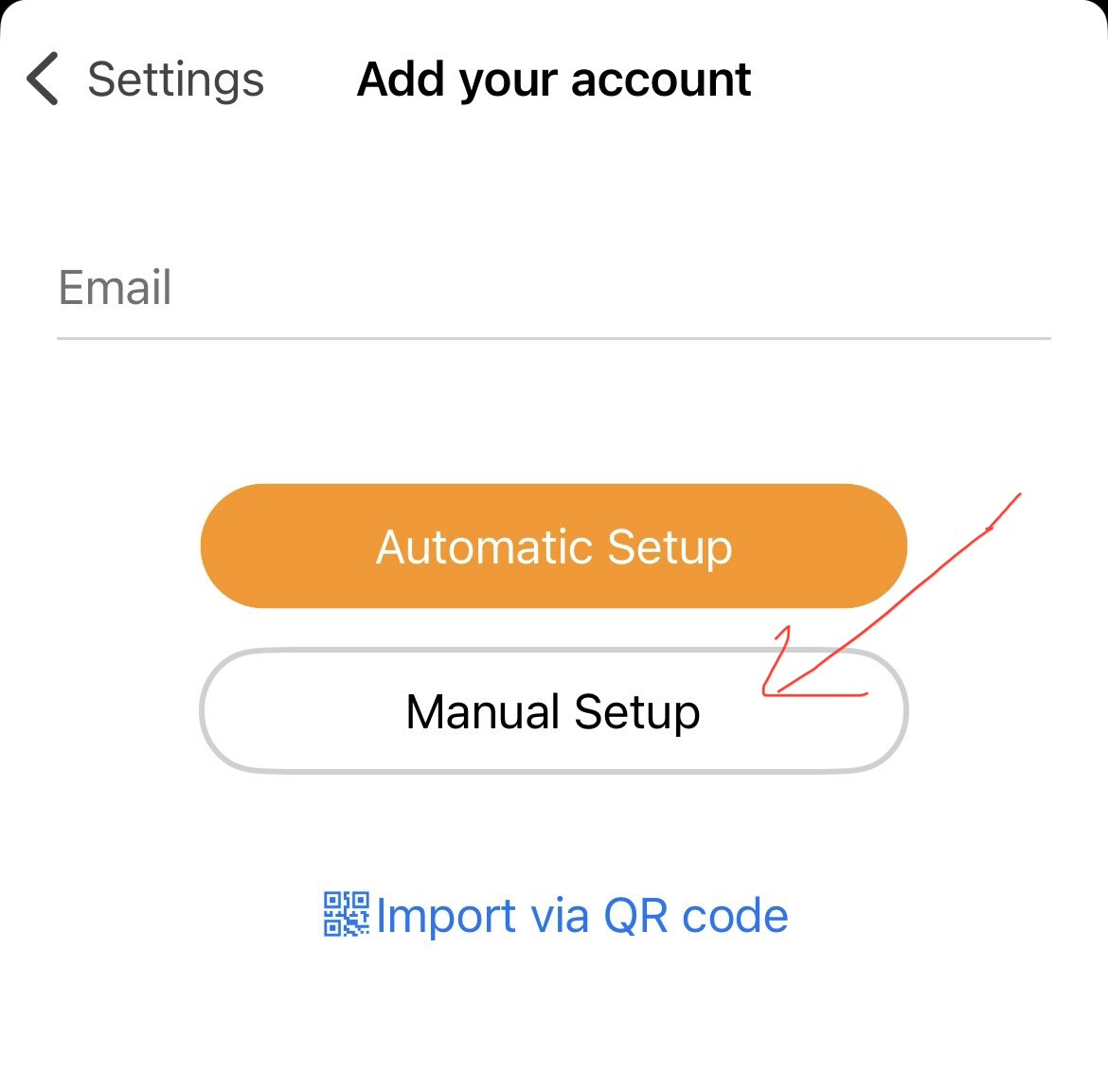
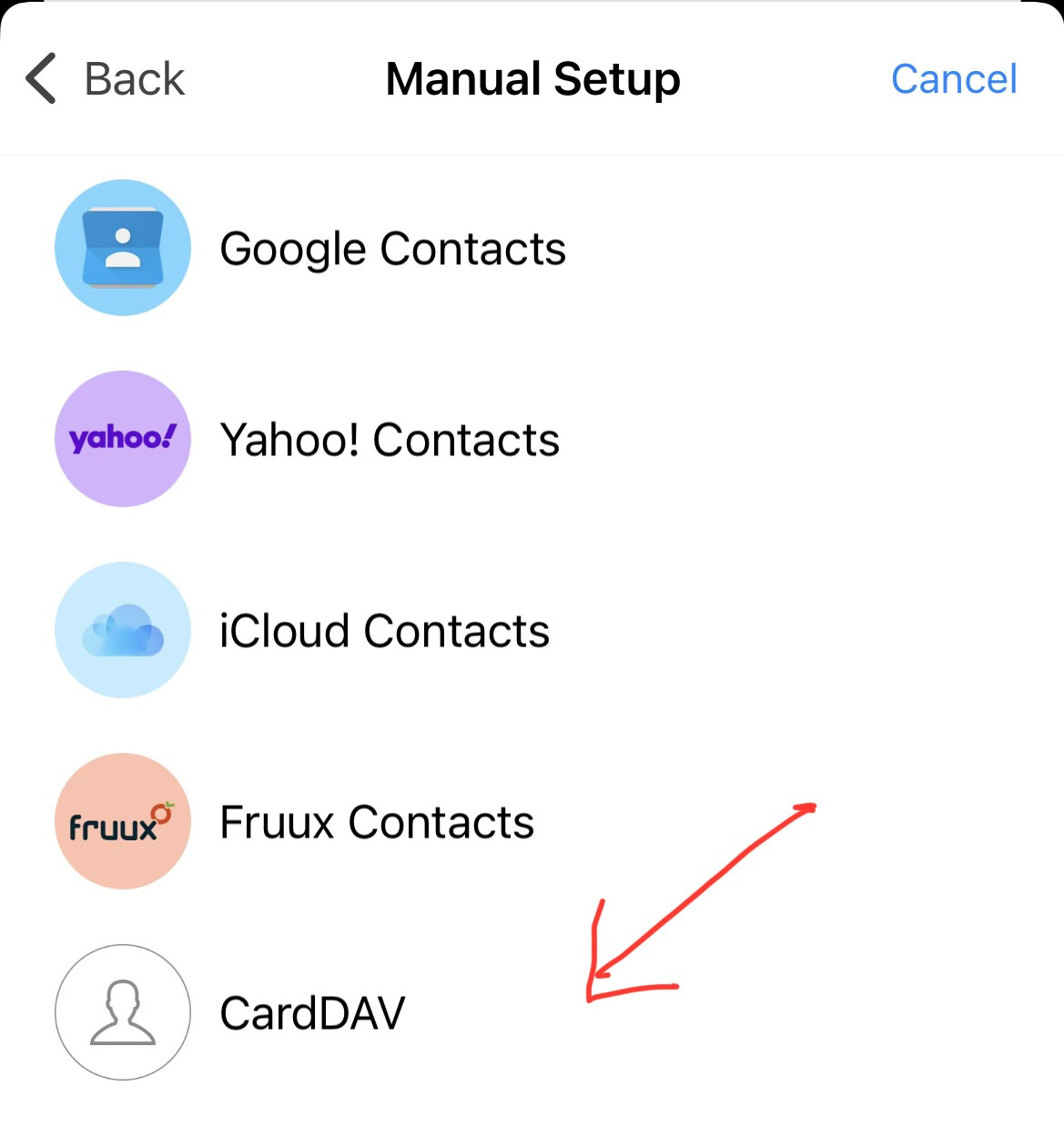
If you have the correct NameCheap CardDAV contacts url address that works & Syncs ok on the desktop, then in the mobile app do the following below (see screenshots) to manually add it in.
If your desktop CardDAV also doesn’t sync then suggest to contact NameCheap technical support to dblcheck the URL. They can also test it out with eM Client mobile app.
If manually adding the CardDAV url doesn’t work on the mobile app or desktop & you definitely have the correct url. then sometimes that can be due to eg: you might need an app password or “different app password” than your normal password for the CardDAV url setup.
Googling NameCheap they do appear to use app passwords for client setups for mail, calendar & contacts. So maybe generate a different app password for the desktop & mobile app and see if that works. You might also need a separate app password for the CalDAV part as well.
“Setup CardDAV Mobile app manual setup iOS & Android”
1). Press "Menu / Settings”.
2). Then under Accounts press “Add new account”.
3). Then press “Manual setup” and choose “CardDAV” and follow the wizard.
Hi Paul,
Did you try to import the CardDAV account to the mobile phone? Or did you try to run the import and it’s missing?
Regarding the QR import, if it fails, please send me the error message and screenshot of the accounts listed on your phone.
If you already have the account setup now (either via Import or the manual steps Cyberzork shows above) and the sync still doesn’t work, we’d need to look at CardDAV logs to analyze it further.
- Go to Settings > the affected NameCheap account >CardDAV > Advanced > Enable diagnostic logs.
- Restart eM Client.
- Go to contacts to open the folder in this account
- Send the logs
Please send to me directly at [email protected]