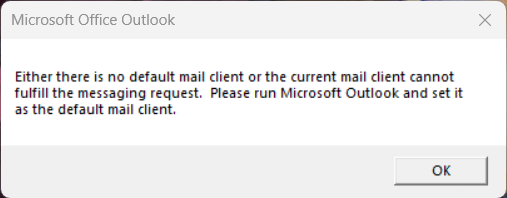
After upgrading to version 11, I get the following error every time Windows 11 starts:
When I click OK to dismiss the dialog box, the same error appears again. After clicking OK a second time the dialog box disappears.
I have completely uninstalled eM Client 11 and restarted Windows. There error is now gone. Then I reinstalled eM Client and set it as the default mail client and restarted. The error is now back.
This is happening consistently on both my desktop and my laptop.
This issue is a documented bug specifically affecting version 11 of eM Client.
When Windows starts, eM Client runs background components to initialize the application. During this process in version 11, the program makes an incorrect query to the Microsoft Outlook system registry (which is why the error window is titled “Microsoft Office Outlook” and appears exactly twice in succession). Because it fails to find the expected association, it interrupts the system’s clean startup, regardless of whether you have set the default values in the Windows 11 settings.
Since the error disappears when eM Client is uninstalled and reappears identically on both computers upon reinstallation, the only way to fix the root cause is to clean the system registry entry triggering this false Outlook loop or to prevent the program from launching automatically.
Follow these methods in order to resolve the issue:
Method 1: Remove the leftover entry in the Windows Registry
This step removes the orphaned Outlook key that eM Client 11 incorrectly attempts to read during startup:
- Press the Windows + R keys, type
regedit in the box, and press Enter to open the Registry Editor.
- In the editor’s address bar at the top, copy and paste the following path and press Enter:
HKEY_CURRENT_USER\Software\Clients\Mail
- In the left pane, under that folder, check if a subfolder named “Microsoft Outlook” exists.
- If it is there, right-click on “Microsoft Outlook” and select Delete.
- Close the editor and restart your computer.
Method 2: Disable eM Client’s automatic startup with Windows
If the error persists, it is because the eM Client 11 secondary executable launches too quickly, before Windows services have loaded the default associations. You can disable its automatic startup as follows:
- Press Ctrl + Shift + Esc to open Task Manager.
- In the left-hand menu, click the Startup apps icon (it looks like a speedometer or a puzzle piece, depending on your Windows 11 build).
- Find eM Client in the list.
- Right-click on it and select Disable.
Note: Doing this prevents the error from reappearing when you turn on your PC. You can still open eM Client manually via its shortcut whenever you need it, without encountering any issues.
Method 3: Apply the official eM Client patch for Windows
eM Client provides a specific registry executable file to fix issues where the operating system gets stuck on default values.
- Go to the support section of the eM Client Default Apps Guide: eM Client does not work as default mail app - Powered by Kayako Help Desk Software
- Download the .reg registry file attached at the bottom of the official article (designed to resolve system assignment errors).
- Double-click the downloaded file, accept the Windows security warnings to merge it with your system, and restart your computer.
Thank you for the reply. None of these solutions worked for me, but it did send me down a rabbit hole and with the help of Claude I was able to find the solution. The error was a result of the iCloud Outlook connector. Uninstalling it eliminated the error dialog.
Maybe iCloud updated around the same time I upgraded eM Client it is was just coincidental that the errors started appearing at the same time.
3 Likes
Hmm… to many variables here to tackle this.
So @oakhurstmgmt only uninstalling iCloud Outlook resolves this issue? All other options didn’t work.
I’m currently on eM v10 without issues.
eM is my secondary email client. And I use iCloud Outlook connector quite a lot. More than eM v11.
Guess I’d stick to v10 for a while until both eM v11 is fixed, and Apple maybe updates their software even more/to a higher (compatible?) version.
I guess indeed “perfect storm”.
Even after uninstalling eM v10 - and all folders - and a restart, I’m getting this MS Office Outlook message.
Seems/looks like iCloud Outlook connector is the culprit here…
Why do you still need Outlook ? Can you not do everything in eM Client ?
Thank you for reporting this. We’re aware of the issue and have published an announcement with more information here: Outlook “no default mail client” message appearing after installing eM Client 11