For some reason I started getting Bad Password alerts in eM so I changed it yet I am still getting the Bad Password alerts about every 30 seconds. Anyone else dealing with this? The new password works everywhere else on every device.
Might then be then something happened to your account in eM Client.
So suggest “if you have been making regular eM Client backups” either automatically via the Settings or manually via the Menu, try restoring a recent backup when you know it was working ok via “Menu / File / Restore” any new mail etc will then update when eM Client reconnects / syncs.
If you have a POP account “before restoring” go to “Menu / File / Export” and choose Export emails to (.eml) files and then choose a folder on your desktop or documents to save them in. Then once eM Client is restored, reimport those exported messages via “Menu / File / Import”.
If you don’t have a recent backup and you have a IMAP, Exchange, Office 365 or iCloud account and nothing in Local Folders, then suggest to go to “Menu / Accounts” and remove and re-add your account which should then normally fix the problem. If its an eg: iCloud account before re-adding your account “go to your iCloud account online and generate a new app password” then add the account and enter that app password instead of your normal email password in the eM Client with iCloud setup.
If you don’t have a recent backup and you have a POP account, then “before removing your account” go to “Menu / File / Export” and choose Export emails to (.eml) files and then choose a folder on your desktop or documents and save the messages. Then remove and re-add your POP account and then finally reimport those exported messages via “Menu / File / Import”.
Ugh! I followed your directions and deleted my main account and now I get this when I try to re-add it
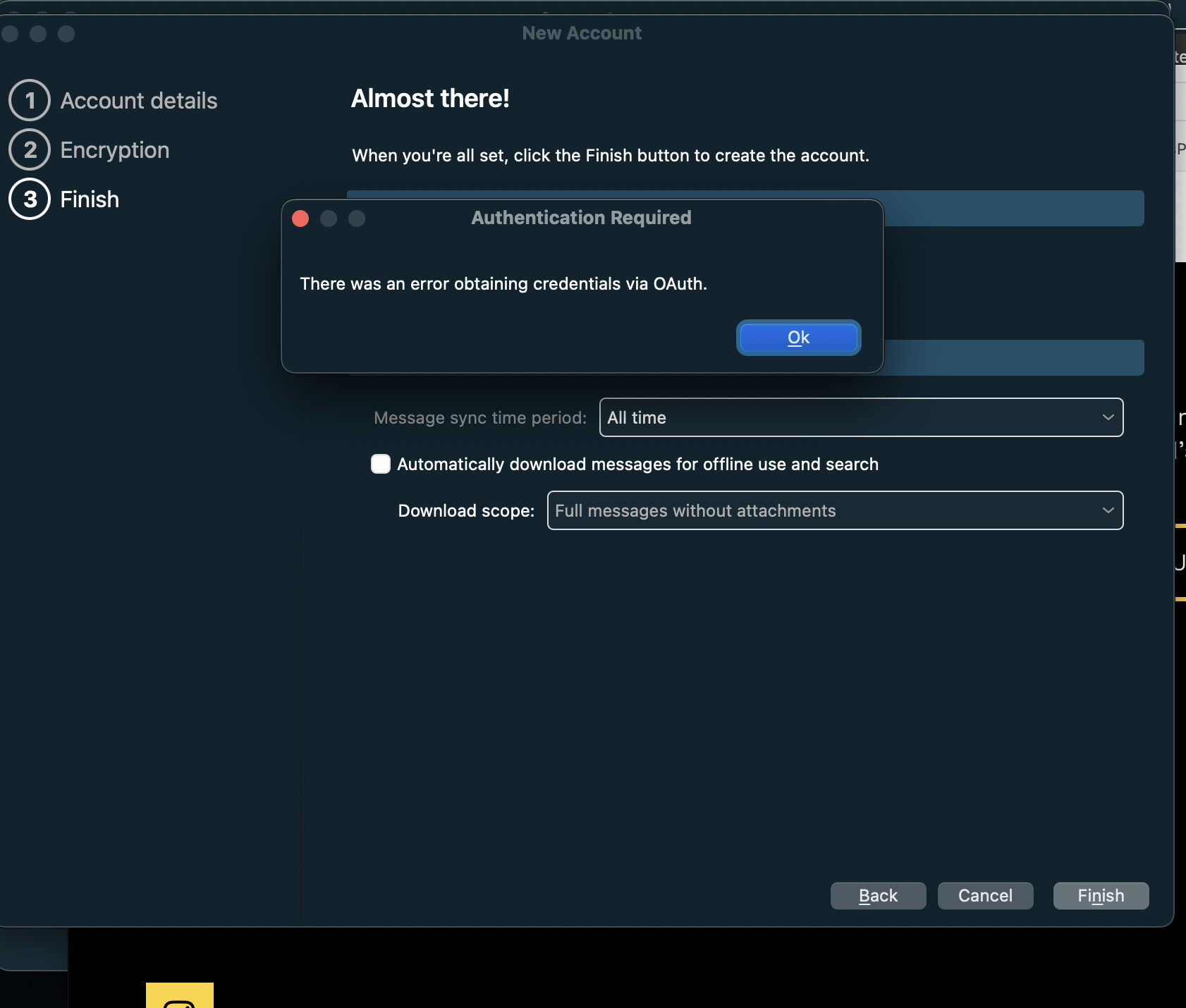
Now what? I didnt realize I was about to erase all of my email!! That is a huge problem! I wish your directions were clearer- so now I cannot get my email and evidently I’ve wiped out years of emails I didnt want to lose!
there was an error obtaining credentials OAuth sounds like your “OAuth” token on the server.
That sounds like a server OAuth token error that might just need revoking / removing and then re-adding as new, or maybe an App password problem that needs removing and readding.
Is this an “IMAP, Exchange, Office 365 or iCloud” account, or is it a POP account.
Also “who is your mail account with” or mail host.
I didnt realize I was about to erase all of my email!! That is a huge problem! I wish your directions were clearer
If you have an IMAP, Exchange, Office 365 or iCloud account you won’t loose an messages as “it’s all stored on the server end” and not local and comes back when the account is re-added..
If it’s a POP account “as long as you exported your mail first to (.eml) messages before you removed the account “as per my instructions” then you won’t have lost any messages either.
its a pop account with Earthlink as far as I know. I didnt export the mail file so I guess I’m screwed. And because Earthlink only allows a small email footprint I only have emails back to March. How do I fix OAuth issue?
Is it possible to go into a Time Machine backup and extract the needed files?
its a pop account with Earthlink as far as I know. I didnt export the mail file so I guess I’m screwed.
If you didn’t export the messages first to (.eml) and don’t have an eM Client backup, then the only other way to restore messages is if you have a complete computer image recently backed up. Apart from that your mailbox provider might keep backups.
Is it possible to go into a Time Machine backup and extract the needed files?
Yes if you have a recent Time machine backup, “Close eM Client” and then go to the following hidden database folder on your Mac and “rename it” to eg: eM Client-old".
(Mac Hidden hidden eM Client database folder)
“Users/yourusername/Library/Application Support/eM Client
To access the hidden ~/Library folder:
- Open Finder.
- Click Go in the top menu bar.
- Hold down the Option key on your keyboard, and “Library” will appear in the list.
Then go to your Time Machine “same hidden folder location” and "copy the eM Client folder to Application Support" and then reopen eM Client and it will be exactly the same as it was before.
Or you could restore your “complete computer from the Time Machine” rather than just the hidden database folder if that’s easier for you.
Or if you have been using the builtin eM Client backup, then go to “Menu / File / Restore” to restore a recent backup which would be easier than restoring the database manually from a Time Machine. The eM Client dated backups are by default in “Documents/eM Client” folder.
How do I fix OAuth issue?
From Googling Earthlink they use “a normal legacy username and password” and not an OAuth token. They also support 2FA (Two-Factor Authentication) & MFA (Multi-Factor Authentication) authentication which can be enabled in their webmail gui. So if you have enabled 2FA you need to generate an “App Password” to use in your mail client according to their website documentation.
So “check in your webmail if you have enabled 2FA authentication or not”, and if you do have 2FA enabled, i would suggest to try removing your old app password and re-generating a new app password" and then try re-adding your POP account again in eM Client with that password.
If you don’t have 2FA authentication enabled in EarthLink and “just using a normal legacy username / password” and resetting your password hasn’t helped, then suggest you contact Earthlink technical support and let them know you are getting an error obtaining credentials OAuth as per your screenshot further up. As could be another setting in your Earthlink account or webmail causing it.
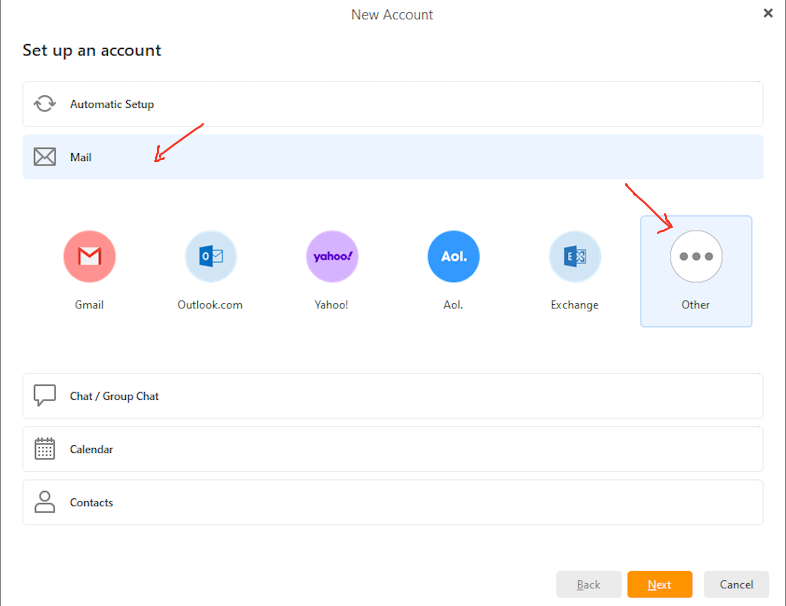
Also you might need to add your Earthlink POP account manually via the Manual option if the automatic account wizard doesn’t work, “depending on if you originally added it that way when it was first setup”. If it is a manual setup, then when in accounts, click “Add Account” and click the “Mail” option and click “Other” and follow the manual wizard and at the end remember to choose if you want your POP account in a Separate folder tree or in Local Folders on the last screen.
2 Likes