I created a backup from my old computer, which was running eM Client version 6. After importing it into my new computer—which has eM Client 11 installed—the files are present in the folder, but nothing appears under “Local Folders” within eM Client. What am I doing wrong? I have updated the file path for my emails, and that is the folder eM Client uses for the import.
Did you look in "My Documents\eM Client"? I am using Windows 10 Pro and that is where all of my eM Client backups go.
To get local folder messages or other Local Folder data from V6 to V11 (as you normally carnt restore a V6 backup into V11), you first go on your old computer to “Menu / File / Export” and choose what to export, eg: Messages choose (.eml). Then export to a folder on your desktop on your old computer. See the following documentation export link.
Export data documentation for messages
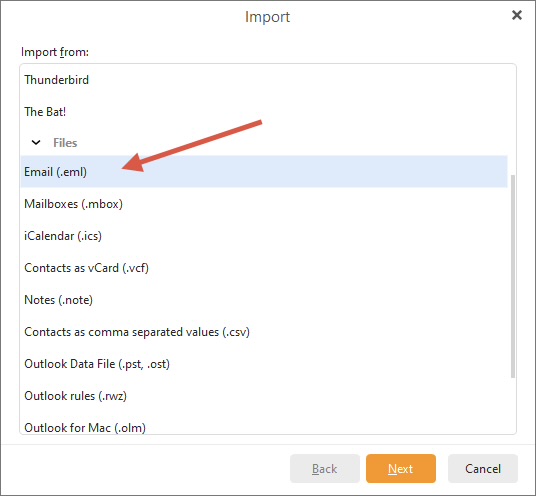
To then get your old eg: exported V6 local messages to your new computer V11 local folders, “copy the exported folder on your old computer to a folder in your new computer”. Then “open eM Client 11” and go to “Menu / File / Import” and select “Email (.eml) as per the below documentation.
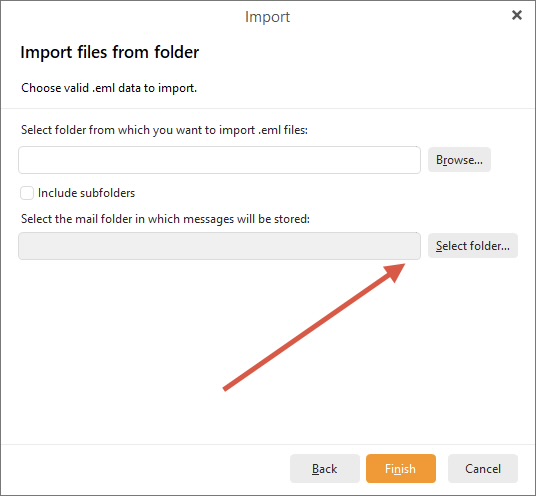
Then click “Next” and “select your folder where you have the exported V6 Local Messages in the first field”, and then “select your Local Messages folder where you want the messages to be stored in the second field” as per example screenshots below.
Then click “Finish” which will import the messages into V11 Local Folders on your new computer as per the example screenshots below.
You then do the same process for any other V6 Local Folder Contacts, Calendar, Tasks or Notes.
Import data documentation for messages
Thank you so very much. It worked perfectly.