I started using eM Client today and moved the database location to a different folder instead of the default Roaming\eM Client . Now I’m experiencing the following problem.
When I receive a new email and click the notification that pops up in the bottom-right corner, my eM Client is already running, but a new eM Client process still starts. This new process resets the database location back to Roaming\eM Client , which causes two issues:
The new process can’t read any data (because I’ve already moved my database).
The next time I start eM Client, the configured database location has been changed back to the default, forcing me to redirect it to my custom database location again.
It seems the root cause is that clicking the new mail notification launches a second eM Client instance instead of bringing the existing one to focus. How can I fix this?
eM Client Version: 10.4.5326 (97a2e75)
OS: Win11 Pro 24H2
There is no problem changing the database location - providing yo do so correctly.
To check do this:
Menu .>Settings >General >Storage (this should read your NEW database location)
You will also see here some instructions, make sure you done all this and have MOVED
the database.
When this is done DELETE the original database location and reboot eMC.
That’s it.
skybat
¡Buena suerte!
¡Saludos desde Sevilla la soleada en España!
¡Mis mejores deseos y mantente a salvo!
I uninstalled and reinstalled eM Client again and did some testing. Here’s what I found:
Trigger conditions:
eM Client’s storage location is not in the default path.
eM Client notifications are set to “Use system notifications” – otherwise the issue does not occur.
eM Client is minimized to the system tray (minimizing to the taskbar does not trigger the issue).
When the above conditions are met, upon receiving a Windows email notification and clicking on it, a new eM Client process is launched. This new process looks for the data files in the default storage location, creates a new eM Client instance, and overwrites the previous configuration settings.
Thanks for that - I have no idea why this is the case, it is something that eMC support
will need to address.
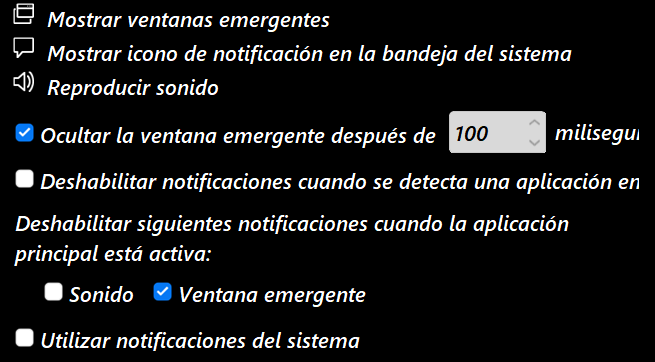
In the meantime I suggest that you disable “Use system notifications” See image below
(sorry it is in Spanish, the position of items is the same in English)
and setup eMC notifications above, you can also modify this by using something from:
c:\Windows\Media - you can copy your choice to the SOUND folder in the eMC Root
installation Folder on C:\
That’s it.
skybat
¡Buena suerte!
¡Saludos desde Sevilla la soleada en España!
¡Mis mejores deseos y mantente a salvo!