I was able to solve the problem of Size column not showing. I had conversations enabled due to which no Size column was there. But after disabling converstions by going to Settings > Mail > Conversations, it was showing the Size column.
The reason for this is that each email must be displayed separately rather than a part of multiple emails, in order to get the size for a single email.
When conversations is enabled, each row in Message list could include multiple emails and therefore there is no logical way to show the size of a specific email.
I am trying to find emails with large attachments and would like to display Size for each email in the messages list.
With the paid version you can click the “Attachments icon section” at the bottom left of em Client to just see the large attachments sizes in one view and can then sort them that way.
Wow, that’s a great feature I had no clue about. Thanks.
It shows a list of attachments (not list of emails) that can be sorted based on size or other parameters like Created date, Subject etc. Great feature in em Client.
And the good thing is that it works even when Conversations is enabled, unlike the approach I mentioned in my last message.
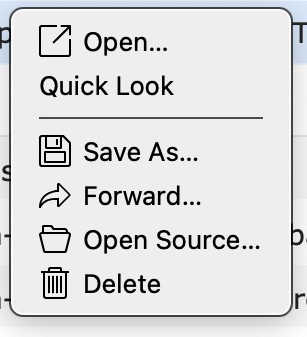
One important part of this approach is how to get to the email containg the attachment. For this, you have to right click on the row in the attachments list and then select Open Source from the context menu.
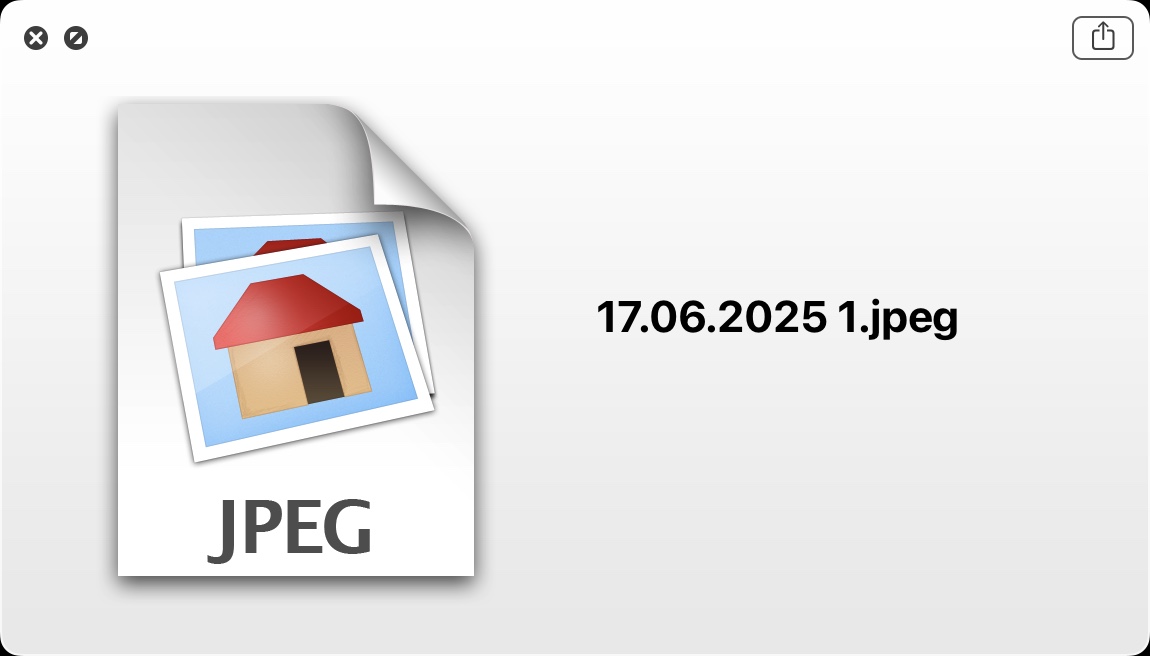
Interesting — this way I even found some mails that hadn’t been showing in a Search Mails by Size Range I’d set up some time ago. However, the contextual menu doesn’t react as it should: Open flashes something very (too) briefly, Quick Look only opens a small window with the image posted here below, and Forward opens a new mail window without any content. Delete I didn’t try, as I don’t want to risk deleting the whole mail instead of the attachment, and the two last menu entries don’t react at all. What could be wrong?
Might there be a difference between the contents of the Ctx menu in Mails, where there is no “posting”, and in Conversations, which seems to be what you’re referring to (and which I do not use at all)?
I think you misunderstood me. You need to copy the context menu image from which ever program you used to take the image and then paste using Ctrl+V into the text box of this forum i.e. press Ctrl and V keys at the time.
@sun21170: Sorry, but I still cannot fathom how this relates to what I describe in my first post today, or to mail attachments and their interface in general.
Anyway, I found in the meanwhile that only some of the mails/attachments behave in such anomalous banner. Many of them, maybe a majority, respond as expected, opening, viewing and saving. But there’s something that’s even more curious: searches for those anomalous mails in the main Mail window, either by date, by subject or by attachment name, result in… strictly nothing! Yet, a search with Find Any File reveals that they do exist somewhere inside the eMC database.
@cyberzork, you’re always full of good ideas and solutions, do you have a clue about what might be going on?
The contextual menu doesn’t react as it should: Open flashes something very (too) briefly, Quick Look only opens a small window with the image posted here below, and Forward opens a new mail window without any content.
If you are referring to the attachment itself, what happens if you “dblclick the image attachment” in the attachments section to open it rather than right clicking on it ?
Does it still flash briefly and do nothing?
Also does it happen with every type of attachment?
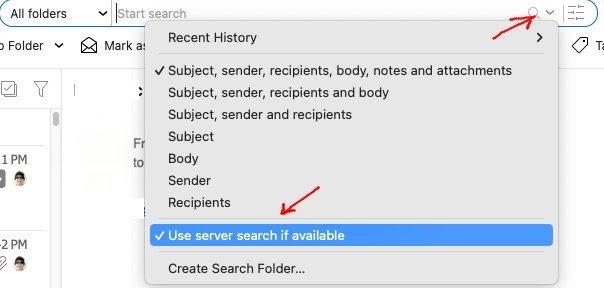
But there’s something that’s even more curious: searches for those anomalous mails in the main Mail window, either by date, by subject or by attachment name, result in… strictly nothing
Make sure the first box is checked “Subject, Sender, recipients, body etc” and also try disabling “Use Server Search if available” in the far right dropdown of the search field as per my example screenshot and see if that makes any difference.
If you are referring to the attachment itself, what happens if you “dblclick the image attachment” in the attachments section to open it rather than right clicking on it ?
Does it still flash briefly and do nothing?
Yes
Also does it happen with every type of attachment?
Hard to say, I could only test the top larger ones (have 1000’s of smaller ones going back to at least 2003, very few larger ones because I clean them up regularly). It doesn’t seem to happen with .eml attachments, and only some .pdf and some .jpg. Now, the two files that I detected at first yesterday are .jpeg. To me the two extensions have always been one and the same file type, so it would be a new one, this difference…
It doesn’t seem to happen with .eml attachments, and only some .pdf and some .jpg .
Ok testing Mac V10.3.2622 (Sequoia) and the upcoming Mac V10.3.4341 on OS26 (Tahoe), seems to open all .my jpg, .png & pdfs fine in the default Mac Preview program “no matter which way i open them”.
Yes i see a slight flicker for approx a sec “and then the preview program opens” and displays them.
What i would suggest for a test is to eg: “drag the image attachments and pdf attachments (that wont open) out of eM Client” to your Mac desktop which will then make a copy of them.
Then try to open those attachments on your desktop via right click or dblclick and see if they will open “to make sure those attachments are valid”. If they still wont open outside of eM Client then you know its the attachments themselves and might be corrupted in some way.
However “if the attachments will all open ok outside of eM Client on the desktop in the Mac preview app”, then suggest to first make a backup of eM Client via “Menu / File / Backup” incase you need to restore for any reason, and then once backed up “close eM Client” and then go to “Applications” and “drag eM Client to the bin”. That won’t delete the hidden database folder.
Then if your happy to test the upcoming Mac V10.3.4341, go to the below link and install the Mac version which will pickup your existing hidden database and see if that fixes this issue.
never checked (isn’t it for IMAP users?
Yes Use Server Search if available “i suspect would be more designed for IMAP, Exchange, Office 365 and iCloud accounts” and (when enabled) has been known to sometimes cause issues for some users with eg: slower searching and “not always finding what you are searching for” depending on the specific server etc.
I personally have that currently enabled on my Gmail and other IMAP accounts.
Well, dragging the attachments to the desktop does what it should in the case of “normal” files (which incidentally also open in their associated programs when using the contextual Open), whereas dragging the “anomalous” ones always results in a ≈16kb Text clipping named “name.extension (Not downl [the rest is cut off]”! A far cry from, say, the 1,3Mb showing in the list. Bizarrely, the contents of these clippings consist of all the Column names and the corresponding specs of the mail, all of it in Times (which I never use and isn’t even installed) and formatted as a table. Excitingly weird indeed.
On my machine, when the attachments open normally, it’s more like a 2-3 seconds progress bar, but that’s probably due to our respective CPUs/OSs.
I’ve installed 10.3.4341, thanks for letting me know. Everything looks as usual, but unfortunately this situation with the attachments hasn’t changed one bit. It’s really hard to make a guess. The “invisible” mails with problematic attachments which I was able to detect date back to 6-7 months ago, but considering that a month ago or so the database had to be rebuilt (following the one and only time I had eMC freeze), it’s doubtful that it has anything to do with a database corruption.
Q. where can I find extensive release notes for this new version?
Q. where can I find extensive release notes for this new version?
The release notes on that new upcoming version is “only what’s written in that link above” and any feedback for that version is via email address [email protected] as in the link.