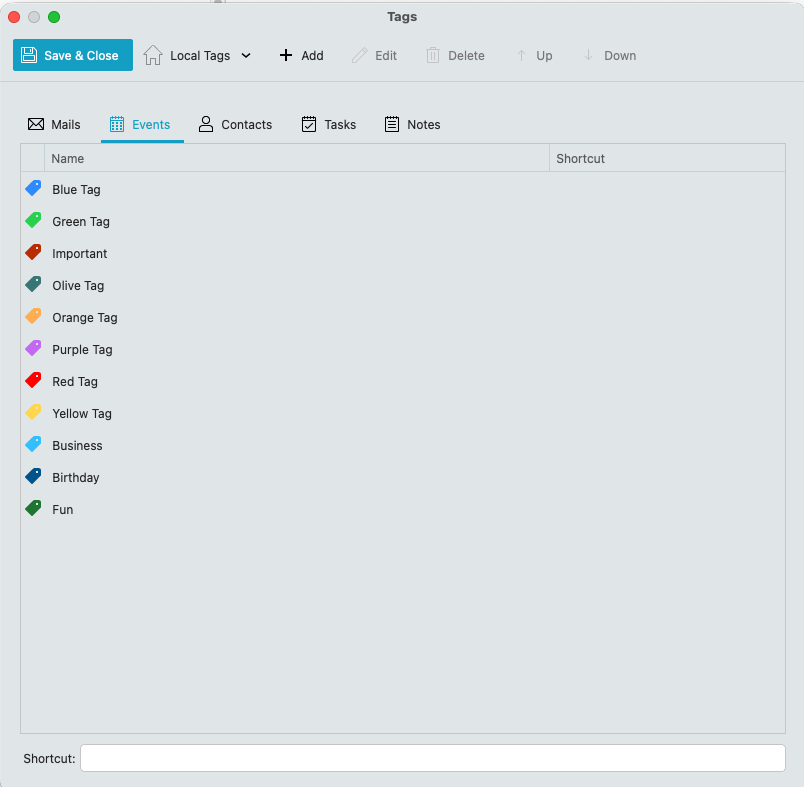
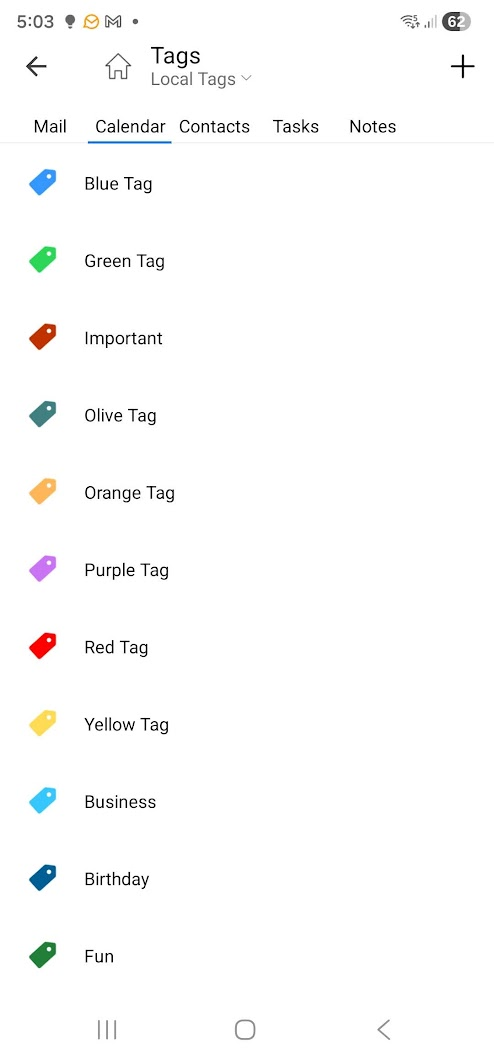
When I implement the Android version of eM Client on my phone and tablet, the calendar tag colours change totally from what I have on my desktop but are consistent by type of event and are the same for both phone and tablet as per the screenshots end of this post.
If you setup Calendar Tag colours in “eM Client Desktop and eM Client mob app” using a Gmail account “they will match” using a Gmail Calendar if you export via QR Code on the desktop.
However if you have already setup Calendar Tag colours online in your Gmail Online Calendar they wont sync / match the same due to i believe the eg: Google API doesn’t allow for that.
So what i do to get the Gmail eM Client Desktop Calendar and Mobile app Calendar the same Tag event Colours, is to first on the desktop, go to “Menu / Tags” and setup all your Calendar Local Event tag colours under Events you want as per the first example screenshot below.
Next when you have setup all the desktop Local event tag / colours you want, then on the desktop go to “Menu / Tools / QRExport” and “select Include Tags” on the wizard and follow the wizard till you get to the end. Then at the end you will see the QR Code appear.
Then open the eM Client Droid mobile app and press the Menu at the top left, and go to “Settings” and click “Import / Export”. Then press “Import via QRCode” and scan the desktop code that appears, which will then import those exact Local Tag calendar event colours.
Note:- If you already have Event Tags setup in the Droid app, “delete the exiting droid app tags” before you scan the QR Code" to make sure you don’t get duplicates or incorrect Tag colours. To delete exiting eM Client Droid app Local Event Calendar Tags, press “Menu” and press “Settings” and scroll down to Tags under Preferences. Then press Calendar to delete or modify any tags.
Also if you have already setup your eM Client Droid app accounts etc, when you export the QR Code, “uncheck anything you have already imported” so you only then import the desktop tags.
“eM Client desktop Local event Tag Colours”
“eM Client Droid Local event Tag Colours”