I have switched to a new webhotel provider that has email via Roundcube and while I managed to make the email work seamlessly in my EM client the calendar did not get added automatically (which is a real bummer and I wonder why?) so I had to go into Roundcube and create new CalDav connection. When I then make a new account with correct address and password the account gets created and no errors are shown but the calendar does not show up under the calendar section so I wonder what am I doing wrong?
Also why can’t the calendar be automatically recognized and added when I add the email account as is the case with my other work Outlooks email. With that one I have everything under one EM client account.
Hope to get some help here because I don’t want to switch to some other client now because of this.
The calendar will only be automatically detected “if the server is setup correctly and is supported”. So we would need more information on your specific server. Is it a eg: Linux server or other type and who hosts it. Also Is this a self hosted or paid server hosted.
When I then make a new account with correct address and password the account gets created and no errors are shown but the calendar does not show up under the calendar section so I wonder what am I doing wrong?
If it’s not being displaying in eM Client after manually entering the correct CalDav url, then i would first contact your server technical support “to dblcheck you have the correct URL”. Also let them know you are using eM Client. You manually enter a CalDav address via “Menu / Accounts” and click “Add Account” and click the “Calendar” option below and click on the “CalDav” icon far right,
If you definitely have the correct URL, then update in this thread “what server you are with” and “also what the CalDav url is”. We can then see if there is any obvious errors. Also what version of eM Client you are using in case you have an outdated client. Lastly if you are using Windows or Mac.
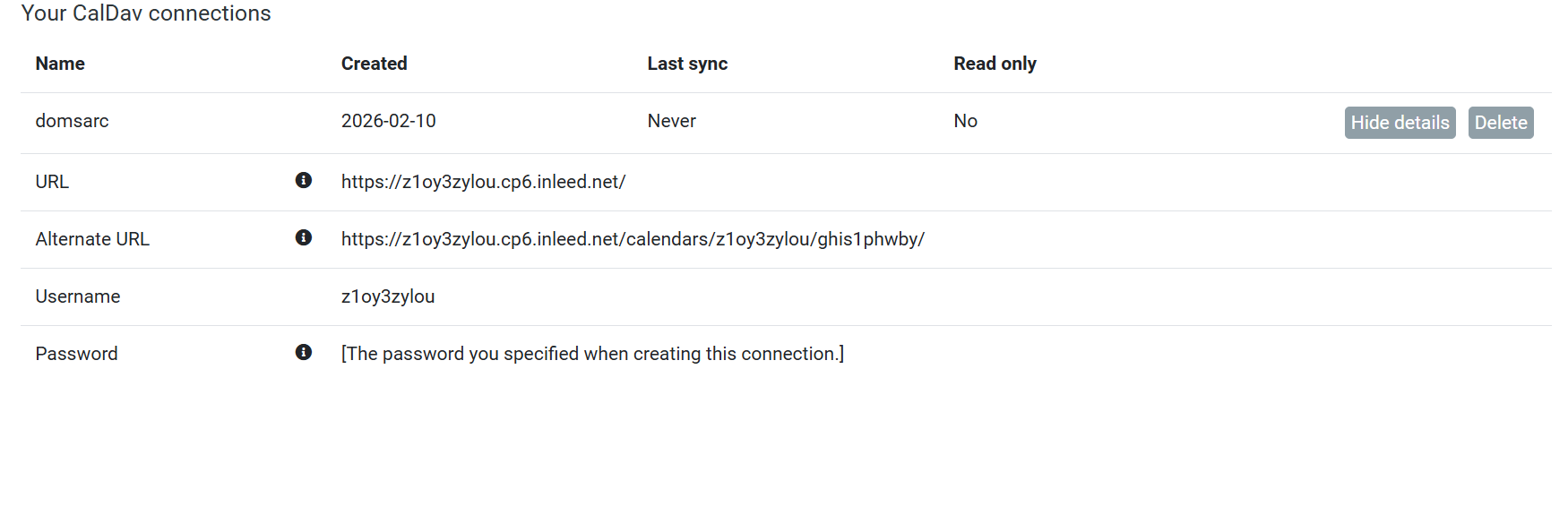
I have tried manually importing the CalDav three times and I am pretty sure I used the right URL. Here is the screenshot of the CalDav URLs (I tried also to use the alternative URL and it did not work). My webhost is Inleed.
Regarding my eM client I have a one time payed license with lifetime upgrades and my current version of the client is : 10.4.4209 (d96494b)
I am using Windows 11.
Edit:
When I finish all the steps for the import I do get this notification though (FYI: I made a new CalDav URL):
And when I click on Connect there is no error or anything - the created calendar account is visible under my accounts list but the calendar (folder) is not shown under the calendar section.
I tried once again and clicked on “Show certificate” and I get this;
I installed it and got a confirmation that import was successful
Ok as your Inleed CalDAV URL and Alt URL doesn’t work in your example screenshot" and looks to be correct as per the inleed guide link below for adding to external clients", then you will need to contact offical eM Client VIP support for assistance by going to the following support page and logging in and lodge a support ticket. Include this thread in your ticket.
“Create CalDav connection for your calendar - Inleed”