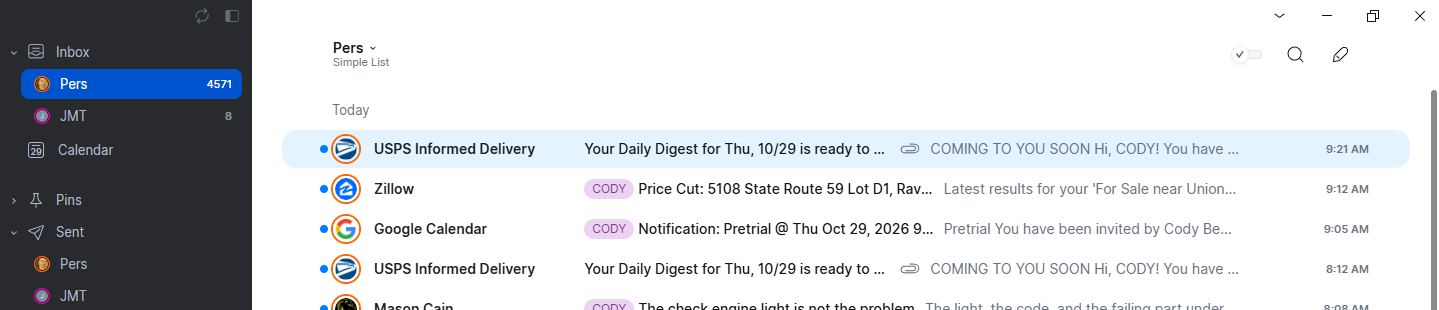
I’m coming over from Spark Mail App and the look/feel of eM is more “full” than I’m accustomed to. I’m hoping I can browse some user-made themes, or have someone versed in theme editing help me out…
Can anyone point me towards a user gallery?
Anyone want to try to take on the Spark UI replication (there seem to be a couple functional differences tho). As an example of a difference, in spark you can view the message list, and when clicking on a message, the message appears (and the list is hidden) - not sure I can do that in eM yet.
Thanks all!
Hello, what do you mean by “full”? Can you be more specific what you don’t like? There are a lot of built-in themes in eM Client, other can be found here:
Thanks for asking. Full as in UI details. Here are some comparison views - I tried to make the view similar between apps in these screenshots. Firstly, note how eM Client has a fair amount of additional boundary lines, or column icons, I’d call it more cluttered. See images 1 & 2.
And then, when opening a message (double clicking on it), eM opens in a new window so there are still (for me) the distractions of other messages and such. See images 3 & 4.
So I recognize that these are trivial differences in user experience and may not bother most, so I was asking about user-built theming because the eM theme gallery appeared to me to adjust colors primarily, not any additional UI variables.
Thanks for your reply - any thoughts?
Edit: Ugh, I can’t have more than one embedded photo to show you… Here are the pics: https://www.dropbox.com/scl/fo/rz6w9k1rttod63xl8g7lc/ADUtrnl6rgF1sz6_8-ek_Ww?rlkey=ccw4ynwn6a3t11e10s66zwxab&dl=0
From looking at your screenshot using any eM Client Theme is “disable the preview pane” and “set the subject preview lines” and “reduce the avatar size”.and “edit the toolbar” which most can be done in the Settings to make it less cluttered like Spark. You can trim it right down to suit yourself.
1). To disable the preview pane go to “Menu / Settings / Appearance / Layout”. You can also do that via the Menu along the top via View.
2). To set how many lines you want for the Subject line, go to “Menu / Settings / Mail / Read” and under Message Preview near the bottom you can do that.
3). To disable the size of the Sender Avatar, go to “Menu / Settings / Mail / Read” and under Avatar Size near the bottom you can adjust that.
4). To edit the Toolbar, “Right click on any menu toolbar item” and click “Customise” where you can remove or add anything to suit yourself.
eM Client Documentation
https://www.emclient.com/webdocumentation/en/10.3/eMClient/Default.htm
If there is anything specific you want to disable or reduce, then if you can do screenshot in this thread and we can then see if it can be modified. Blank out anything personal.