eM Client 11.0.1267 Pro
Hello,
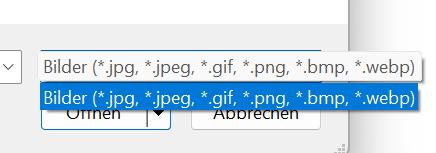
When I try to insert an image into an email, the selection dialog only displays JPG, PNG, WebP, GIF and BMP files.
It does not display HEIC photos. Is there a way to change this?
Hi @thomas.ku
Thank you for your question and the screenshot.
The “insert image” dialog only offers the image formats that can be shown directly inside an email: JPG, PNG, GIF, BMP and WebP. HEIC isn’t in that list, so HEIC photos can’t be inserted into the message text. Many recipients’ email programs couldn’t display them there anyway.
As a workaround you can: