It seems that since I let eM Client update itself to 10.4.5642 (2a058e0), some emails–but not all!–are rendering as blank. This appears to be a problem with eM Client because I logged in to the web portal of the service from which eM Client downloaded the email and viewed the email’s content just fine there. Is there anything I can do to help get this fixed?
It seems that since I let eM Client update itself to 10.4.5642 (2a058e0), some emails–but not all!–are rendering as blank.
If you originally installed eM Client from the website, try the latest version 10.4.5647 via the release history page. Before updating make a manual backup via “Menu / Backup” incase you need to restore for any reason. You can see when the backup is complete in Show Operations via the dropdown on the right of Refresh. Also close eM Client before updating.
If the latest version still makes no difference, check that your Privacy Settings are not blocking any content, You can check that via going to “Menu / Settings / Mail / Privacy”. For a test you could set it on eg: Display unsafe content in all messages and see if those emails then display.
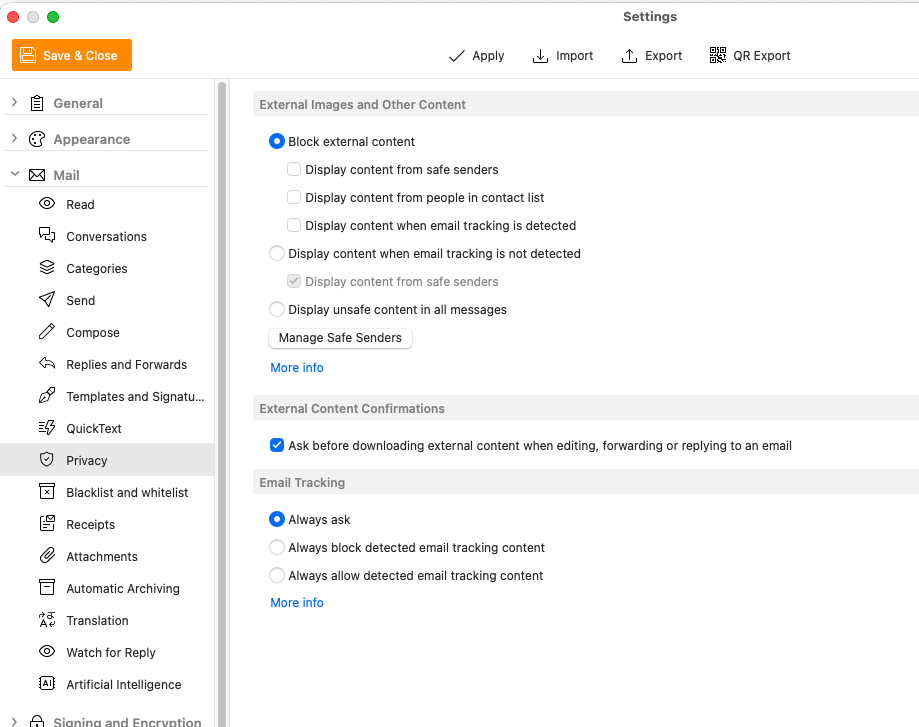
I have 10.4.5642 installed. When I check for updates to find the 10.1.5647 it says no updates are available. Where do I find that?
Via the release history page as per my post further up the thread. I see today there is also a later new interim release v10.4.5663 which has service updates and bug fixes as well.
So how to I get it to update? When I check for updates it says none are available. Is there another way to get the program to update?
So how to I get it to update? When I check for updates it says none are available. Is there another way to get the program to update?
If you originally downloaded eM Client from the website, then go to the release history page in my previous posts and download it. Then “close eM Client” and install it. It’s a new interium update so not officially pushed yet which is why it doesn’t show in check for update.
Note: Before installing it first make a backup via “Menu / Backup” incase you need to restore for any reason. You can see when thats completed in Show Operations via the dropdown page on the right of Refresh.