eM Cliant 11: I can no longer change the sound file for new incoming emails. I change it, but it reverts back to the previous one. Also, it’s no longer possible to replace the original file because access is now protected, as it’s located in the WindowsApps folder. How can I use my personal audio file?
There “may” be two things you haven’t done correctly. First, once you set the sound settings to your preferences - you have to click the SAVE & CLOSE option at the top of the SETTINGS/NOTIFICATIONS page. Secondly, if you have the client set to disable the sound notification when the main application window is active - you will hear no sound. Uncheck the “sound” box at the top in that menu option. To set your own sound file (.wav), select the OTHER tab in the NOTIFICATION options. You will see a “select” option there. Navigate your way to the .wav file of your choice.
I also have this problem. The only notification sounds that get accepted are those in the eM Client sound folders.
I am having the same problem. I tired the suggestion vbCoder2 proposed, but it did not resolve the issue. Even though all of my settings specify my own .wav file, eM Client continues to use the default sound with desktop notifications. I would love to revert back to the previous version. It worked. Fortunately, I kept the old version on my laptop.
eM Cliant 11: I can no longer change the sound file for new incoming emails. I change it, but it reverts back to the previous one. Also, it’s no longer possible to replace the original file because access is now protected, as it’s located in the WindowsApps folder. How can I use my personal audio file?
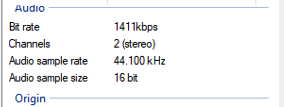
These are the folders that work for me with any custom eg: (.wav) sound files using the eg: V11.0.1201 MSIX Install with Windows 11 Pro. The .wav format i use is 16bit / 44khz / Stereo
You just select the audio files in your user / downloads and they automatically appear in the below folder locations. So you don’t need to manually access either one of the below folders.
If you want to though open those folders, the Incoming Mail Sound folder can be accessed “just by enabling hidden folders” in File Explorer.
But the Outgoing Mail Sound folder “requires changing permissions” and can be tricky to change if your a novice at Windows folder permissions.
“Incoming Mail Sound folder” - “Menu / Settings / Notifications / Mail”
C:\Users\user\AppData\Local\Packages\eMClient.20054CA46072C_veq4nz3ze5v72\LocalState\Sounds\
“Outgoing Mail Sound folder with an arm64 cpu” - “Menu / Settings / Mail / Send”
C:\Program Files\WindowsApps\eMClient.20054CA46072C_11.0.1201.0_arm64__veq4nz3ze5v72\Sound
If you have a Mac the Incoming Mail sounds do not work (only outgoing sounds) for me personally at the moment with any default or custom sounds no matter what format or folder i put them in from my own testing on two differant M2 Pro Mac Minis using V11.0.1201 with OS 27.01
So i am waiting for the next version of eM Client to see if that is fixed or works then.
Thread on this issue on Mac with V11
None of these “solutions” has worked. eM Client 11 plays my preferred sound in the app, but the desktop pop-up plays a generic sound, not the sound I have specified. Is there any way to revert back to eM Client v10? That one worked. Why did the programmers have to tinker with something that worked?
None of these “solutions” has worked. The pop-up still plays a generic sound rather than the sound
The only issue I’m still aware of is with the Incoming custom sound on the Mac with V11.0.1267 & OS27.0.1. Still none work at all for me in any format on two different Mac Mini’s with M2 Pro CPUs.
But eM Client V11.0.1267 does work for me personally using Windows 11 Pro (25H2 & 26H2).
Is there any way to revert back to eM Client v10
Yes you can revert back to V10
If you have a recent backup of V10 prior to upgrading to V11, “close eM Client” and “rename the following hidden database” to eg: eM Client-V11
-
Windows: C:\Users%username%\AppData\Roaming\eM Client`
-
MacOS: /Users/User Name/Library/Application Support/eM Client`
Then “uninstall eM Client” and then “reinstall the latest eM Client V10.4.5674” from the release history page. Or if you still have the V10 install file on your hard disk reinstall it from there.
Then once reinstalled “skip the setup” and restore your V10 backup via “Menu / File / Restore”. Any new emails, etc since the restore date will update when eM Client reconnects.
If you don’t have a V10 backup and have an IMAP, Exchange, Graph, Office 365 or iCloud account then “close eM Client” and “rename the V11 database” and uninstall eM Client and reinstall V10 and “setup as new”. All your emails, calendar, contacts, tasks etc will come back from the server once eM Client reconnects.
If you have a POP account or messages in Local folders, and no V10 backup, then before closing eM Client V11, go to “Menu / File / Export” and export all your emails, contacts, calendar, tasks etc to a folder on your desktop to then reimport back later once you have V10 reinstalled and setup again via “Menu / File / Import”.
Adding my experiences here too. I upgraded from v10 to v11, running on macOS 27.0.1, and I noticed the new mail sound was a default macOS sound, rather than eM Client’s familiar piano sound.
I located eM Client’s sounds via:
Applications → eM Client → (using show Package Contents) → Contents → Resources
There, ding.wav is eM Client’s usual notification sound. Within eM Client v11’s settings (Notifications → Mail), I navigated to that folder and selected the sound.
Now no sound plays at all, unfortunately! I wonder if there is some form of permissions issue, if it won’t play the sound even when directed to it.