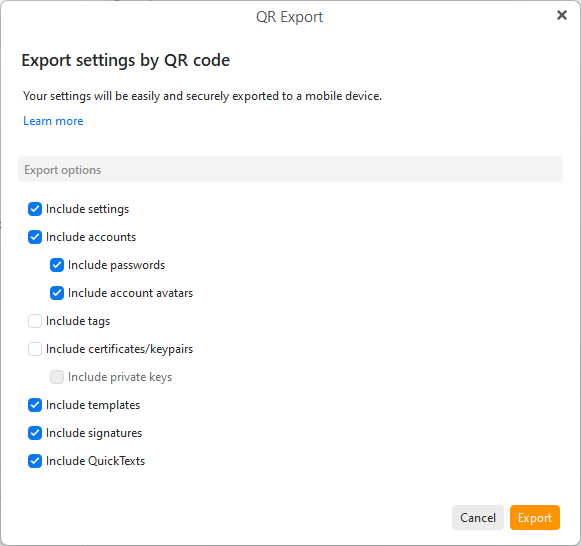
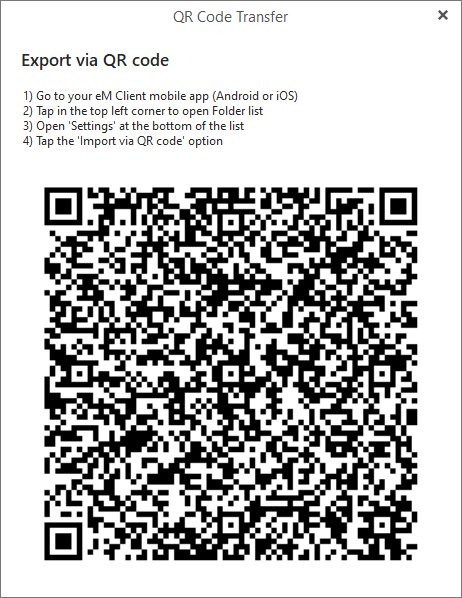
To get the eM Client desktop settings to the eM Client mobile app, use the Export to QR Code option via either the Menu or Settings as per the eM Client QR Export documentation below.
https://www.emclient.com/webdocumentation/en/10.0/emclient/default.htm#QR%20Export/QR%20Export.htm
On the Mac go to "Menu / Tools / QR Export” in the dropdown menu along the top of eM Client.
Or go to “Menu / Preferences” and “click the QR Export button in the toolbar” of the Settings window will give you these options to export.
Select all the options you want on the QR Export screen and then when the QR Code appears open the eM Client mobile app and choose the option to scan the QR Code.