Hello,
With the Android app, JPEG signatures are not displaying in emails. Please help.
Sincerely.
Make sure you “insert the image” not paste it.
Also have you tried differant jpg image sizes ?
If you are already inserting the .jpg file and have tried different.jpg image sizes, then if you eg: convert it to a .png image file will that work ?
I personally use a signature .png image file size of eg: 163x158 pixels and that works fine for me.
1 Like
Hello cyberzork,
Thanks for the information. I don’t make JPEG copies; I import EM Client files via the QR code. It worked a while ago, but now it doesn’t.
Thanks.
Suggest you then either “copy or download the signature image to your mobile device” and then manually insert the .jpg or .png image in the mobile app signature and see if it works.
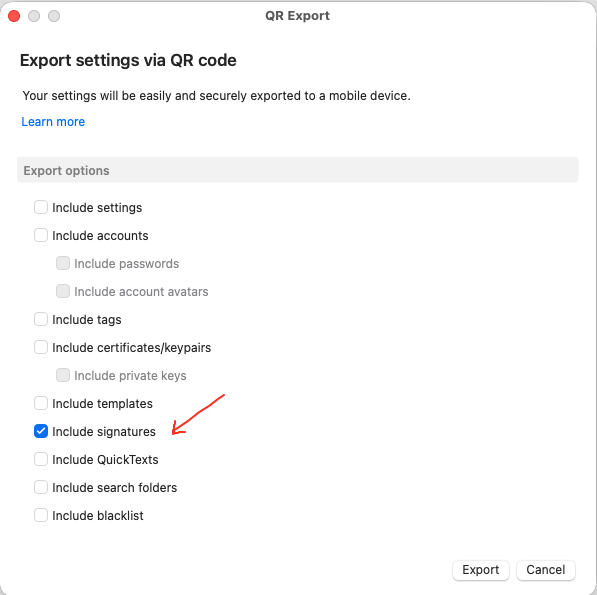
Or “remove that signature” and then go back to the desktop and go to QR Export and just select “include signatures” only and “deselect everything else” as in the example screenshot below.
Then on the mobile app go to “Menu / Settings / Import-export” and import via QR code again.
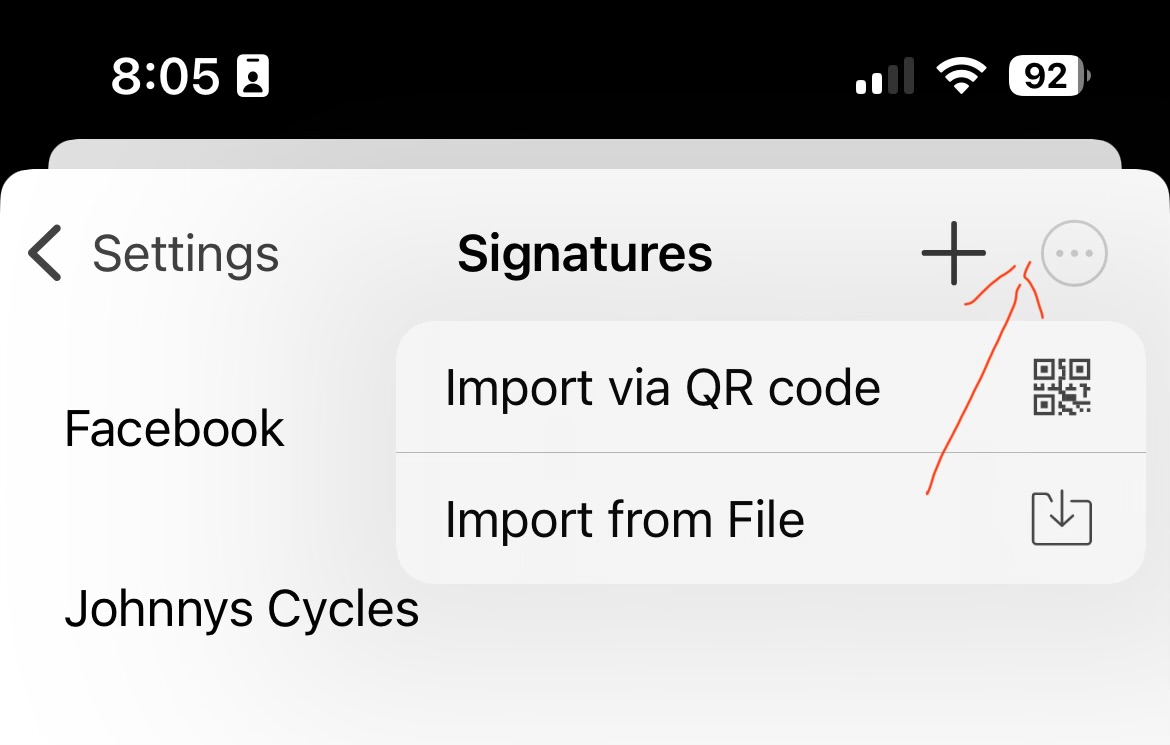
You can also import the QR Code into the mobile app signature section via “pressing the 3 dots” at the top right as in the example screenshot below.
If the signature image still doesn’t appear in the mobile app after reimporting the QR Code, then it probably means the signature image folder path location on the mobile app “doesn’t exist” and needs to be manually put in the same path as the desktop. So check the image folder path.
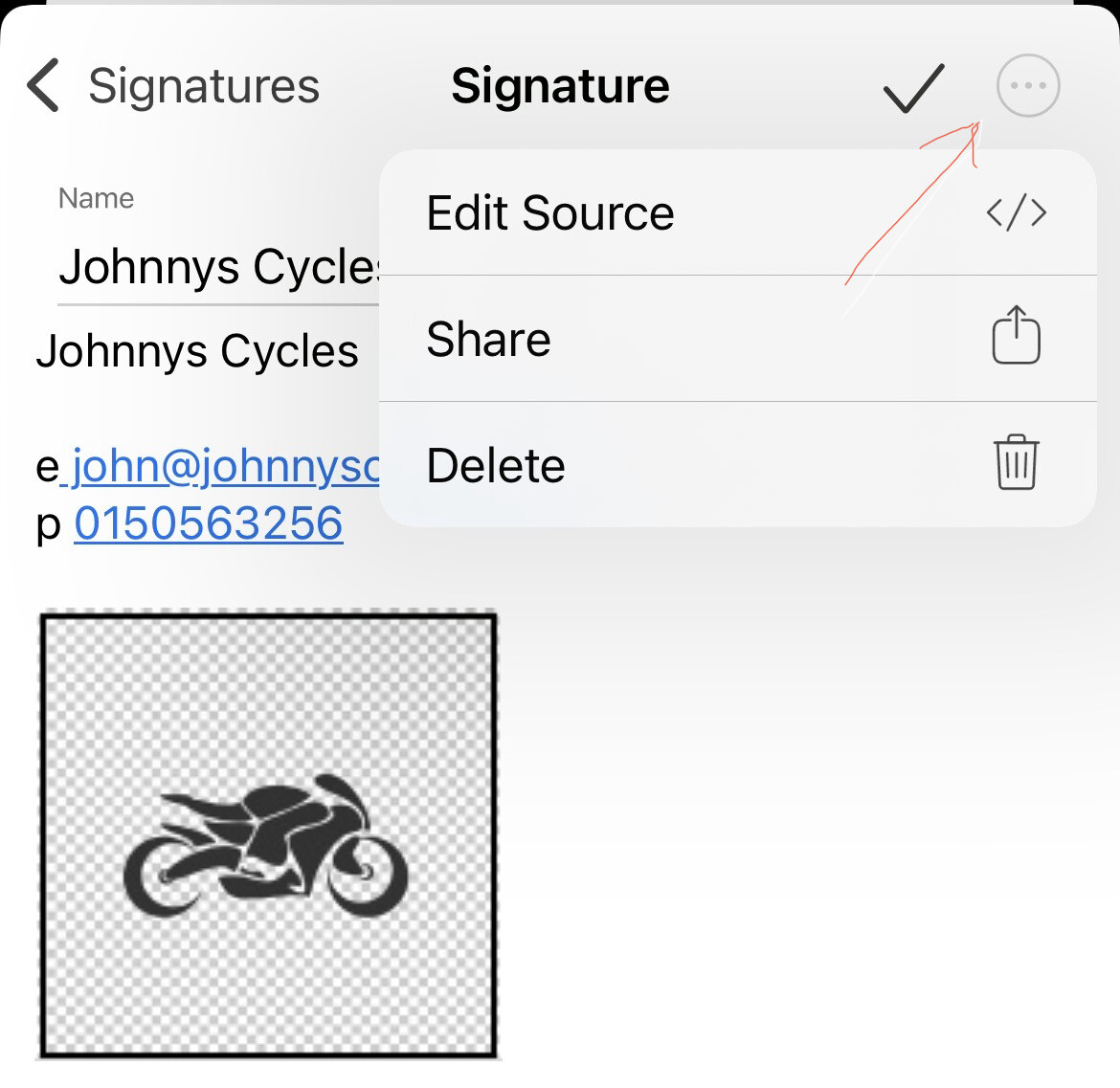
You can also check and edit the mobile signature image path via the “Edit Source” option via the 3 Dots at the top right of the signature as in the below example screenshot.
Hello Cyberzork
Thank you for all the explanations.
Everything works perfectly.
Thank you very much.
Jean-François